


How to Fake Your GPS Location (iOS and Android Guide)

Quick Answer: Faking your GPS location requires different approaches depending on whether you are using an Android or an iPhone.
- For Android users: You can use a free fake GPS app from the Google Play Store combined with your phone’s built-in Developer Options (specifically the “Mock Locations” feature) for basic, simple location spoofing.
- For iOS users: Due to Apple’s strict security sandboxing, there are virtually no standalone fake GPS apps in the App Store that actually work. To stably change your location on an iPhone, you need to connect your device to a trusted PC or Mac desktop tool.
While basic mobile apps work fine for a simple one-off check-in, users playing location-based (LBS) games or needing advanced privacy often require dedicated desktop software for both platforms. Desktop tools override the phone’s native GPS more powerfully, preventing frustrating “rubber-banding” (where your location snaps back to reality) and reducing the risk of account bans. If you need comprehensive virtual location resources, understanding these OS-specific requirements is the first step.
Method 1: Using a Free Fake GPS App on Android
If you are on an Android device and just need to change your location for a basic task quickly, free apps (like Fake GPS location by Lexa) are often sufficient. Android allows location spoofing natively through a hidden settings menu.
Here is how to set it up:
- Unlock Developer Options: Go to your Android Settings > About Phone. Scroll down to the Build Number and tap it 7 times until you see a message saying “You are now a developer!”
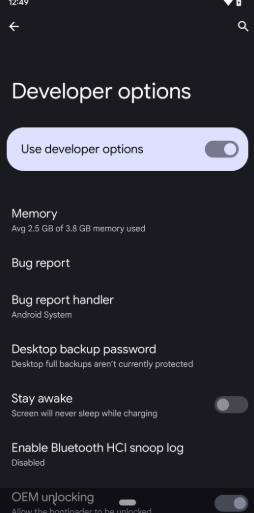
Developer options
- Download a Spoofer: Head to the Google Play Store and download a basic free fake GPS app.
- Select the Mock Location App: Go back to Settings > Developer Options. Scroll down to find Select mock location app and choose the app you just downloaded.
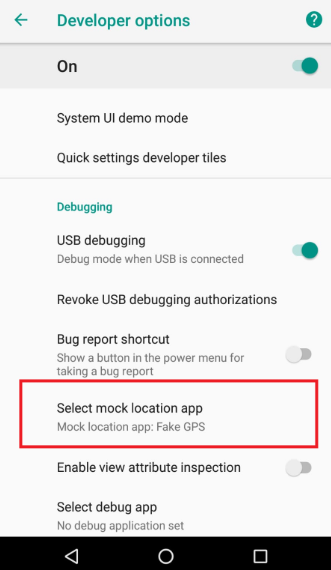
Select mock location app
- Disable Wi-Fi & Bluetooth Scanning (Crucial Tip): To give your spoofed location a better chance of sticking, go to your Android Location settings. Turn off Wi-Fi scanning, Bluetooth scanning, and Google Location Accuracy so your phone doesn’t use surrounding networks to correct your fake coordinates.
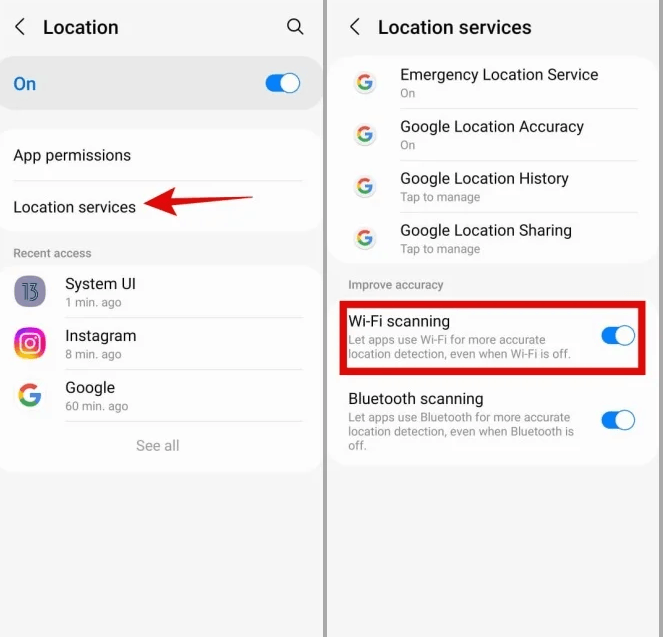
Disable Wi-Fi Scanning
- Change Your Location: Open the fake GPS app, drag the pin to your desired destination, and tap the “Play” or “Start” button to teleport.
The Limitations for Gamers and Advanced Users:
While this Android mock location guide works for simple changes, it has a major drawback known as “rubber-banding.” Because your phone’s real GPS hardware is constantly fighting the mock location app, your location will frequently snap back and forth between your real and spoofed coordinates. In location-based games, this erratic jumping is a massive red flag that easily triggers soft bans. For stable simulation, basic apps simply are not enough.
The iOS Reality: Why You Need a Computer to Fake iPhone GPS
If you are an iPhone user, you have likely wasted time searching the App Store for a fake GPS app, only to find VPNs or apps that do not actually change your system-wide location.
This is not a bug; it is a fundamental part of Apple’s security structure. iOS apps operate in heavily restricted “sandboxes” and are not allowed to rewrite system-level GPS data. Therefore, standalone mobile spoofing apps simply do not exist on the official App Store.
To successfully spoof an iPhone location today, you must tether the device to a computer (PC or Mac) and use a guided desktop iPhone GPS spoofer to feed simulated location data through a trusted connection.
Additionally, if you are running iOS 16 or later, Apple requires you to enable Developer Mode before any location simulation can take effect. Be highly cautious of “jailbreak-free” mobile apps or sketchy profile downloads found online that promise impossible one-click iOS spoofing—these are often unreliable or unsafe. If you want a stable, system-wide fake location on iOS, a desktop tool is the only realistic technical path.
Method 2: Using Fonelora Location Changer (Best for iOS & LBS Games)
When basic Android apps fail due to rubber-banding, or when iOS constraints block you entirely, you need a tool capable of overriding native GPS at a deeper level. Fonelora Location Changer is a guided desktop software designed to stably change GPS locations and simulate movement for supported iOS and Android devices.
By tethering your phone to a computer, Fonelora handles the technical heavy lifting, providing a stable GPS override that prevents location snapping. It is specifically built for LBS gamers, dating app users, and privacy-conscious individuals who need reliable, continuous virtual location control.
Here is how basic free apps compare to a guided desktop solution like Fonelora Location Changer:
| Feature/Scenario | Basic Free Mobile Apps | Fonelora Location Changer (Desktop) |
|---|---|---|
| Best User Fit | Casual users needing a one-off check-in | LBS gamers, dating app users, and iOS users |
| OS Support | Android only | Supported iOS and Android devices |
| Rubber-Banding Risk | High (native GPS constantly conflicts) | Low (desktop override stabilizes coordinates) |
| Movement Simulation | Basic teleporting only | Joystick, Multi-Spot routing, adjustable speed |
| Game Safety Features | None | Cooldown timers, realistic fluctuation modes |
| Setup Requirement | Mock Locations (Android) | USB/Wi-Fi connection to PC/Mac |
Change GPS Anywhere — Enjoy 100% native support for Pokémon GO (No Error 12), MHN, Snapchat, Tinder, and more—without any cracked versions or jailbreak.
How to Set Up and Change Location with Fonelora
Setting up a desktop location spoofer might sound complex, but Fonelora Location Changer uses a guided workflow that walks you through any required OS-specific settings automatically.
Here is the basic process for both platforms under supported conditions:
Connect Your Device: Open Fonelora Location Changer on your PC or Mac and connect your phone via USB.
- For Android: The software will prompt and guide you to enable USB Debugging and select MTP (Media Transfer Protocol) mode.
- For iOS: You will need to unlock your iPhone, tap “Trust This Computer,” and enable Developer Mode if you are running iOS 16 or later.
- Note: iOS will prompt your device to restart when enabling Developer Mode; this is normal and required before the setting takes effect.
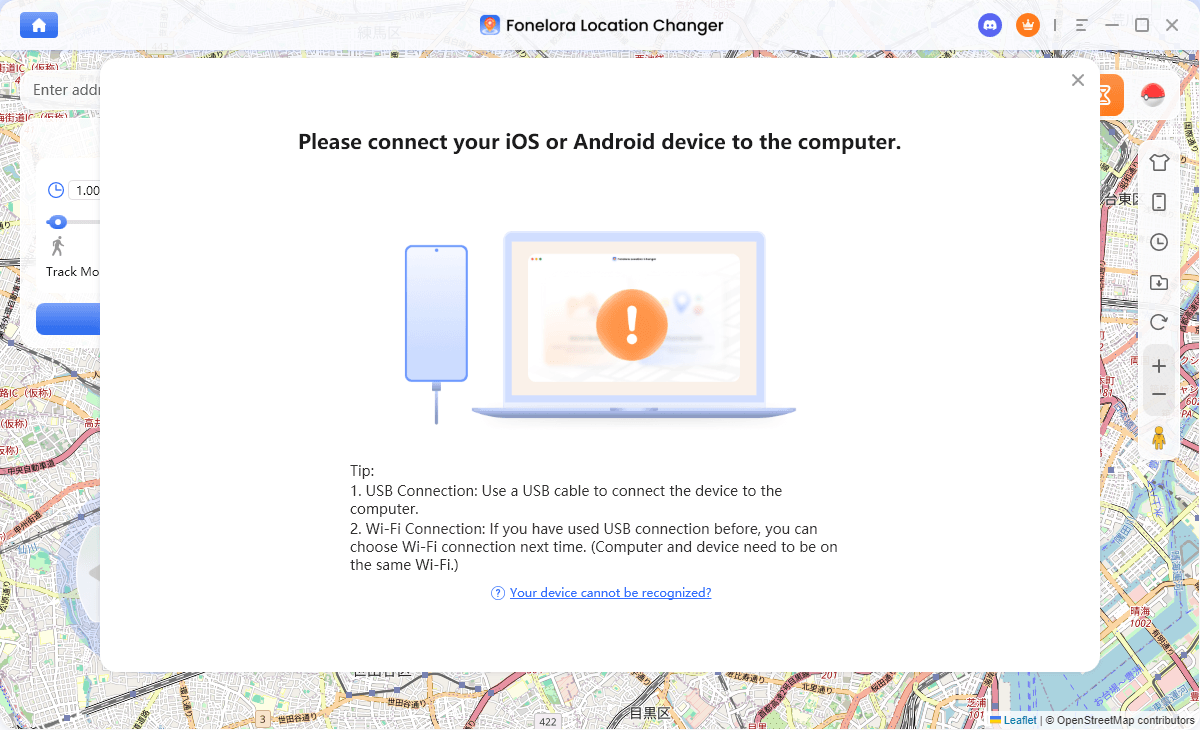
Connect with Your Devices
Select Your Mode: The software will ask you to choose between Game Mode (optimized specifically for LBS gaming environments) and General Mode (ideal for standard social, dating, and privacy apps).
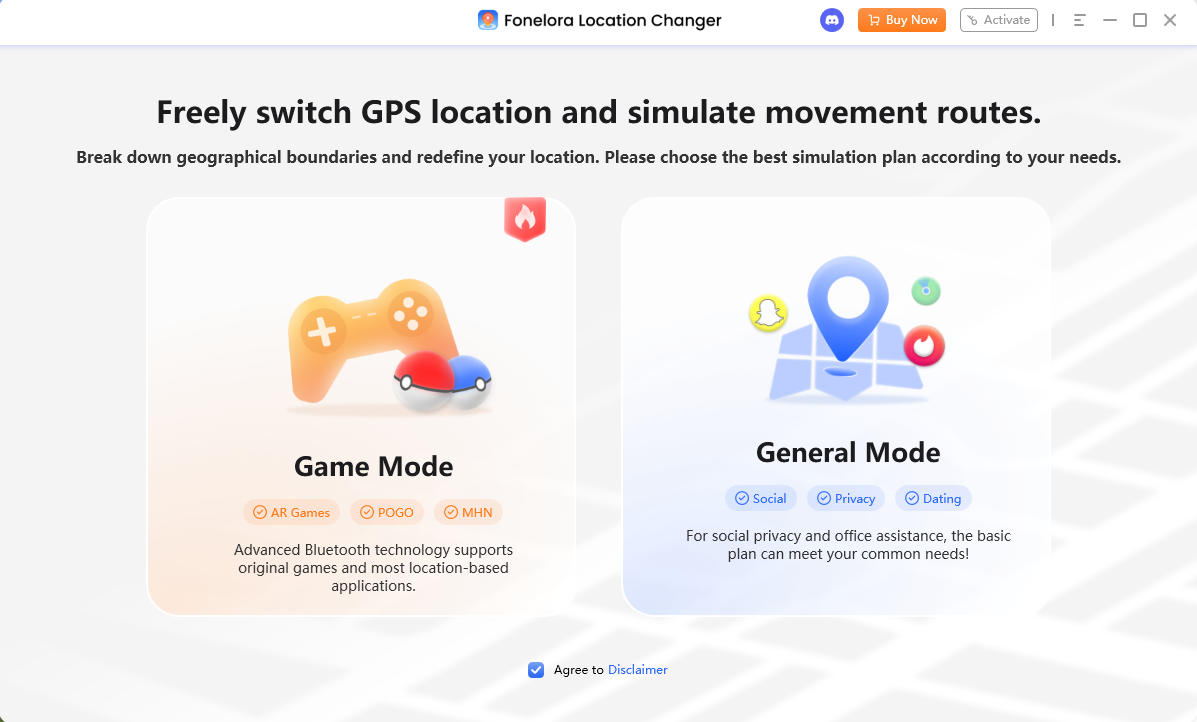
Choose a Mode
Choose Teleport Mode: Once the map loads, select the “Teleport Mode” icon in the top right corner.
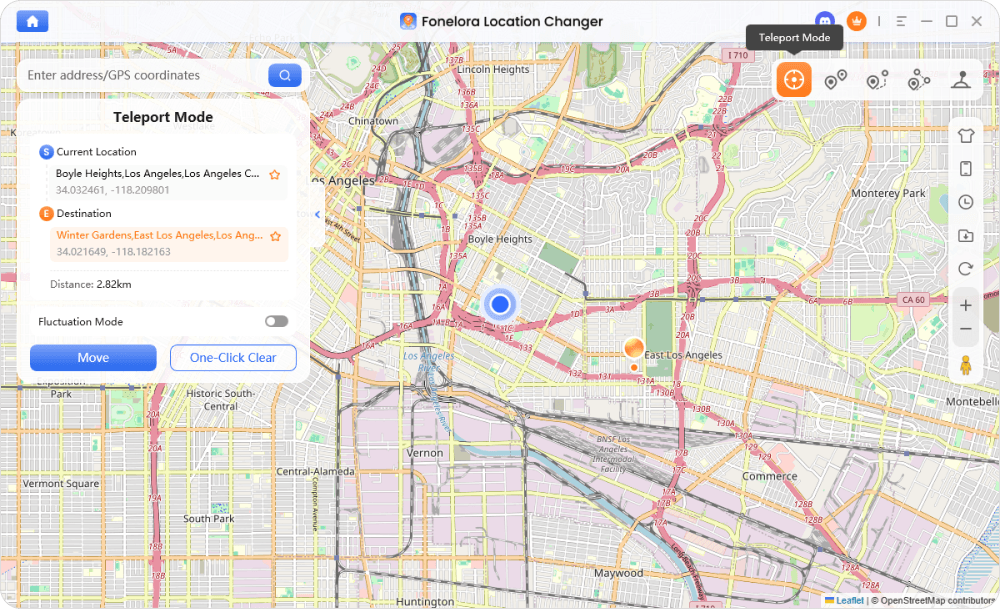
Teleport Mode
Change Location: Enter your desired destination, city, or exact coordinates into the search bar, and click “Start to Modify.” Your device’s GPS will instantly reflect the new location across all your apps.
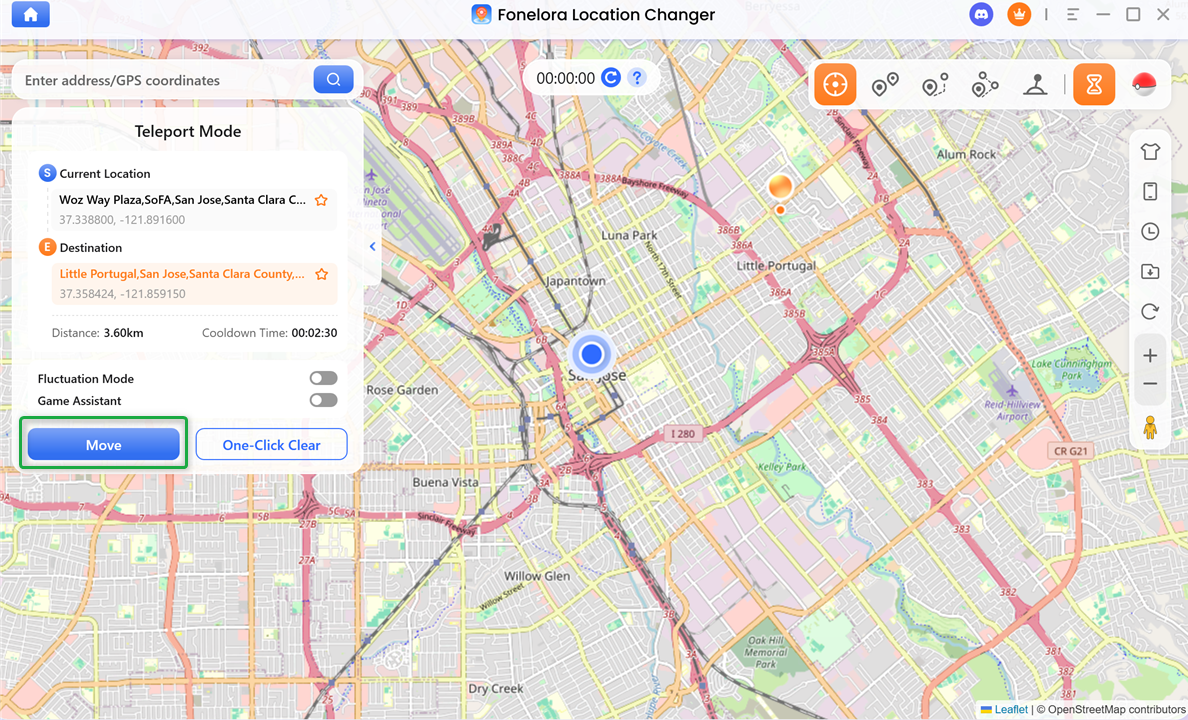
Click “Move”
Whenever you want to return to your real location, simply restart your device.
Simulating Movement and Staying Safe in LBS Games
For players of location-based games, simply teleporting from New York to Tokyo in two seconds is a guaranteed way to get soft-banned. Anti-cheat systems monitor unrealistic travel times and mechanical movement. Fonelora Location Changer provides specialized modes to make virtual movement look as natural as possible on supported devices.
- Cooldown Timer Context: To avoid account flags after a long-distance jump, you must wait for a realistic travel duration before interacting with the game again. Fonelora features a built-in Cooldown Timer that visually reminds you how long you should wait to maintain a cooldown-aware location change workflow.
- Small-Area Movement (Joystick Mode): If you are actively playing and want to “walk” around a virtual neighborhood, Joystick Mode gives you real-time directional control using your keyboard or mouse, preventing sudden, robotic jumps.
- Complex Route Planning (Multi-Spot & GPX): For navigating virtual waypoints along a specific path, Multi-Spot Mode lets you plot customized routes. You can also import existing GPX files to walk proven, community-shared routes at adjustable, realistic human speeds.
A Note on Account Risk:
While features like Cooldown Timers, Realistic Mode (varying walking speed), and Fluctuation Mode mitigate major behavioral red flags, you must manage your virtual location responsibly. No spoofing software can guarantee 100% protection against soft bans if you repeatedly ignore game rules or teleport recklessly.
Troubleshooting Common Setup and Connection Issues
Even with guided tools, device connections and OS updates can sometimes interrupt your spoofing setup. If you are having trouble getting your fake GPS location to work, check these common symptoms and fixes:
Issue: Your location keeps “rubber-banding” back to reality.
- Fix: Ensure all background map and game apps are fully closed before initializing the location change. If you are on Android, remember to disable Wi-Fi/Bluetooth scanning in your native location settings. Furthermore, prioritize desktop spoofing (like Fonelora) over basic mobile mock location apps, as desktop tethering overrides the GPS hardware more effectively.
Issue: The desktop software doesn’t detect your phone.
- Fix: Check your USB cable—make sure it supports data transfer, not just charging. For Android, verify that the connection is set to MTP (File Transfer) mode. For iOS, unlock your screen and make sure you have tapped “Trust This Computer.”
Issue: The software shows the new location, but the game does not.
- Fix: The game app may have cached your old location. Force close the game or app entirely, then reopen it after your new location is locked in via the software.
If connection issues persist despite replacing cables and restarting devices, stop attempting unauthorized workarounds and consult the official support center for your software.
Frequently Asked Questions
Q1. How do I fake my GPS location on iPhone without a jailbreak?
You must use guided desktop software (PC or Mac). Modern iOS security (sandboxing) prevents standalone mobile apps from changing your system GPS, so tethering your iPhone to a computer is the only reliable, jailbreak-free method.
Q2. Is there a free fake GPS app that actually works?
Yes, but mostly for Android. Free apps like “Fake GPS location” work for basic, one-off tasks using Developer Options. However, they are virtually non-existent for iOS, and they are highly unstable (causing rubber-banding) if you try to use them for location-based gaming.
Q3. What is a cooldown timer in location spoofing?
A cooldown timer is the suggested wait period you should observe after teleporting a long distance before interacting with a location-based game. Waiting realistically relative to the distance traveled helps prevent game servers from flagging your account for impossible movement.
Q4. Can I fake my location on dating apps safely?
Yes. When using a desktop spoofer like Fonelora Location Changer, switching to “General Mode” provides a stable GPS override that dating apps will read as your actual location, enabling reliable Tinder location spoofing or exploration of other cities under supported conditions.
Q5. Do I need a PC to fake my GPS location?
For iOS users, yes, a PC or Mac is functionally mandatory. For Android users, a PC is optional for basic tasks but highly recommended if you are playing games or need stable route simulation without rubber-banding.
Final Thoughts: Choosing the Right Location Spoofer
Choosing the right method to fake your GPS location comes down to your operating system and your end goal. If you are an Android user looking to pull a quick prank or do a simple check-in, unlocking Developer Options and using a basic free app will get the job done.
However, if you are on an iPhone, or if you are an Android user who needs stable, continuous movement for LBS games, dating apps, or privacy—a guided desktop tool is virtually mandatory. Relying on basic mobile apps for advanced usage often leads to rubber-banding and frustrating account soft bans.
For a smooth, feature-rich experience that handles the technical heavy lifting, a dedicated desktop solution like Fonelora Location Changer is the optimal path. By providing specialized modes for gaming, built-in cooldown reminders, and advanced joystick controls, it offers the stability needed to manage your virtual location safely.

Fonelora Location Changer
- 1-Click to change GPS location without jailbreak or root.
- Supports Pokémon GO, Tinder, WhatsApp, Snapchat, Life360, and more.
- Advanced simulation to bypass Error 12 and prevent soft bans effortlessly.
- Teleport or multi-spot routing with fully customizable speeds.
100% Clean & Safe
100% Clean & Safe

Join Our Discord Community
Join our Discord community to meet and chat with other LBS game players, stay on top of the latest game tips & tricks, and also get instant support from us.
Join Now