


How Do Phone GPS Tracking Apps Work?

Quick Answer: Tracking apps like Life360, Find My, and Google Maps do not have their own satellites. Instead, they request your location data directly from your phone’s Operating System (OS). To determine where you are, your phone’s OS constantly pulls information from three main hardware sources:
- GPS Satellites: For outdoor triangulation.
- Wi-Fi Networks: For precise indoor tracking based on nearby router signals.
- Cellular Towers: For general location estimates when other signals drop.
Because these apps rely entirely on the phone’s OS for their data, simple privacy tricks—like changing your IP address or turning on airplane mode—often fail to hide your location seamlessly. However, this OS reliance is exactly why OS-level virtual location resources succeed at managing your location visibility.
GPS, Wi-Fi, and Cellular Triangulation: The Technology Explained
To understand how tracking apps find your exact location, it helps to look at the three specific technologies your phone uses to pinpoint where you are in the world.
GPS Satellites (Global Positioning System)
Your phone has a built-in GPS chip that receives signals from satellites orbiting the Earth. By calculating the time it takes for these signals to reach your device from at least four different satellites, your phone can determine your exact coordinates. This process, known as GPS triangulation, is highly accurate but requires a clear line of sight to the sky, which is why it works best outdoors.
Google Maps location
Wi-Fi Positioning
When you walk indoors, GPS signals usually weaken or drop completely. To bridge this gap, your phone constantly scans the physical addresses (MAC addresses) of nearby Wi-Fi routers. Even if you don’t connect to these networks, Apple and Google maintain massive databases of router locations. By measuring signal strength from surrounding routers, your phone can accurately pinpoint your location inside a building.
Cellular Triangulation
If GPS is blocked and Wi-Fi is unavailable, your phone relies on its connection to local cell towers. By measuring the signal strength and the time it takes for data to travel back and forth between your phone and multiple nearby cell towers, your service provider can estimate your general location.
Ultimately, iOS and Android automatically fuse all three of these methods together. They calculate the most accurate location possible and package it neatly to hand over to the tracking apps running on your device.
Read this post to get more information: GPS vs Wi-Fi vs Cellular Location: What is the Difference?
The Privacy Dilemma: Why Turning Off Location Services Sends Alerts
Knowing how tracking tech works, you might think the easiest way to get some privacy is to simply flip a switch. Unfortunately, native settings often create more problems than they solve for users seeking discreet personal boundaries.
Expectation vs. Reality: The Native Toggle Trap
Scenario A: Turning off Location Services
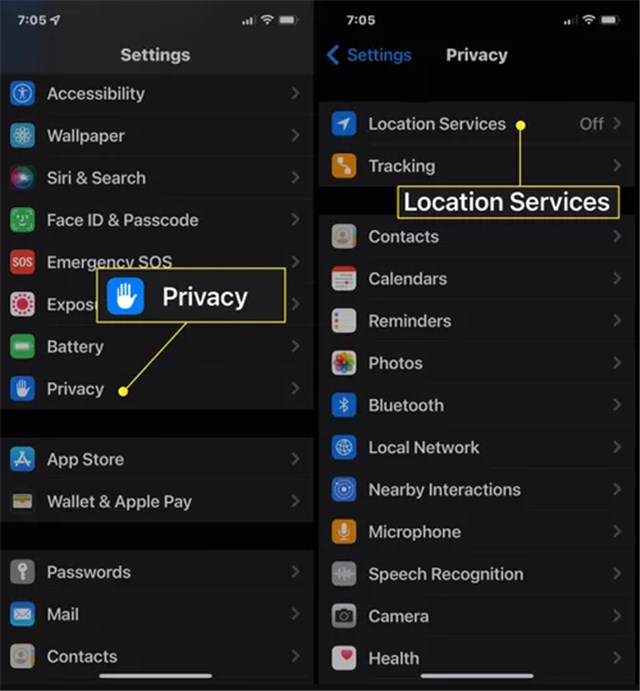
You decide you want a few hours off the grid, so you go into your iOS or Android settings and turn off Location Services.
The Reality: Popular family and group tracking apps instantly detect that OS permissions have been revoked. They immediately broadcast a “Location Paused” or “Location” alert to everyone in your group, sparking unwanted questions.
Tap Location Services
Scenario B: Using Airplane Mode
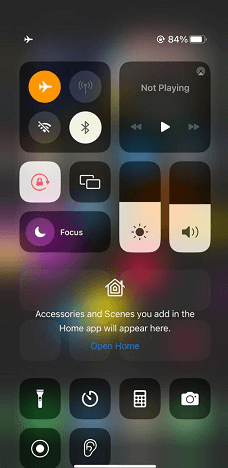
You turn on Airplane mode to sever your connection completely.
The Reality: While your live location stops updating, the tracking app will show your status as “Offline” or “No Network.” Your location will freeze at your last known spot, which is a clear indicator that your phone is disconnected.
Turn Airplane Mode On
For privacy-conscious mobile users, this creates a frustrating dilemma. You want flexible boundaries and personal privacy, but the native options provided by your phone alert your family members that you’ve deliberately stopped sharing. This limitation drives the need for a more discreet alternative when you want to adjust your Life360 location or pause location sharing safely.
Does a VPN Fake Your GPS Location? (The IP vs. GPS Myth)
A common piece of advice found online is to use a Virtual Private Network (VPN) to hide your location. While VPNs are excellent for protecting your web browsing privacy, they are practically useless for spoofing your location on GPS tracking apps.
To understand why VPNs fail for this specific task, you have to understand the difference between an IP address and hardware-level GPS data.
- What a VPN does: A VPN changes your IP address, which masks your network location. This tells websites (like Netflix or your web browser) that you are in a different city or country.
- What tracking apps use: Apps like Life360 or Find My bypass your IP address entirely. They pull hardware-level coordinates (GPS, Wi-Fi, and cellular data) directly from your device’s OS.
Because a VPN does not alter your phone’s GPS coordinates, tracking apps will still see exactly where you are.
Comparing Location Privacy Methods
| Method | How It Works | Result on Tracking Apps | Best For |
|---|---|---|---|
| VPN (IP Changing) | Reroutes internet traffic to mask network location. | Fails. App still reads accurate GPS hardware data. | Web browsing privacy and accessing geo-blocked sites. |
| Native Toggles | Turns off device-level GPS and Wi-Fi tracking. | Triggers “Location Paused” or “Offline” alerts. | Going completely off the grid when alerts don’t matter. |
| OS-Level Spoofing | Feeds customized GPS coordinates directly to the phone’s OS. | Succeeds. App reads fake location as authentic without alerts. | Discreet personal privacy management. |
Change GPS Anywhere — Enjoy 100% native support for Pokémon GO (No Error 12), MHN, Snapchat, Tinder, and more—without any cracked versions or jailbreak.
OS-Level Spoofing: How to Change Location Without Triggering Alerts
Because tracking apps bypass IP addresses and rely completely on the phone’s OS to provide data, the only way to discreetly manage your privacy is to change what the OS tells the app. This is where OS-level spoofing comes in: feeding customized GPS coordinates directly into your device’s system.
For users looking for a practical way to manage this, Fonelora Location Changer provides a guided desktop workflow to change your OS-level GPS data on supported iOS and Android devices. Instead of relying on unreliable mobile apps that often require jailbreaking or rooting, Fonelora connects your phone to a computer and safely overrides the device’s location mechanism.
The main privacy benefit is seamlessness. When you use a desktop tool to change your location, the tracking app reads the new customized coordinates as completely authentic. Because your location services remain active and your phone stays online, it does not trigger a “Location Paused” or “Offline” alert to your group members.
Important Note: This workflow is designed strictly for personal privacy management and authorized device use. It should not be used to bypass workplace safety systems, parental controls, or legal boundaries.
How to Discreetly Manage Your Location with Fonelora Location Changer
If you need a reliable way to manage your location visibility without sending alerts, using a dedicated desktop tool is the most straightforward approach. Here is how you can use the software to override your location under supported conditions:
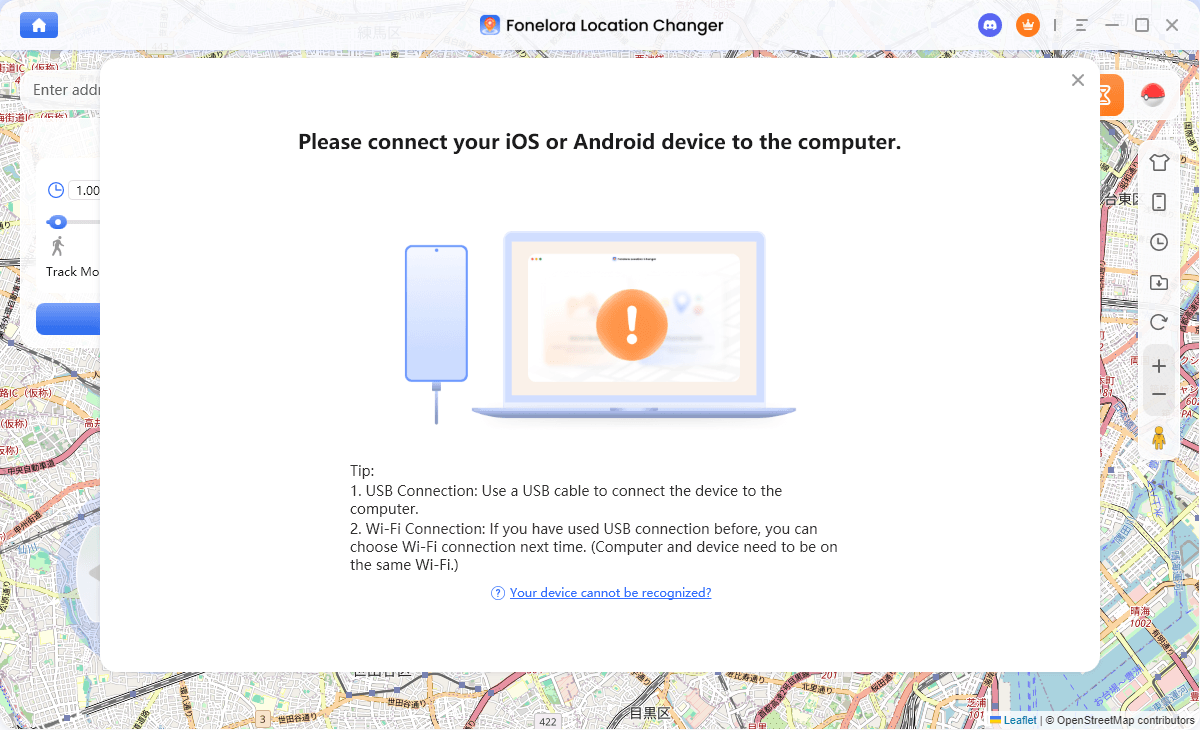
- Connect Your Device: Download and open Fonelora Location Changer on your Windows or Mac computer. Connect your supported iPhone or Android device using a USB cable or Wi-Fi.
Connect with Your Devices
- Follow Guided Setup: Follow the on-screen prompts to establish a secure connection. For iOS, this usually involves trusting the computer and enabling Developer Mode. For Android, you will need to enable USB Debugging.
- Select Your Location: Once connected, a map will appear on your screen. Choose “Teleport Mode” from the menu, search for the address or city where you want to appear, and select it.
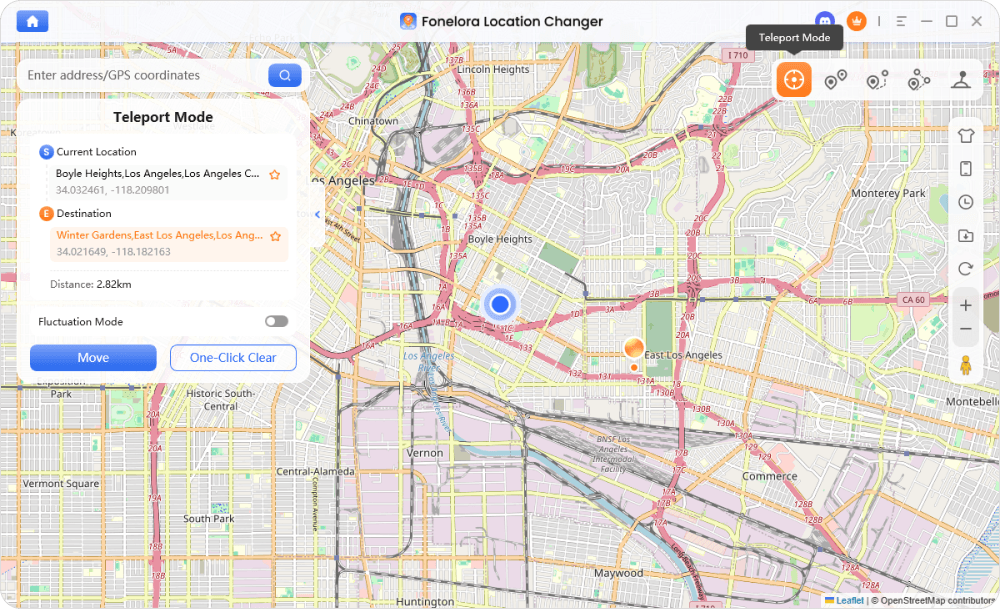
Teleport Mode
- Confirm the Change: Click the button to modify your location. Your phone’s OS will immediately update its GPS coordinates.
- Verify Discreetly: Open your tracking app on your phone. It will now display your newly selected location in real-time, completely bypassing the tracking mechanism without sending an offline or paused alert to anyone else.
When you are ready to return to your real location, you can simply restart your phone to reset the GPS data to normal. For more tailored instructions, you can check a dedicated fake location on iOS guide or an Android GPS spoofing guide.
Frequently Asked Questions About GPS Tracking
Q1. How do tracking apps find my exact location?
Tracking apps do not track you directly. They ask your phone’s Operating System for your coordinates. The OS then calculates your exact position by fusing data from GPS satellites, nearby Wi-Fi router signals, and cellular tower signal strength.
Q2. Does phone tracking work when the phone is turned off or in airplane mode?
Real-time tracking stops when a phone is turned off or in airplane mode because the device cannot transmit data. However, tracking apps will cache and display your last known location right before the connection dropped, and your status will typically show as “Offline.”
Q3. Can someone track my phone without my knowledge?
Modern smartphones have privacy indicators that make silent tracking difficult. Both iOS and Android will periodically notify you if an app is reading your location in the background. However, if someone has physical access to your unlocked phone, they could temporarily hide tracking apps or enable location sharing without your consent.
Q4. Will turning off location services send an alert on apps like Life360?
Yes. Popular family and group tracking apps monitor your OS permissions. If you manually turn off your device’s location services, the app will instantly detect the restriction and notify group members that your location is paused or.
Q5. Can a VPN fake my location on GPS tracking apps?
No. A VPN only changes your IP address, which masks your network location for web browsing. GPS tracking apps ignore the IP address and pull hardware-level coordinate data directly from your device, meaning a VPN will not hide your real location.
Q6. How can I safely fake my location on a tracking app without alerting anyone?
The most effective way to change your location without sending a “paused” alert is to use an OS-level virtual location tool (like a desktop GPS changer). This feeds customized coordinates directly to your phone’s OS, which the tracking app then reads as your authentic location.
Final Thoughts: Taking Control of Your Location Privacy
Understanding how phone GPS tracking apps work is the first step to reclaiming your digital privacy. Ultimately, these apps rely entirely on your phone’s OS to pull location data from GPS satellites, Wi-Fi networks, and cellular towers.
While turning off native location services or using a VPN might seem like quick fixes, they often create more problems. VPNs fail to mask GPS data, and native toggles will broadcast obvious offline alerts to your family tracking apps, defeating the purpose of seeking discreet privacy.
For users who need a more practical way to establish boundaries, OS-level spoofing via a desktop tool remains the most reliable method. If you need a guided, alert-free way to manage your personal location visibility on supported iOS and Android devices, consider checking device compatibility and trying Fonelora Location Changer to safely feed customized GPS coordinates to your apps.

Fonelora Location Changer
- 1-Click to change GPS location without jailbreak or root.
- Supports Pokémon GO, Tinder, WhatsApp, Snapchat, Life360, and more.
- Advanced simulation to bypass Error 12 and prevent soft bans effortlessly.
- Teleport or multi-spot routing with fully customizable speeds.
100% Clean & Safe
100% Clean & Safe

Join Our Discord Community
Join our Discord community to meet and chat with other LBS game players, stay on top of the latest game tips & tricks, and also get instant support from us.
Join Now