


Why Is My Phone Location Wrong?

Why Does My Phone Think I’m Somewhere Else?
Quick Answer: If your phone shows you in another city or state, you are likely not being hacked. A wrong location is almost always a network caching error or a settings glitch. The top three immediate causes for iPhone and Android location change discrepancies are:
- Outdated Wi-Fi router location data: You or someone nearby recently moved a Wi-Fi router, and Apple or Google’s databases still associate it with your old address.
- VPN usage: Your VPN is changing your IP address, which affects browser searches, but it does not change your actual system GPS.
- Disabled ‘Precise Location’: Your phone is only estimating your broad location using nearby cell towers rather than pinpointing you via satellite.
It is incredibly frustrating to have your map place you miles away when your GPS is turned on, but this is almost always a diagnostic fix rather than a security threat.
VPN IP Address vs. Real System GPS: A Quick Check
Many users immediately blame their VPN when their location is wrong, but it helps to understand the difference between an IP location and a system GPS location.
A VPN only masks your IP address. This changes the location that websites (like Google Search) see in your web browser. However, apps that track your physical movement—like Google Maps, Apple’s Find My, or Life360—rely on your phone’s system GPS and nearby Wi-Fi triangulation. A VPN does not change your system GPS.
Quick Diagnosis Checklist
Use this checklist to verify if the issue is just a VPN or a genuine GPS glitch:
- Check your browser: Open a web browser and search ‘where am I?’. If the city matches your VPN server, your IP address is masked.
- Check your map app: Open Google Maps or Apple Maps. If you appear in the wrong city here, you have a system GPS or Wi-Fi caching glitch, not a VPN issue.

Google Maps location
- Turn off your VPN temporarily: Disconnect the VPN entirely and refresh your map. If your location is still wrong, the VPN is not the culprit.
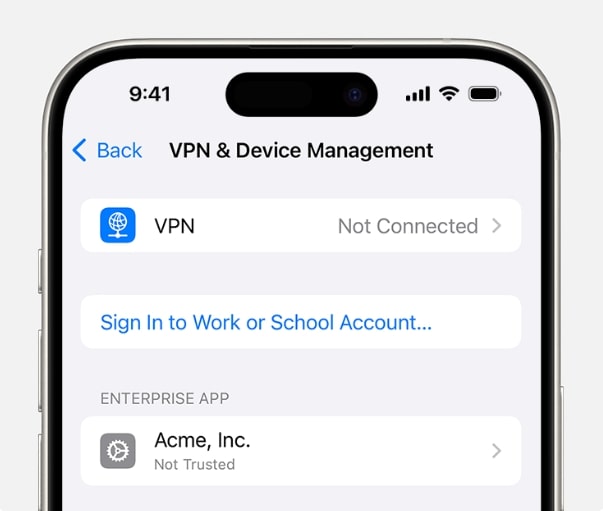
Do Not Connect with VPN
The Hidden Culprit: Wi-Fi Router Caching
If you recently moved to a new apartment or office and your phone keeps teleporting you back to your old city, the hidden culprit is almost certainly Wi-Fi router caching.
To save battery and find your location faster than waiting for satellite GPS, smartphones constantly scan the MAC addresses of nearby Wi-Fi routers. Apple and Google maintain massive databases that map these router MAC addresses to specific physical street addresses.
When you pack up your Wi-Fi router and move it to a new state, the router still broadcasts the same MAC address. Until Apple or Google’s databases update—which can often take several weeks—your phone will connect to that router and instantly assume you are still at your old house. This causes your system GPS to aggressively snap back to the old location every time your Wi-Fi is turned on, even if your actual satellite GPS knows you moved.
Change GPS Anywhere — Enjoy 100% native support for Pokémon GO (No Error 12), MHN, Snapchat, Tinder, and more—without any cracked versions or jailbreak.
Step-by-Step Fixes for iOS and Android
If your location glitch isn’t caused by a recently moved router, a basic settings refresh can usually force your device to figure out where you really are. Follow these step-by-step native fixes to reset your location awareness. (If native fixes fail, you may eventually need to look into a fake location on iOS or Android tool to manually override the coordinates).
Step 1: Toggle Wi-Fi and Cellular Data
Turn off your Wi-Fi and Cellular Data, wait 30 seconds, and turn them back on. Because your phone uses network data to triangulate your position, cycling them forces a fresh network scan.
Step 2: Turn on ‘Precise Location’
If your phone is only using cell towers, your location will be a broad, inaccurate estimation.
- For iOS: Go to Settings > Privacy & Security > Location Services. Tap your map app and ensure the ‘Precise Location’ toggle is switched on.
- For Android: Go to Settings > Location > App location permissions. Select your app and toggle on ‘Use precise location.’
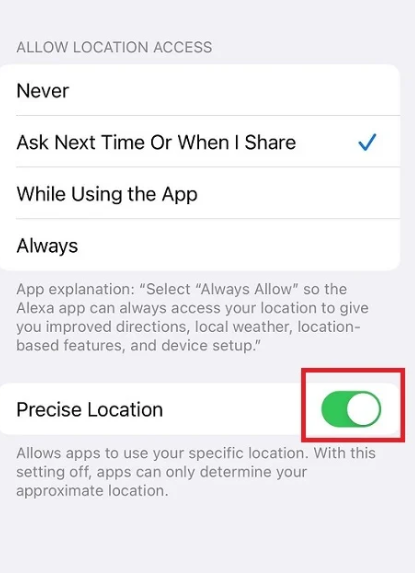
Turn on Precise Location
Step 3: Reset Network or Privacy Settings
Clearing out corrupted network data can fix stubborn glitches.
- For iOS: Go to Settings > General > Transfer or Reset iPhone > Reset > Reset Location & Privacy.
- For Android: Go to Settings > System > Reset options > Reset Wi-Fi, mobile & Bluetooth.
Step 4: Update Your OS
Both Apple and Google regularly patch known GPS bugs in their system updates. Check your settings and install any pending OS updates.
Hardware Failure vs. Software Glitch: When to Stop Trying
Sometimes, no amount of settings adjustments will fix the issue. If your location is completely unavailable rather than just slightly inaccurate, or if it constantly drops the moment you step outside, you may be dealing with a physically broken internal GPS antenna.
No app, network reset, or location software tool can fix a physically damaged hardware component. Use the table below to determine when to stop troubleshooting the software and start considering a hardware repair.
| Symptom | Likely Cause | Next Step |
|---|---|---|
| Location is stuck in an old city you recently moved from. | Software (Wi-Fi Caching) | Wait for database update or manually override GPS. |
| Location shows a wide blue circle that won’t narrow down. | Software (Precise Location) | Enable Precise Location in settings. |
| “GPS Signal Not Found” appears constantly, even under an open sky. | Hardware (GPS Antenna Failure) | Visit an authorized repair shop. |
| Maps cannot detect your location at all, across all apps, after a hard reset. | Hardware (GPS Antenna Failure) | Device hardware repair required. |
What If the Glitch is Stubborn? Taking Active Control
What happens when your phone’s hardware is perfectly fine, but the software glitch simply refuses to clear up? If you are waiting weeks for Apple or Google to update their Wi-Fi databases, or if your phone is stubbornly clinging to a bad network cache, you don’t have to just accept an incorrect map.
In these cases, you can pivot from passively troubleshooting to taking active control over your device. By intentionally overriding your device’s system GPS, you can force your phone to report the correct location. Taking active control is not only a practical workaround for stubborn glitches, but it also provides a reliable way to manage your personal privacy if you want to explicitly dictate what location-sharing apps see.
Overriding Your GPS with Fonelora Location Changer
When your phone’s native GPS fails you, or when you decide you want intentional control over your location for privacy, a dedicated tool like Fonelora Location Changer provides a reliable override. Fonelora Location Changer is a guided desktop-based software (for Windows and Mac) that allows you to manually change the system GPS location on supported iOS and Android devices.
Rather than waiting for a router database to update, you can use Teleport Mode to instantly place your phone at your correct home address, or any virtual location you choose. Because this changes the actual system GPS, it applies to Maps, Find My, and location-based apps, not just your web browser. (If you are on Android, you can also apply these concepts to ensure safe GPS spoofing on Android).
How to override your GPS with Fonelora Location Changer:
- Connect to your computer: Open Fonelora Location Changer on your PC or Mac and connect your supported iPhone or Android device via USB or Wi-Fi.
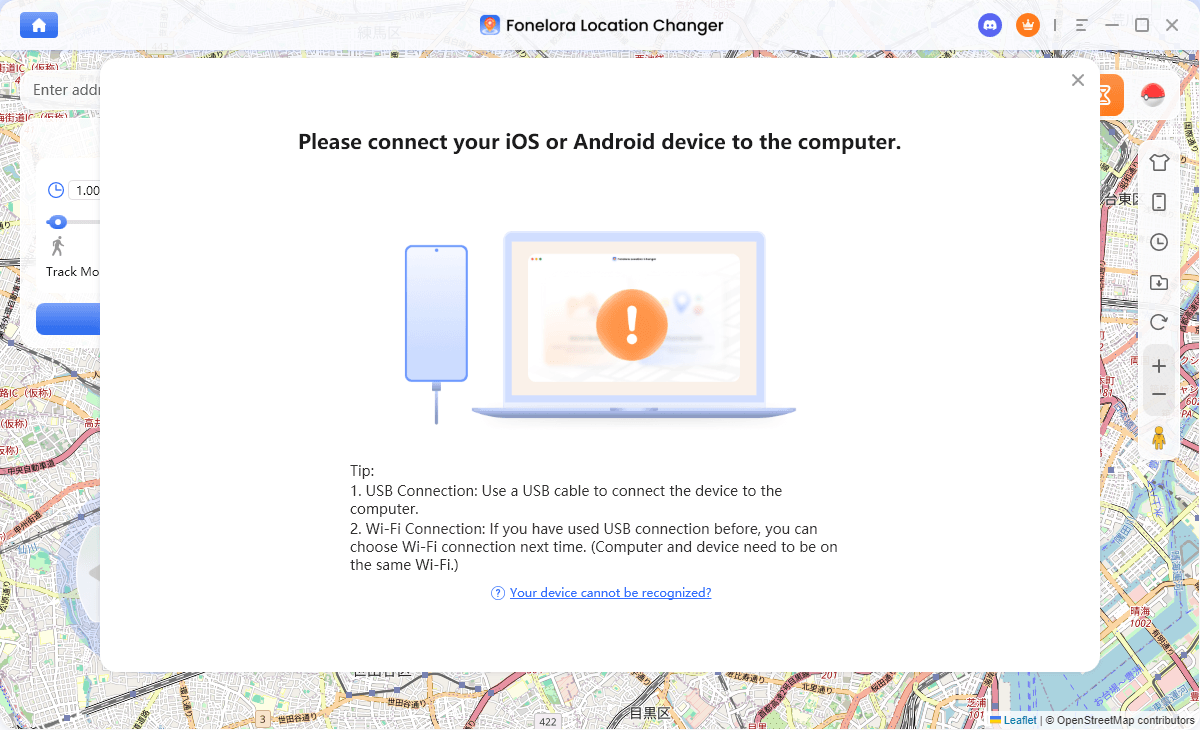
Connect with Your Devices
- Select General Mode: Because you are troubleshooting native maps and privacy apps rather than playing location-based games, choose General Mode from the startup screen.
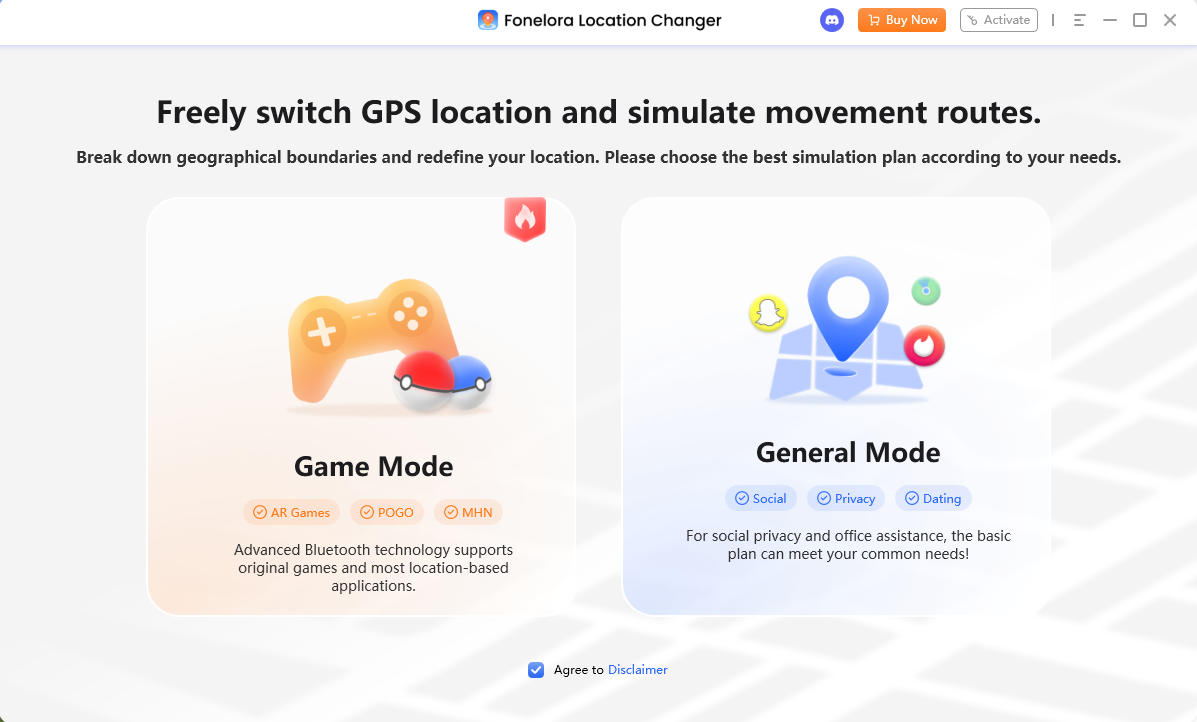
Choose a Mode
- Choose Teleport Mode: Select Teleport Mode from the main interface to initiate an instant location change.
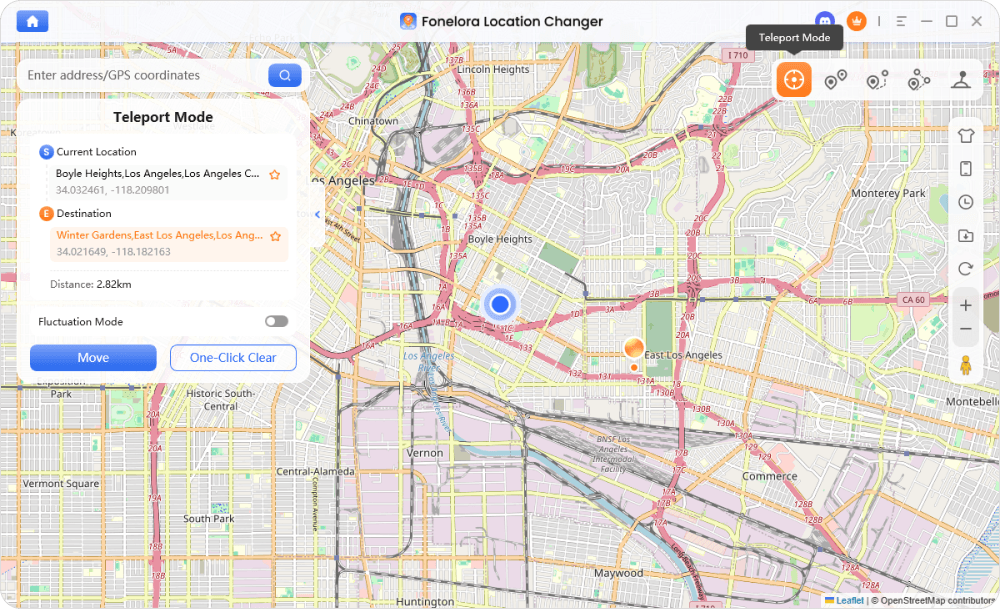
Teleport Mode
- Select your desired location: Enter your actual address (to fix a glitch) or a virtual location into the search bar, or click a spot directly on the map.
- Apply the change: Click to confirm the modification. Your phone’s system GPS will now register this as your active location.
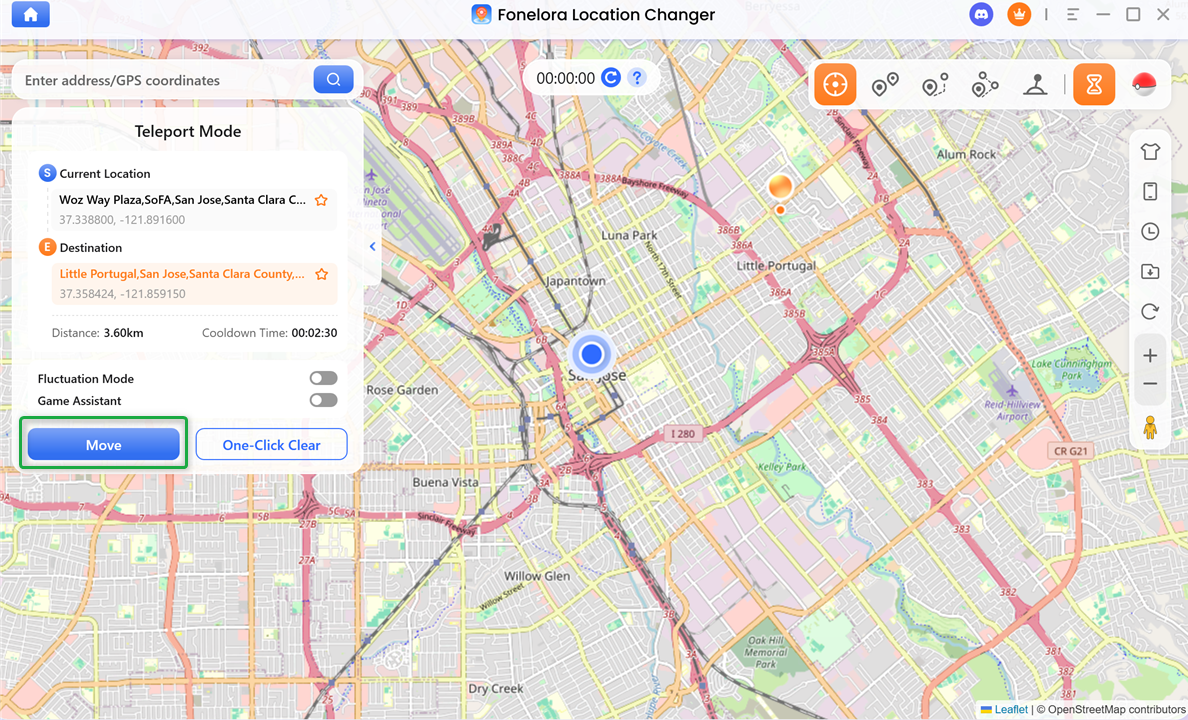
Click “Move”
Note: Compatibility and results depend on your device model, OS version, and specific app rules. This tool overrides software locations but cannot fix a physically broken GPS antenna.
Frequently Asked Questions
Q1. Why is my location wrong on Life360 or Find My?
Life360 and Find My may show the wrong location if your phone is relying purely on cell tower data instead of satellite GPS, or if “Background App Refresh” is. Ensure Precise Location is turned on specifically for these apps in your privacy settings. For more detailed fixes, check out a Life360 location settings guide.
Q2. Does a VPN change my phone GPS location?
No. A VPN only changes your IP address, which masks your location on web browsers. It does not alter the actual system GPS used by native map and tracking apps.
Q3. How can I turn on Precise Location?
On iOS, go to Settings > Privacy & Security > Location Services, tap your app, and toggle on Precise Location. On Android, go to Settings > Location > App location permissions, select the app, and toggle it on.
Q4. What should I do if my GPS is permanently stuck?
If the GPS is physically broken (a hardware failure), you will need to take it to an authorized repair shop. If the hardware is fine but the software is stubbornly stuck on a wrong Wi-Fi cache, you can use a desktop tool like Fonelora Location Changer to virtually override the GPS back to the correct location.
Final Thoughts: Regaining Control of Your Phone’s Location
A wrong phone location is rarely a sign of a hacker; it is almost always a benign glitch caused by Wi-Fi caching, precise settings, or temporary network confusion. By running through basic troubleshooting steps—like toggling your connections, enabling Precise Location, and distinguishing between your VPN and system GPS—you can usually restore your phone’s accuracy in minutes.
However, if you’ve recently moved a Wi-Fi router, you might be at the mercy of database updates that take weeks to resolve. In situations where the glitch persists, or if you simply need explicit control over your location for privacy reasons, you aren’t completely stuck. Desktop-guided workflows like Fonelora Location Changer offer a reliable way to bypass caching errors and override your system GPS, letting you place yourself exactly where you need to be.

Fonelora Location Changer
- 1-Click to change GPS location without jailbreak or root.
- Supports Pokémon GO, Tinder, WhatsApp, Snapchat, Life360, and more.
- Advanced simulation to bypass Error 12 and prevent soft bans effortlessly.
- Teleport or multi-spot routing with fully customizable speeds.
100% Clean & Safe
100% Clean & Safe

Join Our Discord Community
Join our Discord community to meet and chat with other LBS game players, stay on top of the latest game tips & tricks, and also get instant support from us.
Join Now