Help Category


Device
1. What should I do if Fonelora Location Changer is unable to recognize the device?
(1). If Fonelora Location Changer fails to recognize your device via Wi-Fi, please follow these simple troubleshooting steps to resolve the issue:
● Check Network: Ensure the computer and target device are on the same Wi-Fi.
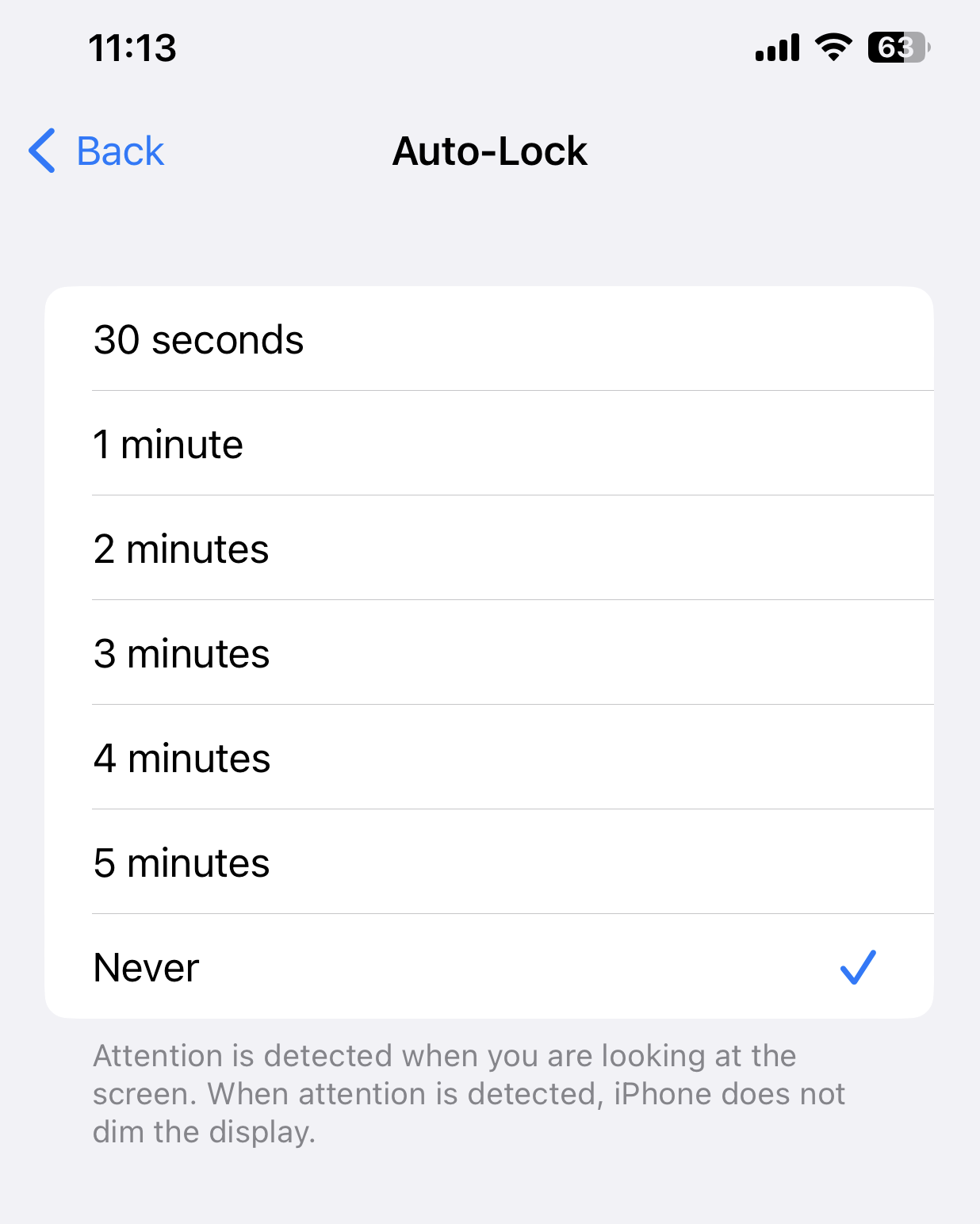
● Wake Device: Keep the phone's screen on and unlocked.
● Click Retry: Network fluctuations may cause failure, please try reconnecting.
● If multiple attempts fail, please connect the phone using a USB cable to automatically activate Wi-Fi connection mode.
(2). If Fonelora Location Changer is unable to recognize via USB, to fix this issue, please follow the troubleshooting steps:
● Try Another USB Connection: Try another USB port on this computer, or try another USB cable.
● Keep Device Wake: Keep the phone's screen on and unlocked.
● Enable Developer Mode: Ensure your device has turned on the developer mode.
If the problem persists, please send log file to Support Team directly for further diagnosis. And our Support Team will provide you with available solutions as soon as possible.
2. What devices are supported by Fonelora Location Changer?
To ensure compatibility when using Fonelora Location Changer, please make sure your device meets the following requirements.
● iOS: iOS 7 or later
● Android: Android 5.0 or later
3. Do I need to jailbreak my device?
No, you don’t need to jailbreak your phone. Fonelora Location Changer supports native official apps (such as Pokémon GO or WhatsApp downloaded from the App Store). You don't have to take any risks that compromise your device's system security—it truly offers a plug-and-play experience.
4. What if my iOS devices couldn't connect to Fonelora Location Changer?
We receive some feedbacks from our customers about Fonelora Location Changer being unable to detect their iOS devices issue. This error can be caused by the following reasons:
(1). You do not install the latest version of Fonelora Location Changer.
(2). The anti virus software is running and blocking the connection.
(3). Your USB cable is loose or broken.
To fix this issue, please follow the troubleshooting steps:
(1). Reconnect the iOS device or give another USB cable a try.
(2). Please check whether you are using the latest version of Fonelora Location Changer. If not, please download it.
(3). If you are connecting the iOS device to the computer for the first time, please remember to tap Trust on the device when it prompts for authorization.
(4). Please close anti virus software temporally.
If the problem persists, please send log file to Support Team directly for further diagnosis. And our Support Team will provide you with available solutions as soon as possible.
5. What if my Android devices couldn't connect to Fonelora Location Changer?
If Fonelora Location Changer is unableto detect Android device, this issue can be caused by the following reasons:
(1). You do not install the latest version of Fonelora Location Changer.
(2). You do not turn on USB debugging in Settings on Android device.
(3). The MTP/PTP mode on your device is not selected.
(4). Your USB cable is loose or broken.
(5). Your Android device cannot be detected by computer.
(6). You do not use the latest version of USB Driver and ADB Driver on your computer and device.
To fix this issue, please follow the troubleshooting steps:
(1). Check whether you are using the latest version of Fonelora Location Changer. If not, please download it.
(2). Check if you have enabled USB debugging option in Settings.
(3). Please select the MTP/PTP mode on your device.
(4). Reconnect the Android device or give another USB cable a try.
(5). Please make sure your Android device can be detected by the computer.
(6). Check whether you have the latest version of USB Driver and ADB Driver on your computer and device. If not, download and update from your Android device official website.
6. What is GPS Assistant?
GPS Assistant is a companion app that must be installed on your Android phone to ensure that Fonelora Location Changer functions properly.
If your Android system is under Android 10, you will not see the GPS Assistant icon.
If your Android system is Android 10 or above, you will see the GPS Assistant icon on your phone's desktop, but you do not need to open it manually in any case.
To make Fonelora Location Changer work properly, please do not remove the GPS Assistant during use.