Connect iPhone to Computer
Part 1. What Is General Mode?
What Is General Mode?
General Mode is designed to deliver maximum stability and full system-wide coverage. Once enabled, it modifies the device’s location at the system level, ensuring all location-based apps reflect the same virtual position without inconsistencies or interruptions.
Applicable Scenarios
• Privacy Protection: Change your location to prevent tracking by apps or others
• Everyday Use: Maintain a consistent virtual location across multiple apps
• High Stability Needs: Ideal for scenarios that require continuous and stable location simulation
Supported Connection Methods
• Supported Devices: iOS devices with iOS 16 or later
• Connection Options:
USB connection (recommended for better stability)
Wi-Fi connection (wireless convenience)
Computer System Requirements
To ensure smooth performance when using Fonelora Location Changer, please make sure your computer meets the following system requirements.
Windows
• Operating System: Windows 10 or Windows 11
Mac
• Operating System: macOS 10.15 or later
Part 2. How to Connect iPhone to Computer with USB/Wi-Fi in General Mode?
Step 1. Download and Install Fonelora Location Changer on Computer.
Click the download button below to download Fonelora Location Changer to your PC/Mac. Ensure you have a stable network connection during the download and installation process.
Step 2. Choose a Mode.
Lanuch Fonelora Location Changer and choose General Mode.
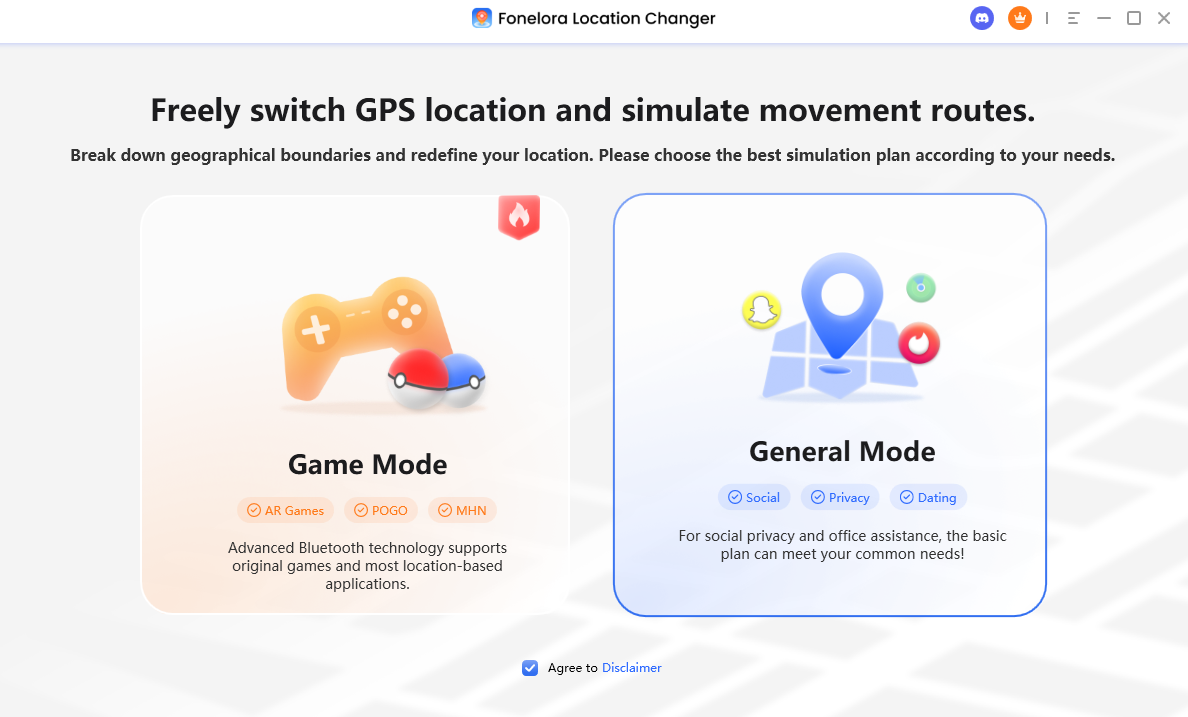
Choose General Mode
Step 3. Connect your iPhone to Computer.
Click the Device icon in the interface, then connect your iPhone to the computer. For the first-time setup, only a USB connection is supported. Please use a USB cable to complete the initial connection.
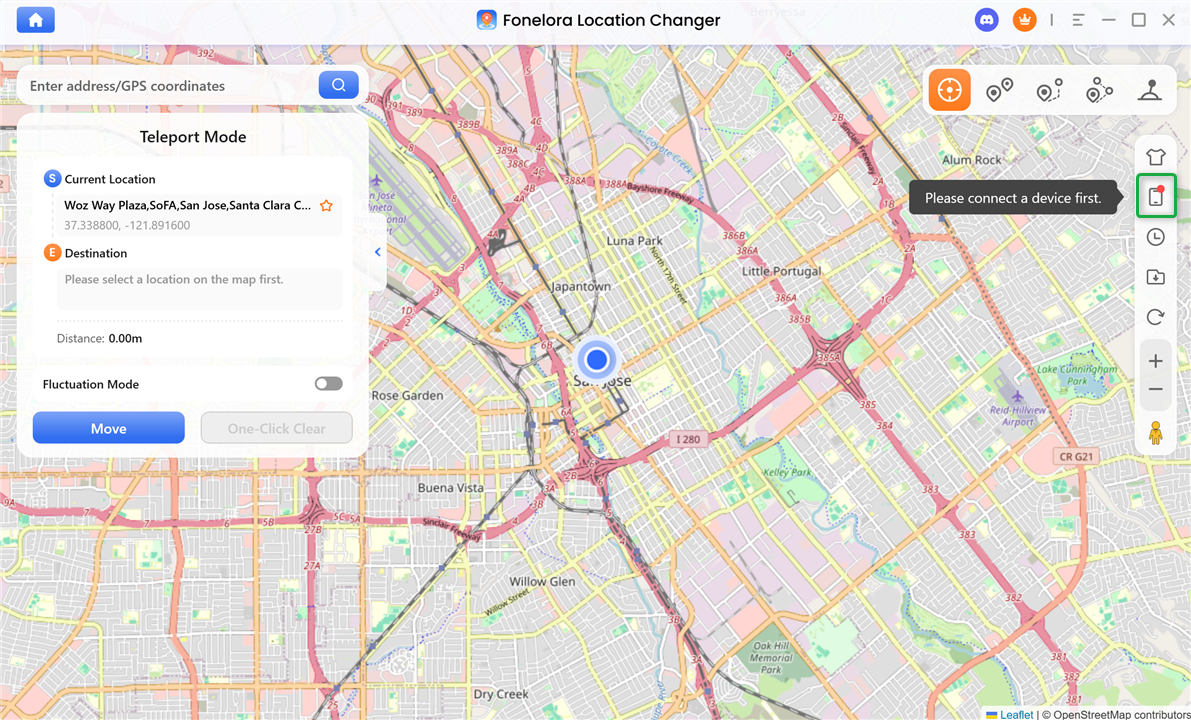
Device Icon
Once your device is detected, select it from the device list and follow the on-screen instructions to proceed with USB Connection.
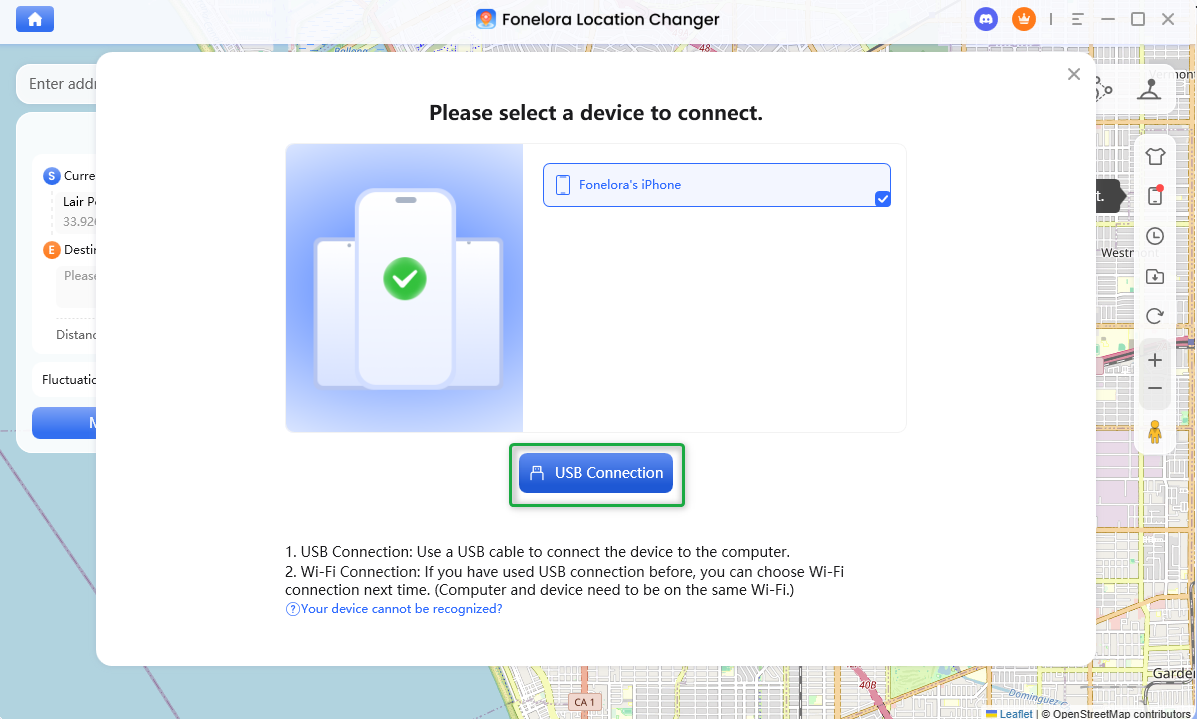
Select USB Connection
1. During this process, you need to Trust The Computer and enter your lock screen passcode to continue. If you have already trusted this computer, you can skip this step. Please keep your iPhone unlocked at all times during the process.
2. After completing the first USB connection, you can switch to a Wi-Fi connection in future sessions, as long as your computer and iOS device are connected to the same network. Please note that Wi-Fi connection is not supported for the initial setup.
Step 4. Enable Developer Mode on iPhone.
Please follow the instructions below to enable Developer Mode on your device.
1. Open Settings, go to Privacy & Security.
2. Scroll to the bottom of the page, tap Developer Mode.
3. Turn on the Developer Mode toggle switch.
4. A pop-up prompts to restart the device, tap "Restart" to reboot.
5. After rebooting to the home screen, tap Turn On in the system pop-up.
6. Finally, enter your screen passcode to enable Developer Mode.
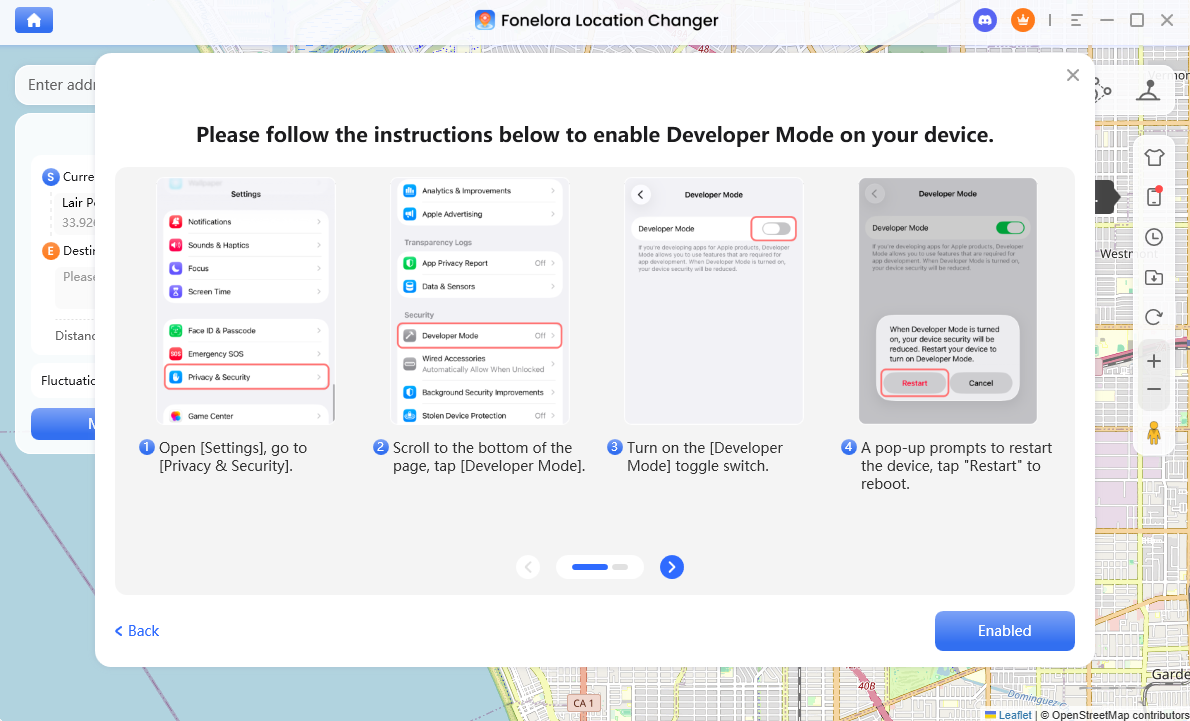
Select USB Connection
Developer Mode is only required for devices running iOS 16 or later. If your device is running iOS 15 or earlier, you can skip this step.
Step 5. Complete iPhone Connection.
Once your iPhone is connected successfully, you will see the interface below.
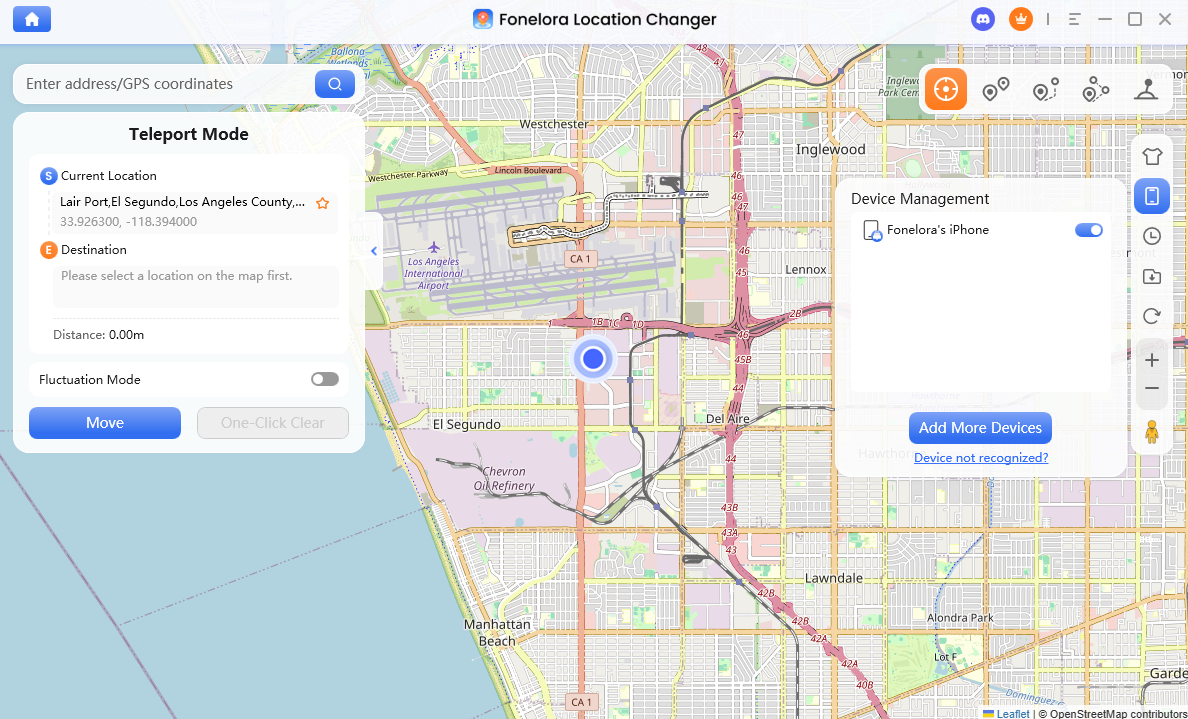
Complete iPhone Connection
Part 3. What Is Game Mode?
What Is Game Mode?
Game Mode is designed to bypass location restrictions and modify your GPS location while allowing you to continue playing official game apps normally. It ensures smooth performance and a stable gaming experience without interrupting gameplay.
Applicable Scenarios
• Play location-based games such as Pokémon GO and Monster Hunter Now (MH Now)
• Explore different in-game regions without physically moving
• Enhance gaming flexibility while maintaining a stable and reliable experience
Supported Connection Methods
• Supported Devices: iOS devices with iOS 16 or later
• Connection Options:
Bluetooth connection (flexible alternative)
Computer System Requirements
To ensure smooth performance when using Fonelora Location Changer, please make sure your computer meets the following system requirements.
Windows
• Operating System: Windows 10 or Windows 11
Mac
• Operating System: macOS 10.15 or later
Part 4. How to Connect iPhone to Computer with Bluetooth in Game Mode?
Step 1. Download and Install Fonelora Location Changer on Computer.
Click the download button below to download Fonelora Location Changer to your PC/Mac. Ensure you have a stable network connection during the download and installation process.
Step 2. Choose a Mode.
Lanuch Fonelora Location Changer and choose Game Mode.
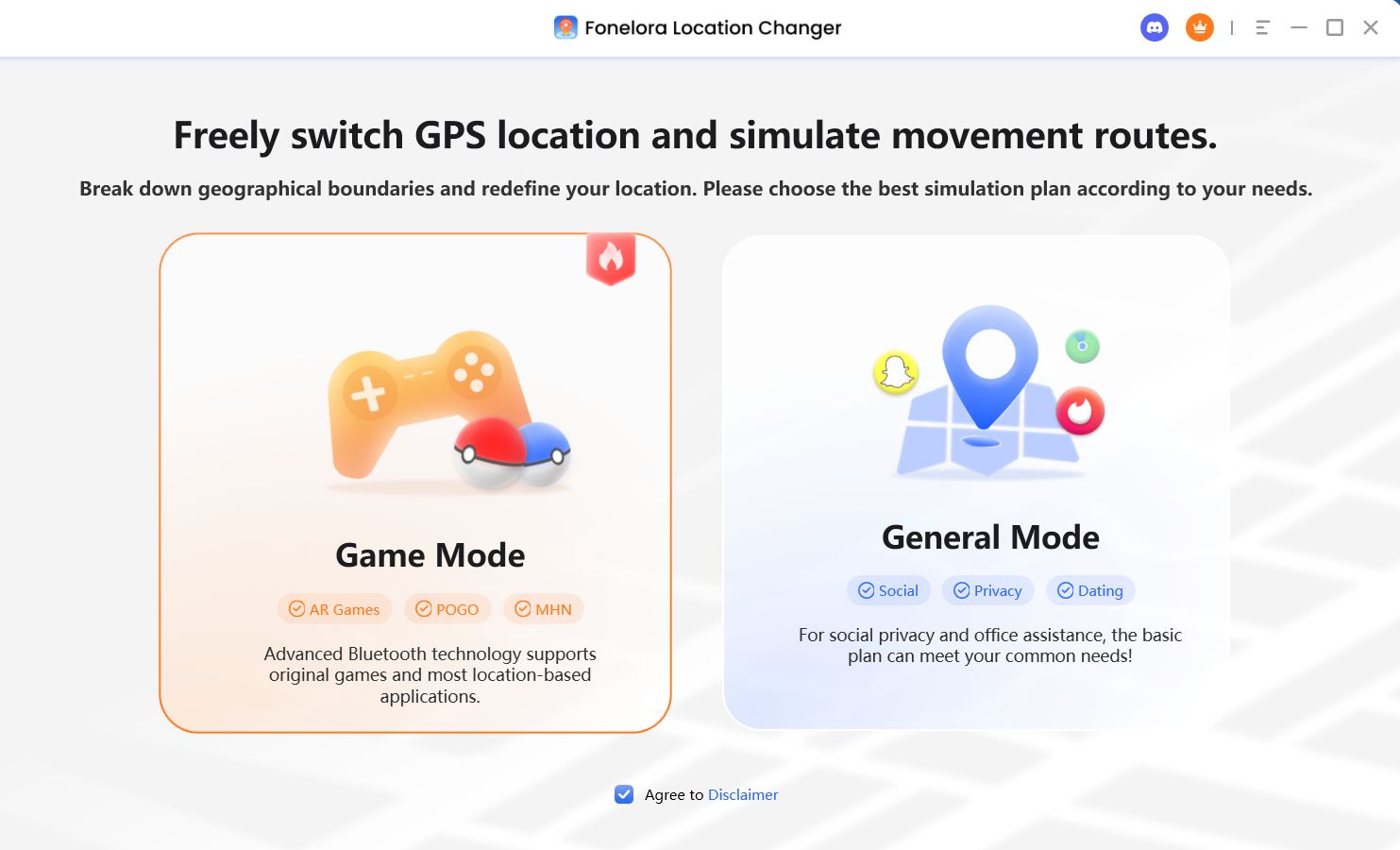
Choose Game Mode
Step 3. Connect your iPhone to Computer.
Click the Device icon in the interface, then connect your iPhone to the computer. For the first-time setup, only a USB connection is supported. Please use a USB cable to complete the initial connection.
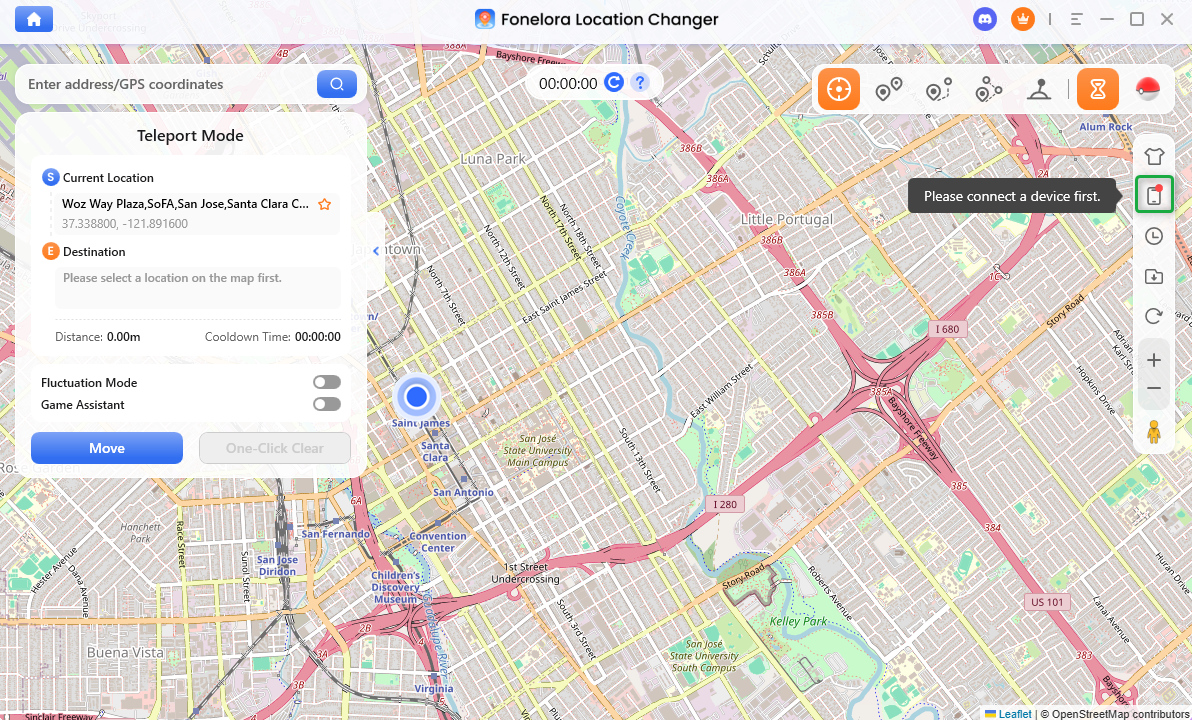
Click Device Icon
Once your device is detected, select it from the device list and follow the on-screen instructions to proceed with USB Connection.
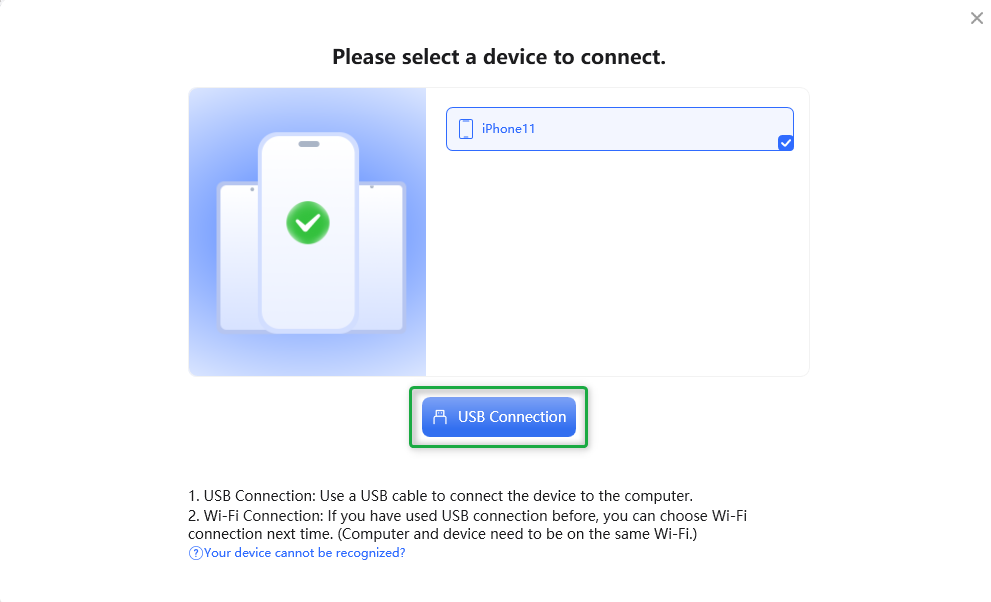
Select USB Connection
During this process, you need to Trust The Computer and enter your lock screen passcode to continue. If you have already trusted this computer, you can skip this step. Please keep your iPhone unlocked at all times during the process.
Then, you will see the interface below. Please choose Bluetooth Connection.
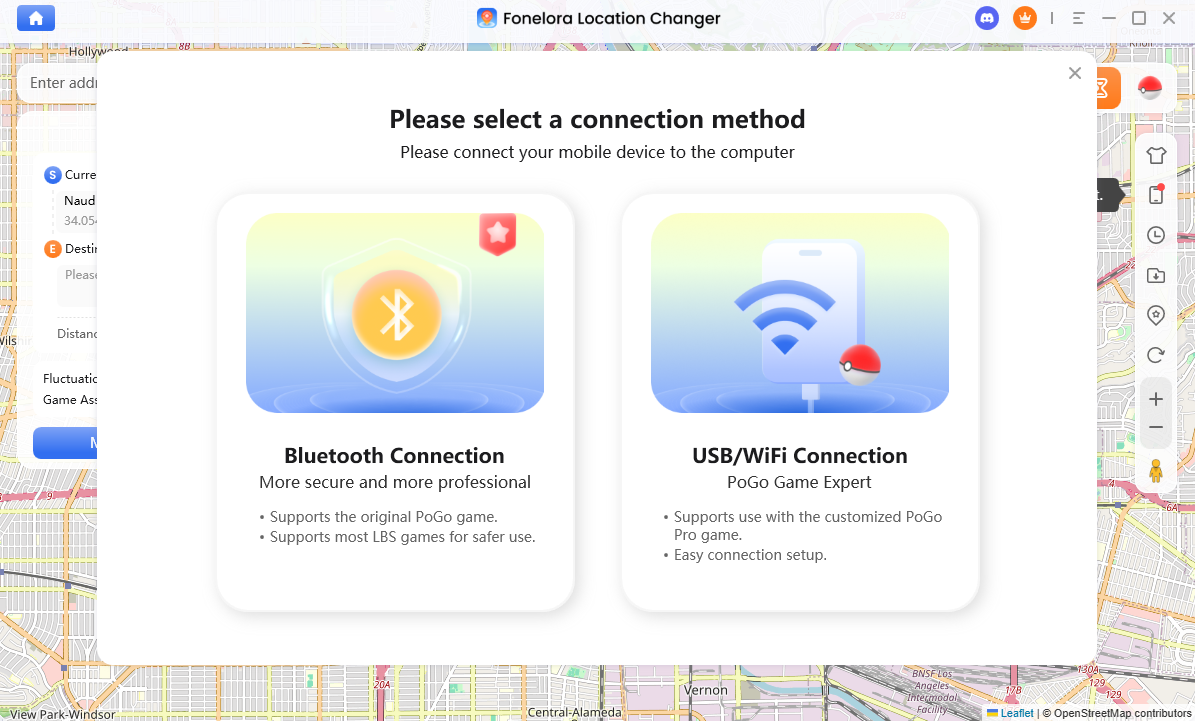
Choose Bluetooth Connection
Step 4. Complete DNS Configuration.
To modify locations over 20km, please follow the guide to complete the following 4 steps.
1. Go to Settings > General > VPN & Device Management, tap GPSLocate to download and tap Install until "Installation Successful" appears. If already installed, proceed to the next step.
2. Under VPN & Device Management > DNS, make sure GPSLocate is selected.
3. Go to Privacy & Security > Location Services > System Services, turn OFF the Improve Location Accuracy switch.
4. Go back to Location Services, turn it OFF, wait 3 seconds, then turn it back ON.
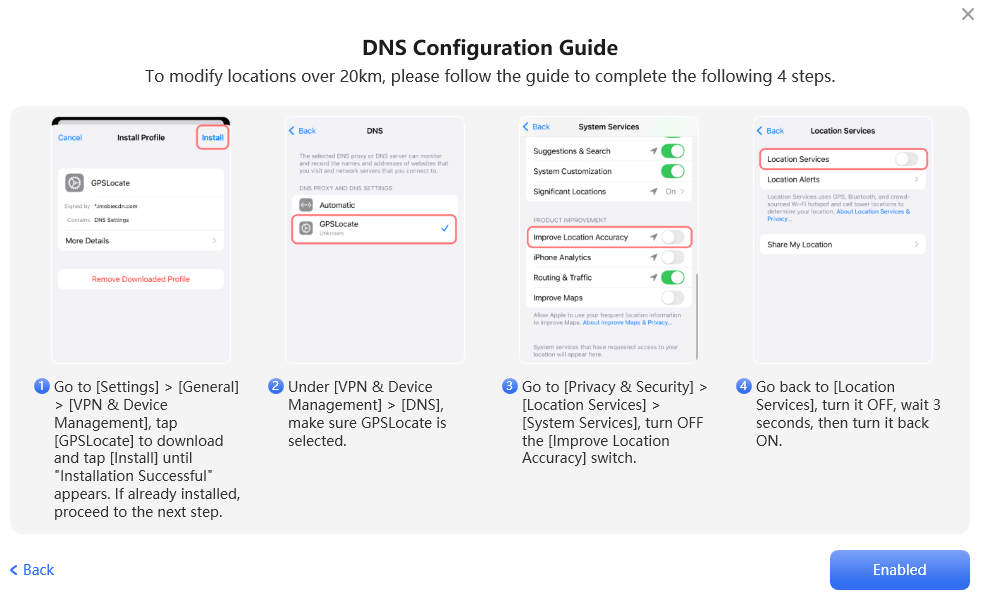
Complete DNS Configuration
Step 5. Complete Bluetooth Pairing.
Please complete Bluetooth pairing first. On your iOS device, go to Settings > turn on Bluetooth and stay on the Bluetooth screen. Tap the Connect Now button below. When the phone shows the "Bluetooth Pairing Request", tap Pair.
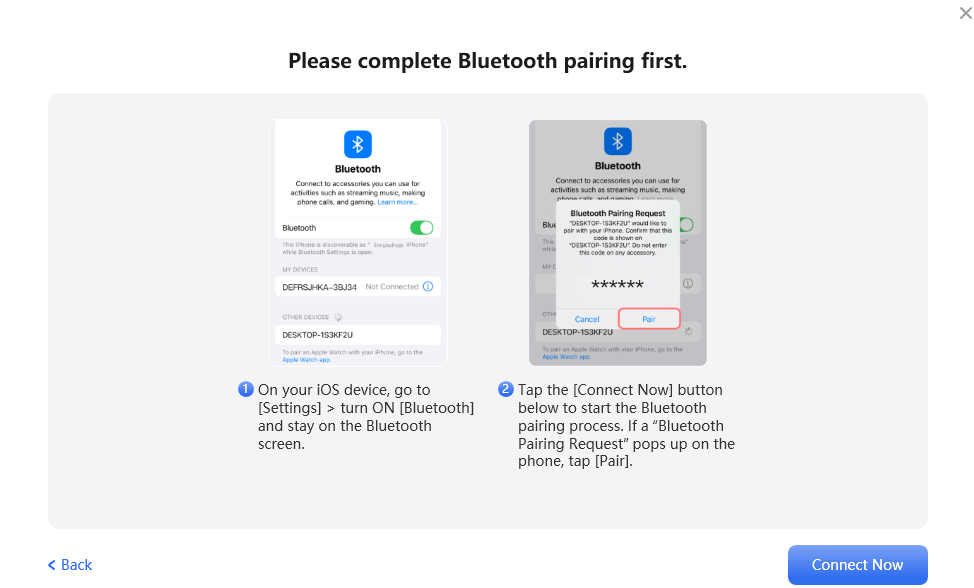
Complete Bluetooth Pairing
1. To continue using Bluetooth connection, please ensure your computer has built-in Bluetooth and it is on. If not, plug in an external Bluetooth 5.0 or later adapter.
2. If your device has already been paired, you can skip this step.
Step 6. Complete iPhone Connection.
It will establish Bluetooth connection (about 1-2 minutes). Please keep the phone on the Bluetooth screen and the screen unlocked and on.
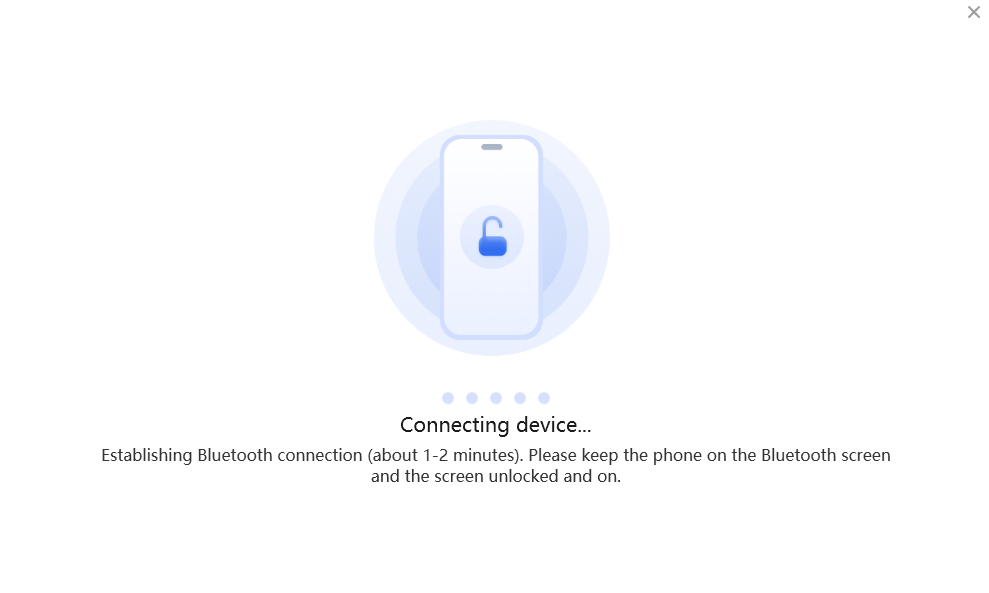
Wait for Connection
Once your iPhone is connected successfully, you will see the interface below and you can change GPS location.
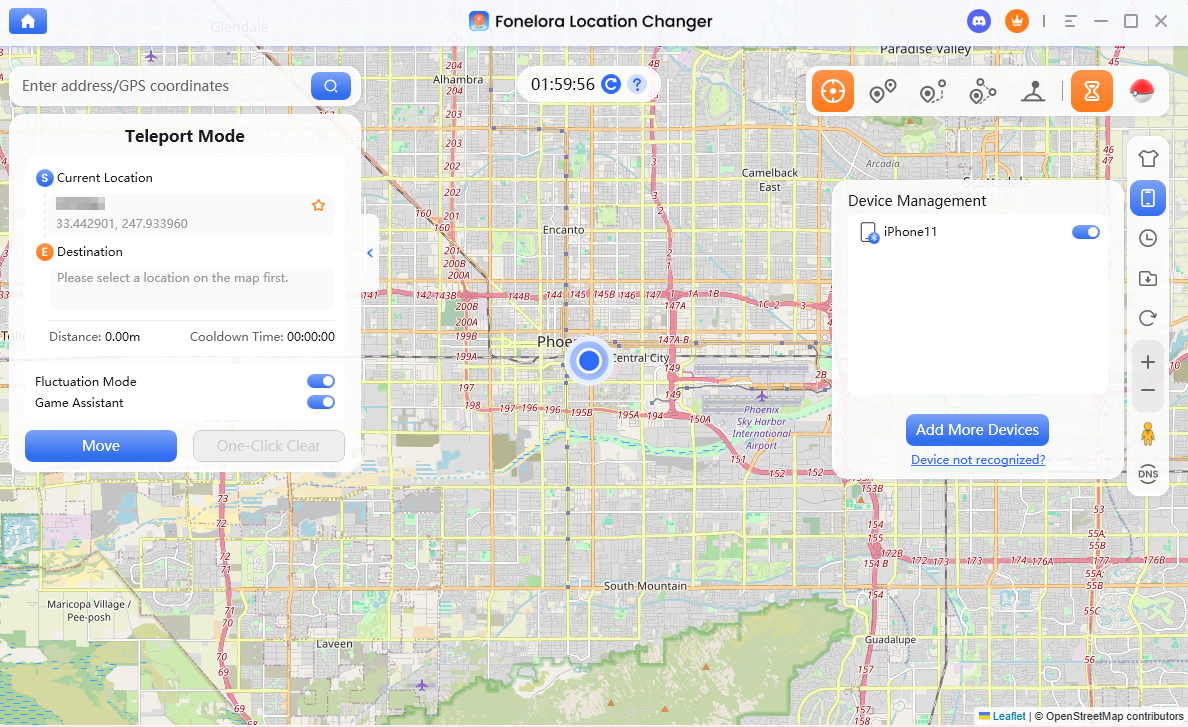
Complete iPhone Connection
Part 5. How to Connect iPhone to Computer with USB/WiFi in Game Mode?
Step 1. Download and Install Fonelora Location Changer on Computer.
Click the download button below to download Fonelora Location Changer to your PC/Mac. Ensure you have a stable network connection during the download and installation process.
Step 2. Choose the Game Mode.
Lanuch Fonelora Location Changer and choose Game Mode.
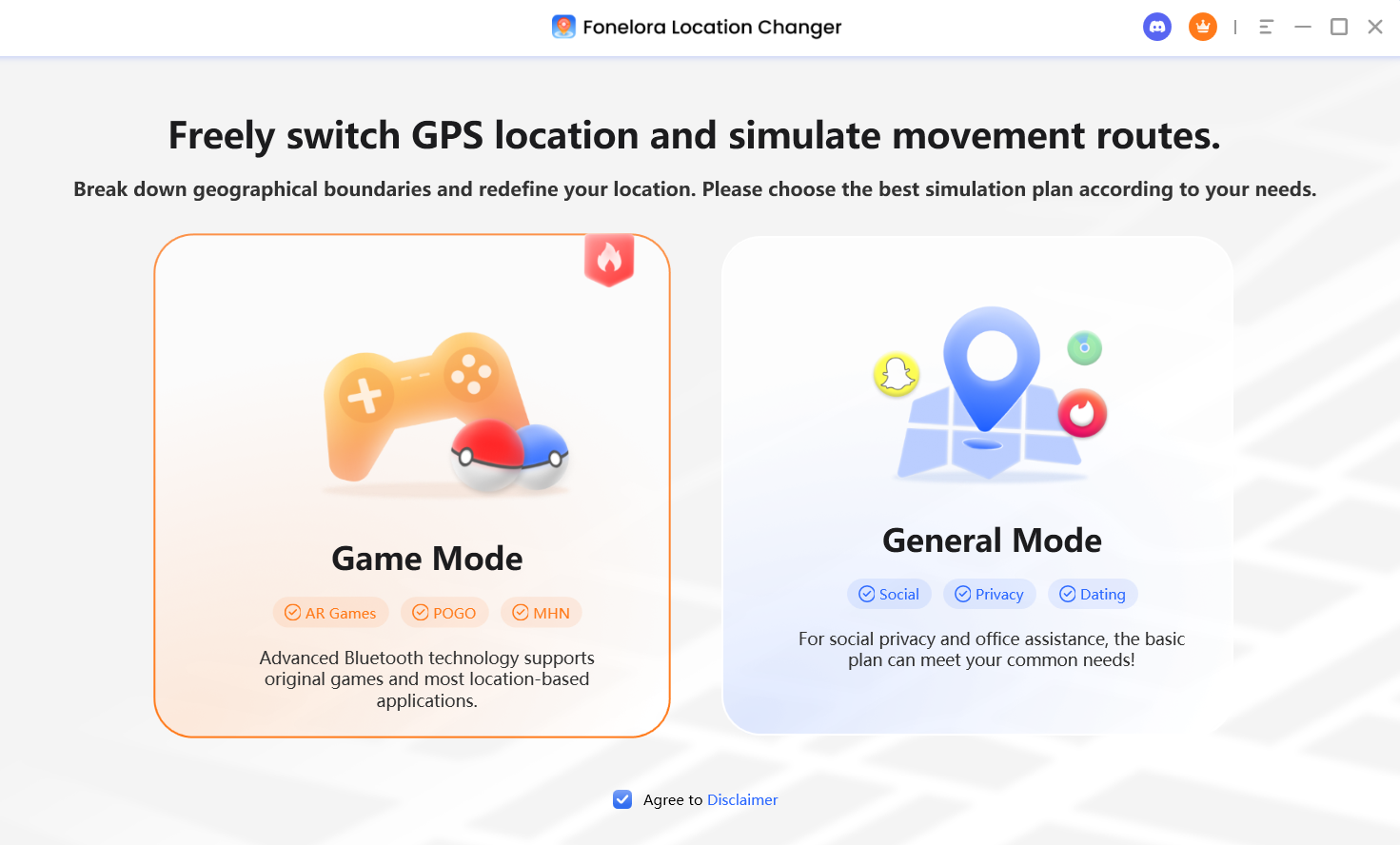
Choose Game Mode
Step 3. Connect your iPhone to Computer.
Click the Device icon in the interface, then connect your iPhone to the computer. For the first-time setup, only a USB connection is supported. Please use a USB cable to complete the initial connection.
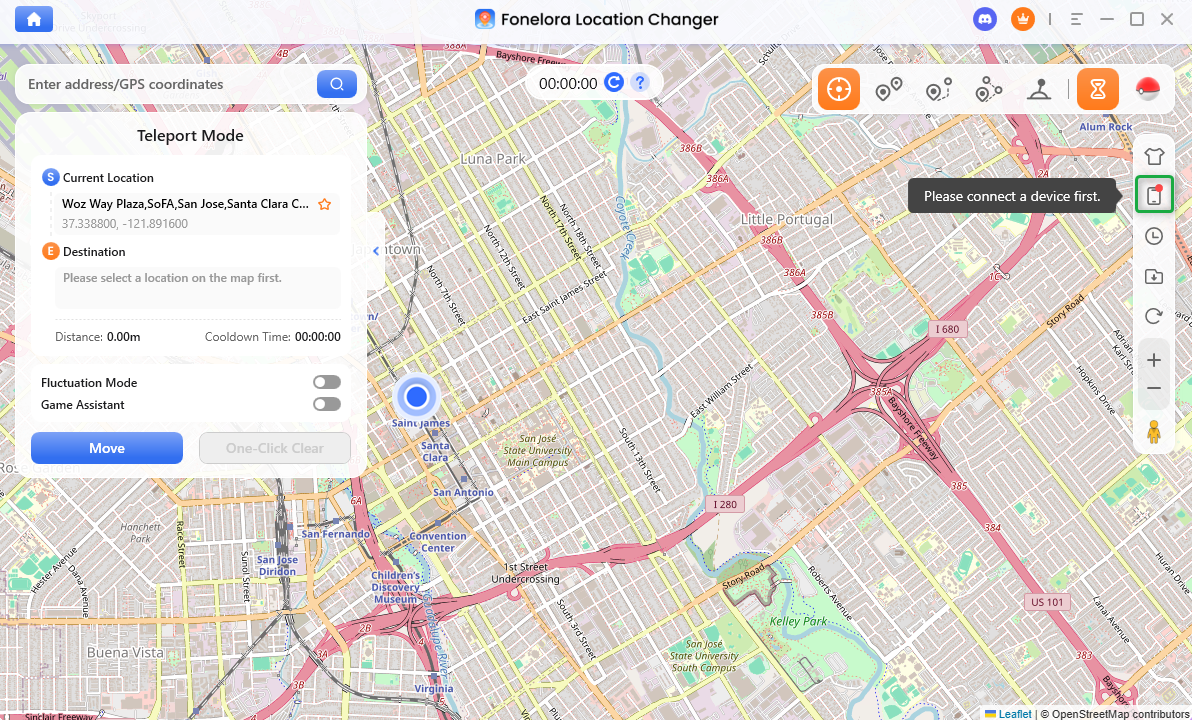
Click Device Icon
Once your device is detected, select it from the device list and follow the on-screen instructions to proceed with USB Connection.
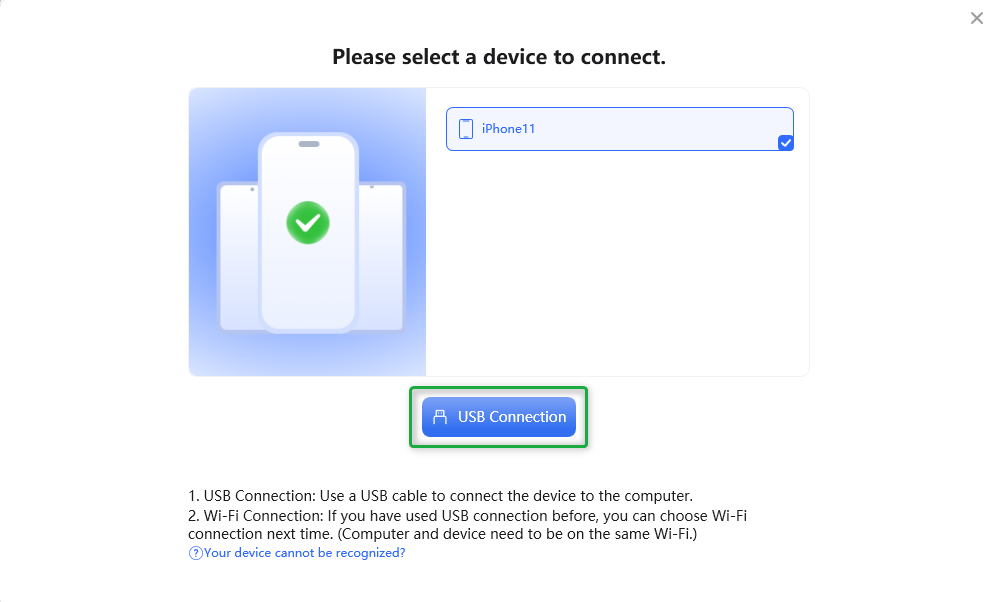
Select USB Connection
During this process, you need to Trust The Computer and enter your lock screen passcode to continue. If you have already trusted this computer, you can skip this step. Please keep your iPhone unlocked at all times during the process.
Step 4. Enable Developer Mode on iPhone.
Please follow the instructions below to enable Developer Mode on your device.
1. Open Settings, go to Privacy & Security.
2. Scroll to the bottom of the page, tap Developer Mode.
3. Turn on the Developer Mode toggle switch.
4. A pop-up prompts to restart the device, tap Restart to reboot.
5. After rebooting to the home screen, tap Turn On in the system pop-up.
6. Finally, enter your screen passcode to enable Developer Mode.
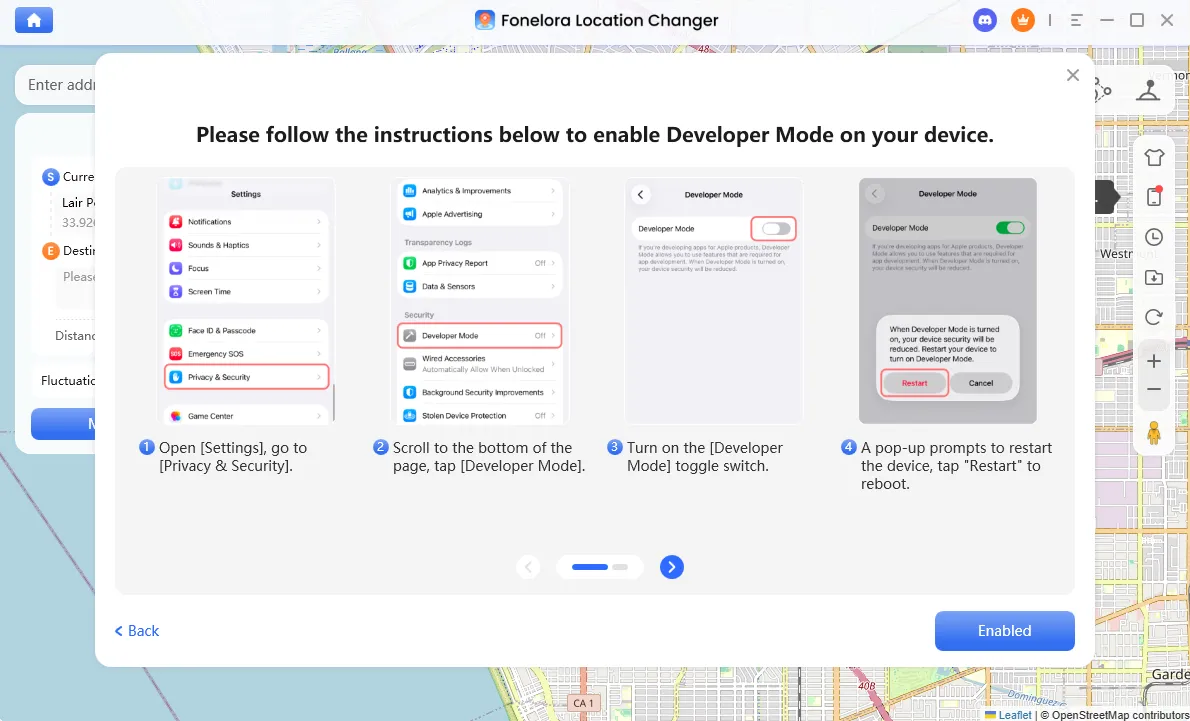
Enable Developer Mode
Developer Mode is only required for devices running iOS 16 or later. If your device is running iOS 15 or earlier, you can skip this step.
Step 5. Choose USB/WiFi Connection.
Once your iPhone is connected successfully, you will see the interface below. Please choose USB/WiFi Connection.
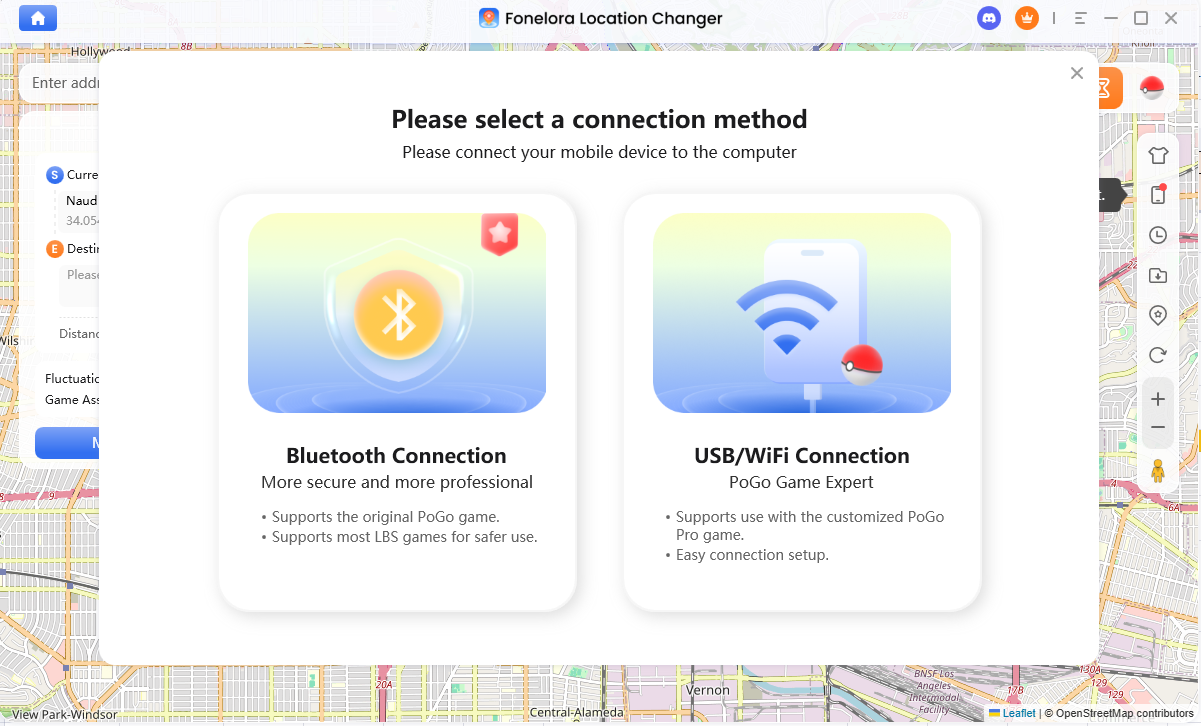
Complete iPhone Connection
Step 6. Install the Customized Game Package.
Then, you will see the interface below. If you installed the App Store version of the game, please uninstall it first. Then click Go to Install to install the customized game package. If you have installed the customized game package, please click I have installed it to continue the next step.
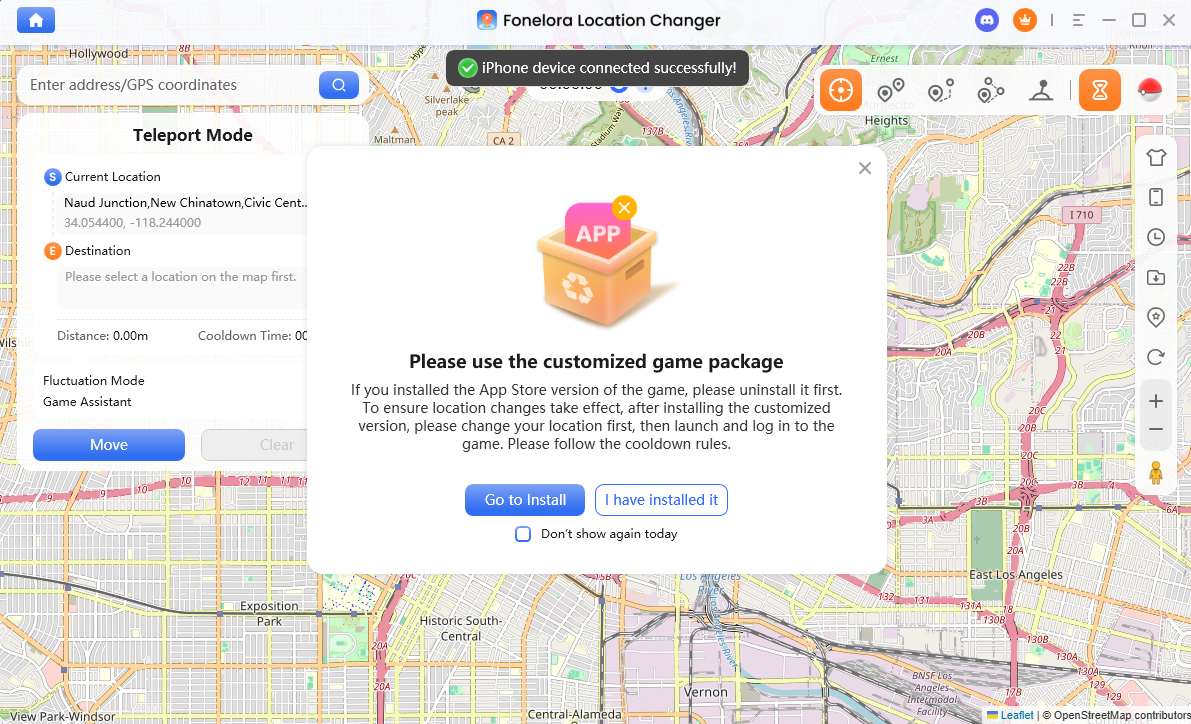
Install the Custom Game Package
After the installation is completed, you can use Fonelora Location Changer to change your location.
If you have additional questions, visit our FAQs page for detailed solutions or reach out to our Support Team for further help or personalized assistance.
Fonelora Location Changer Connect iPhone to Computer FAQs
1. Why can’t my iPhone be detected by the program?
Please make sure your iPhone is properly connected via USB for the first-time setup. Also, ensure you have tapped “Trust This Computer” on your device and entered the correct passcode. Keeping your iPhone unlocked during the process is required.
2. Can I connect my iPhone via Wi-Fi directly?
Wi-Fi connection is only available after the initial USB connection is completed successfully. For the first setup, you must use a USB cable to connect your device.
3. Do I need to enable Developer Mode on my iPhone?
Developer Mode is only required for devices running iOS 16 or later. If your device is running iOS 15 or earlier, you can skip this step.
4. Why does the connection fail when using Wi-Fi?
Please make sure your iPhone and computer are connected to the same Wi-Fi network. If the issue persists, reconnect using USB and try again.
5. What should I do if Bluetooth pairing fails in Game Mode?
On Windows, after uninstalling via Control Panel, we recommend manually checking and deleting any remaining folders in the installation directory. On Mac, in addition to moving the app to Trash and emptying it, you can also go to the "~/Library/" directory and delete preference or cache files related to the app (e.g., com.fonelora.plist, etc.) to ensure complete uninstallation.
6. Why do I need to complete DNS configuration in Game Mode?
DNS configuration is required when modifying locations over long distances (more than 20 km). It ensures better performance and prevents location errors during gameplay.
7. Can I use the software for location-based games?
Yes, Game Mode is specifically designed for location-based games like Pokémon GO and Monster Hunter Now, allowing you to change location while maintaining a stable gaming experience.
8. What should I do if the program gets stuck while loading my iPhone?
Please keep your iPhone connected and unlocked during the loading process. If it still doesn’t work, disconnect and reconnect your device, or restart both your iPhone and computer.
9. Why must I use an Apple ID to install PoGo?
To install the customized version of the PoGo app, you must use your Apple ID for security verification to complete app signing. Please rest assured that this account is only used to assist with installation, and we will never collect or record any of your data.