Multi-Spot Mode
What is Multi-Spot Mode, and how does it work?
Multi-spot Mode in Fonelora Location Changer is a built-in route simulation feature that allows you to create and move through multiple locations in a fixed sequence. It helps you build a complete path by adding multiple waypoints and customizing how the route is generated and executed.
With flexible navigation options, sequential waypoint control, and advanced movement settings, Multi-spot Mode enables more realistic and structured GPS simulation. It is widely used in:
• Multi-location route testing
• Game path simulation and planning
• Location-based application testing
• Advanced virtual movement scenarios
Computer System Requirements
To ensure smooth performance when using Fonelora Location Changer, please make sure your system meets the following requirements.
Computer
• Windows: Windows: Windows 10 / Windows 11
• Mac: macOS 10.15 or later
Mobile Device
• iOS: iOS 7 or later
• Android: Android 5.0 or later
Differences Between Free and Activated Versions
• Free Version: Multi-Spot Mode can be used up to 2 times
• Activated Version: Unlimited access to Multi-Spot Mode
Step 1. Download and Install Fonelora Location Changer.
Visit the official website to download Fonelora Location Changer onto your computer. Please ensure your internet connection is stable during the download and installation process. Then follow the on-screen instructions to complete the installation.
Step 2. Launch the Program and Connect Your Device.
After launching the program, choose Game Mode or General Mode, then carefully follow the on-screen instructions to complete the device connection process.
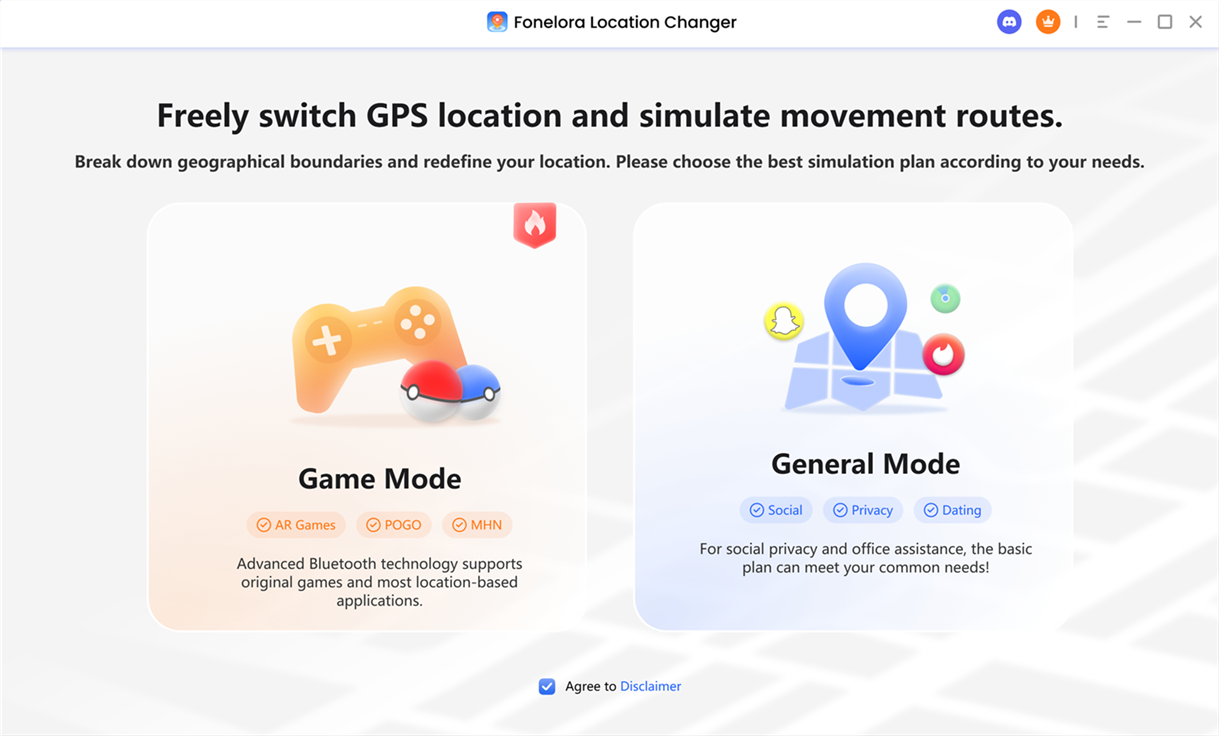
Choose Mode
1. To connect your Android device to Fonelora Location Changer, please refer to this guide.
2. To connect your iOS device (iPhone/iPad) to Fonelora Location Changer, please refer to this guide.
Step 3. Choose Multi-Spot Mode.
After connection, if you want to plan a route with multiple spots, select Multi-Spot Mode in the upper-right corner to enter the route planning interface.
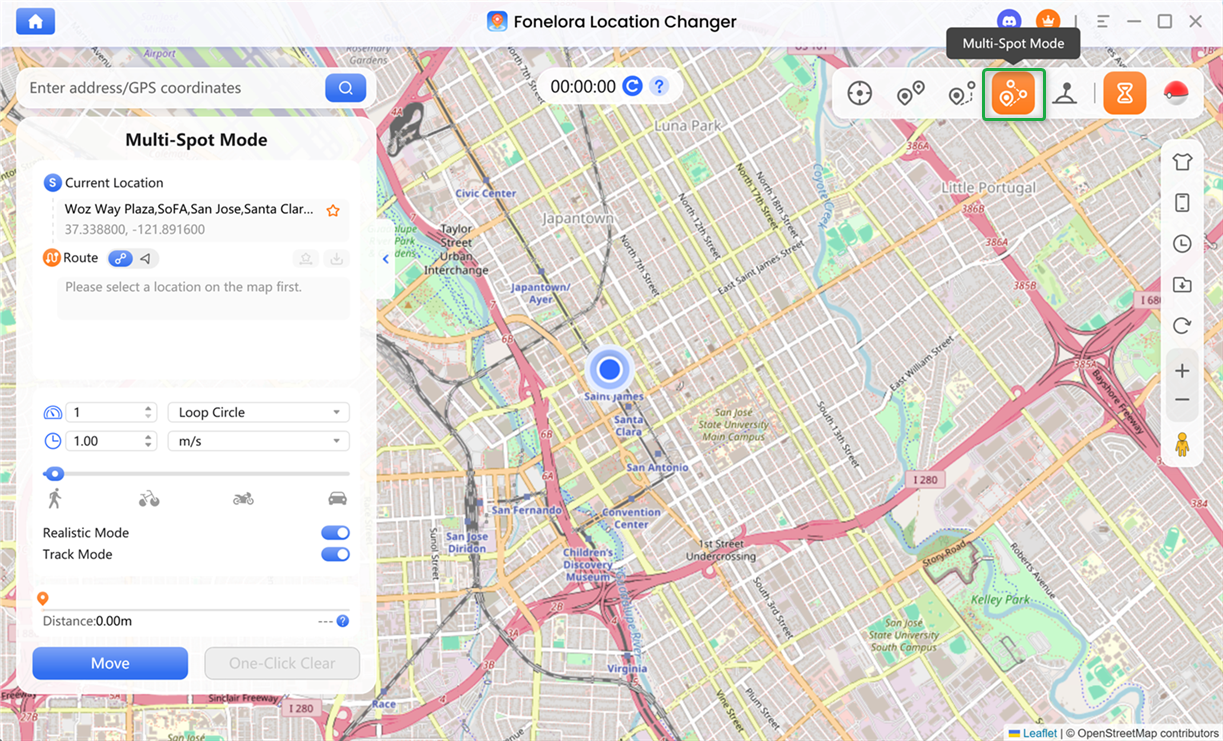
Choose Multi-Spot Mode
Step 4. Set Destination and Plan Route.
The starting point will be automatically loaded based on your current location. You can add multiple waypoints by clicking on the map or entering addresses or coordinates in the search bar. Each added point will be automatically assigned a sequence number, and the route list will automatically scroll to keep the latest point visible.
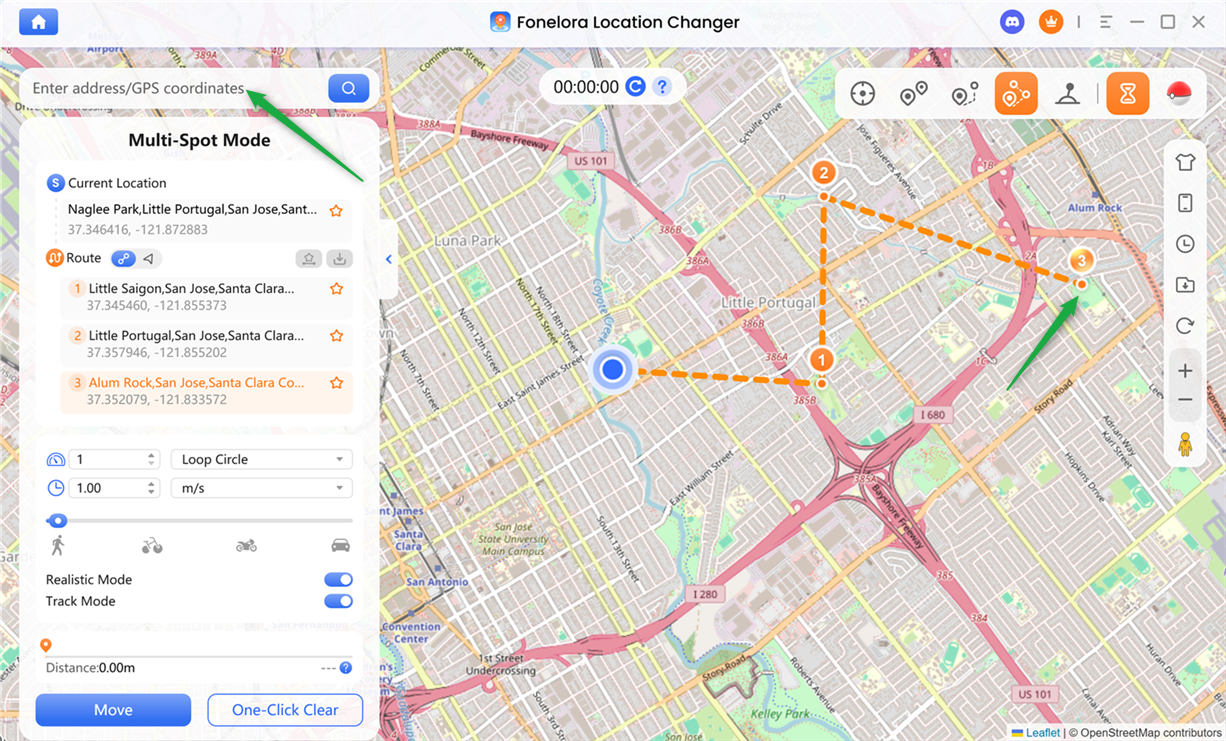
Set Destination and Plan Route
Step 5. Choose a Route Generation Mode.
Choose a navigation mode based on how you want your route to be generated and used.
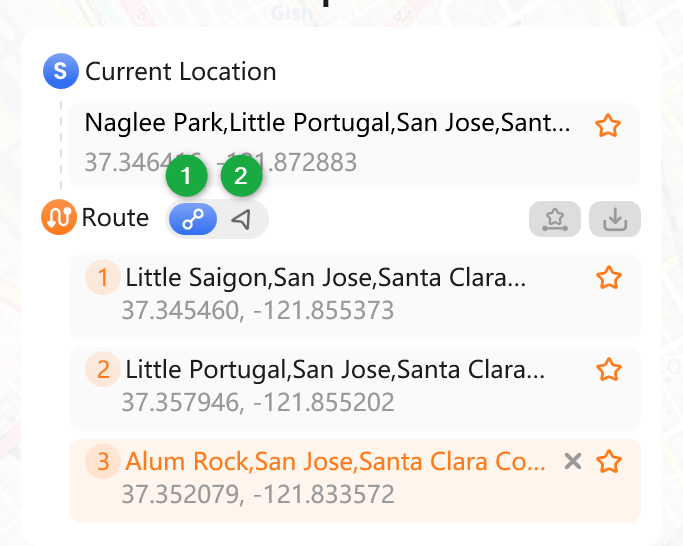
Choose a Route Generation Mode
Step 6. Manage Route List.
You can efficiently manage your route and waypoints using the options provided in the route list.
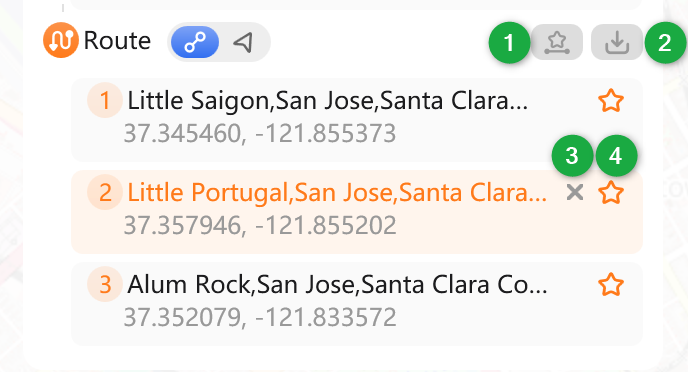
Manage Route List
Step 7. Customize Movement Settings.
You can choose Loop Circle or Repeat Route, and both allow you to set the number of repetitions. You can also fine-tune movement speed using the input field or speed slider.
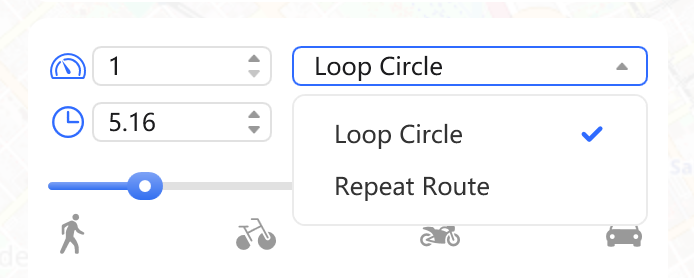
Adjust Speed and Loops
You can also adjust the following movement settings and actions.
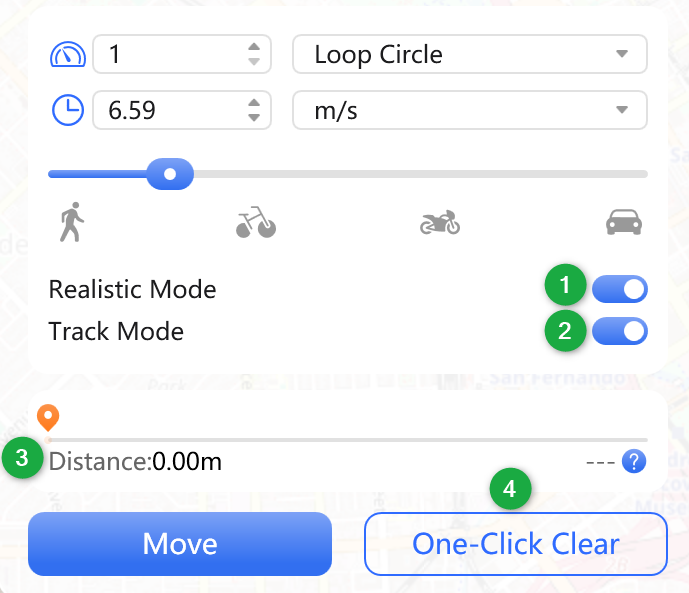
Customize Movement Settings
Step 8. Start and Complete Route Simulation.
Once everything is set, click Move to begin route simulation. The system will enter loading mode and generate the full route based on your selected navigation mode and waypoint order.
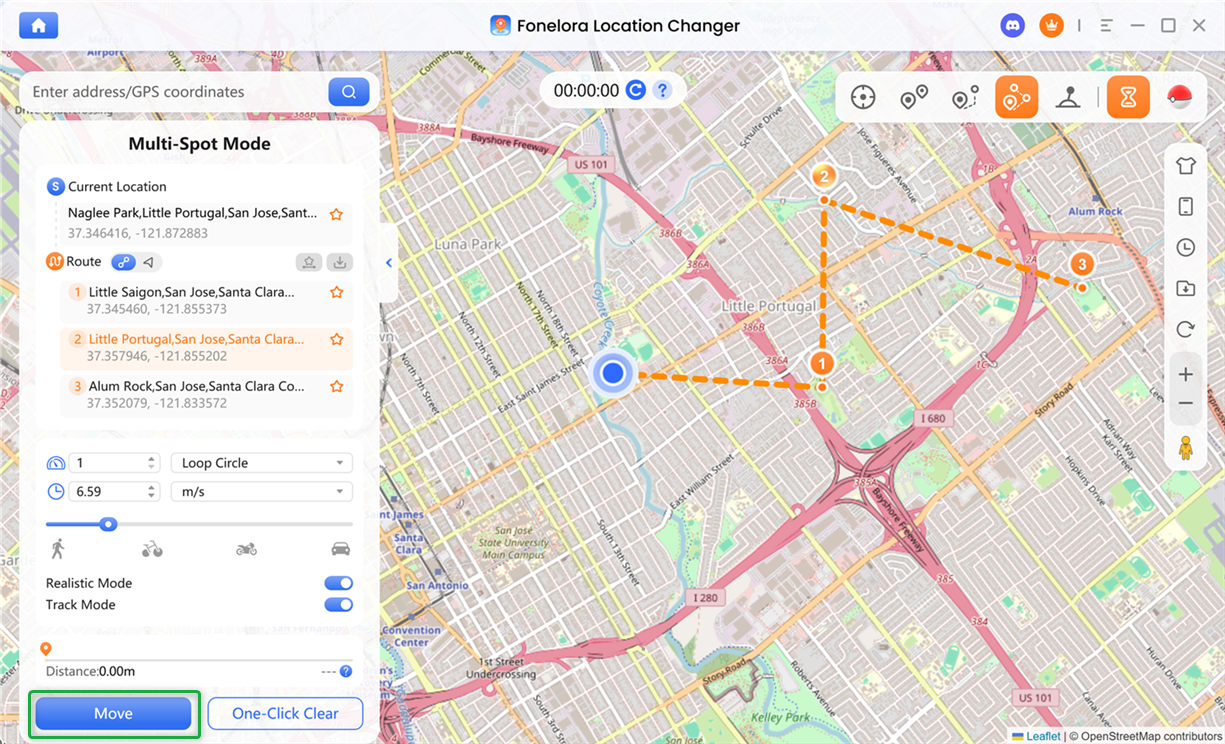
Click Move Option
Movement will follow the defined sequence step by step until completion, and the route will be saved in history automatically.
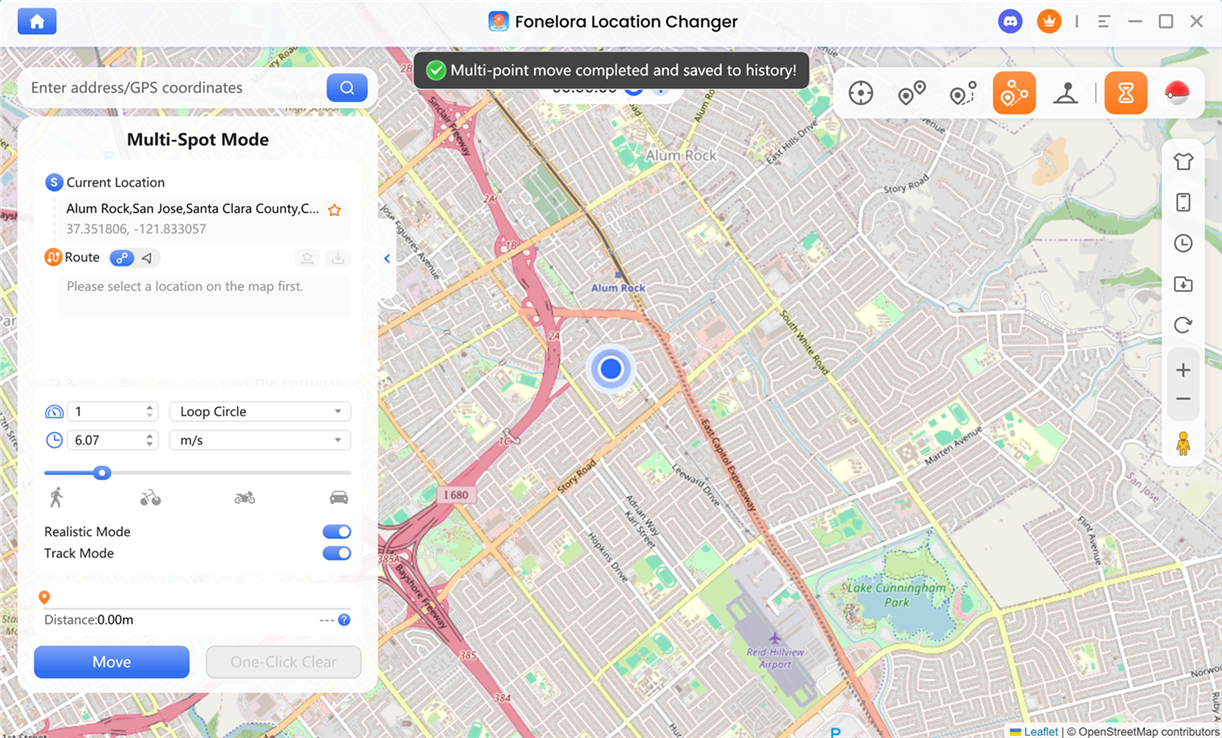
Complete Route Simulation
If you have further questions after reading this guide, please refer to the FAQs page or contact our Support Team for assistance.
Fonelora Location Changer Multi-Spot Mode FAQs
1. How do I create a multi-stop route in Multi-Spot Mode?
You can create a multi-stop route by adding multiple waypoints on the map or entering specific addresses or coordinates in the search bar. Each point will be automatically arranged in sequence, forming a complete route for simulation.
2. What is the difference between Straight Line Mode and Navigation Mode?
Straight Line Mode connects all waypoints using direct geographic coordinates without considering roads, making it ideal for game environments or unrestricted movement scenarios. Navigation Mode generates routes based on real-world road networks, providing more realistic movement along streets and paths.
3. Why is my Multi-Spot route not generating?
Route generation may not work if the distance between waypoints is too large or exceeds limits. In such cases, use Teleport Mode or shorten the route by adding waypoints.
4. Can I edit or delete waypoints after creating a route?
Yes. You can manage your route in the Route List panel by deleting individual waypoints, reordering stops, or clearing the entire route. All changes will be reflected immediately in the updated simulation path.
5. Can I export a Multi-Spot route for external use?
Yes. Multi-Spot Mode supports exporting routes as GPX files. These files can be imported into compatible navigation tools or used for backup and route sharing purposes.
6. What does Realistic Mode do in Multi-Spot Mode?
Realistic Mode simulates natural GPS movement by introducing speed variation and smoother transitions during turns or direction changes. This makes the route behavior appear more human-like and less artificial.
7. Why is the estimated time not displayed in some routes?
Estimated time calculation is disabled when Realistic Mode is enabled because movement speed changes dynamically. Without a fixed speed value, the system cannot calculate an accurate arrival time.
8. Can I control movement while the route is running?
Yes. During simulation, you can pause, adjust speed, switch movement settings, or stop the route at any time. You can also save the current route for future reuse.
9. What happens after the route simulation is completed?
Once the movement finishes, the entire route will be automatically saved in your history. This allows you to quickly reuse or modify previously generated multi-stop routes.