Single-Spot Mode
What is Single-Spot Mode, and how does it work?
Single-Spot Mode in Fonelora Location Changer is a built-in feature that allows you to simulate movement between two locations by setting a start and end point. It creates a virtual route with customizable speed, movement modes, and behavior, making your GPS simulation more natural and realistic.
With support for walking, cycling, and driving modes, along with adjustable speed and realistic movement simulation, Single-spot Mode gives you precise control over how your virtual location changes. It is widely used in:
• Location-based app testing
• AR games and GPS-based experiences
• Privacy protection and virtual positioning
• Route simulation and movement demonstration
System Requirements
To ensure smooth performance when using Fonelora Location Changer, please make sure your devices meet the following requirements.
Computer
• Windows: Windows 10 / Windows 11
• Mac: macOS 10.15 or later
Mobile Device
• iOS: iOS 7 or later
• Android: Android 5.0 or later
Differences Between Free and Activated Versions
• Free Version: Single-Spot Mode can be used up to 2 times
• Activated Version: Unlimited access to Single-Spot Mode
Step 1. Download and Install Fonelora Location Changer.
Visit the official website to download Fonelora Location Changer onto your computer. Please ensure your internet connection is stable during the download and installation process. Then follow the on-screen instructions to complete the installation.
Step 2. Launch the Program and Connect Your Device.
After launching the program, choose Game Mode or General Mode, then carefully follow the on-screen instructions to complete the device connection process.
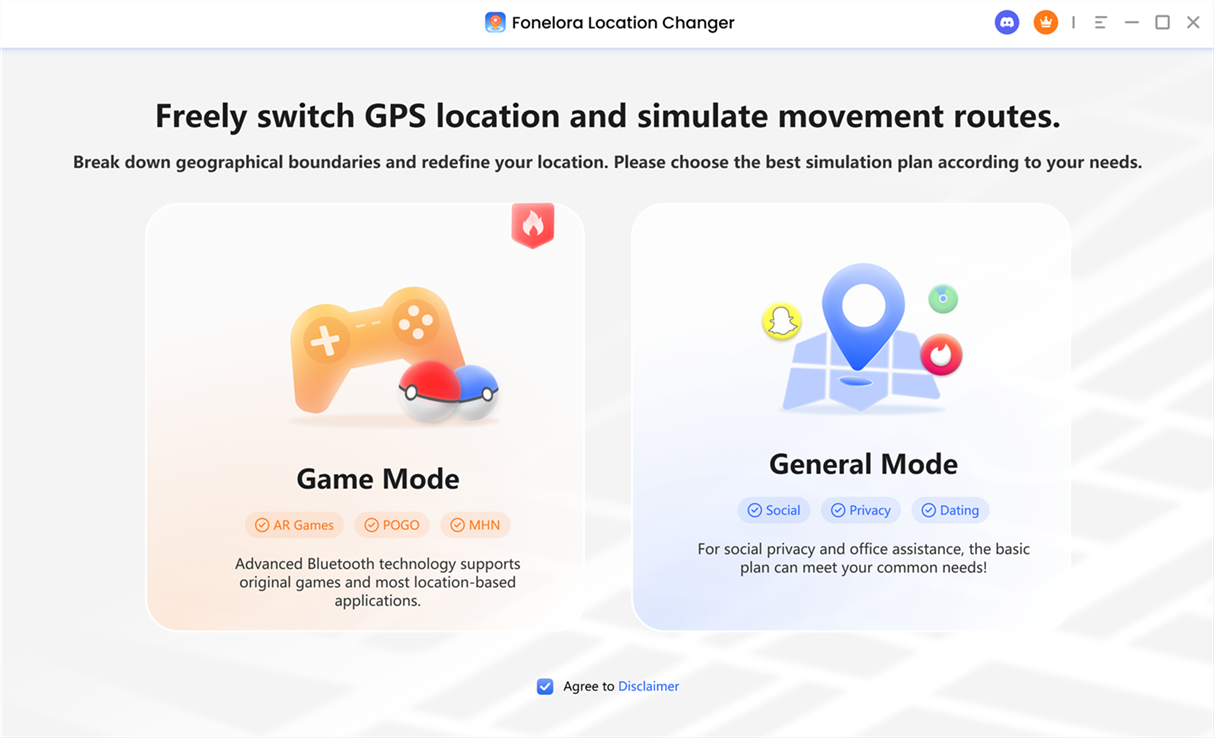
Choose Mode
1. To connect your Android device to Fonelora Location Changer, please refer to this guide.
2. To connect your iOS device (iPhone/iPad) to Fonelora Location Changer, please refer to this guide.
Step 3. Choose Single-Spot Mode.
Once your device is connected, select Single-Spot Mode in the upper-right corner to customize your route.
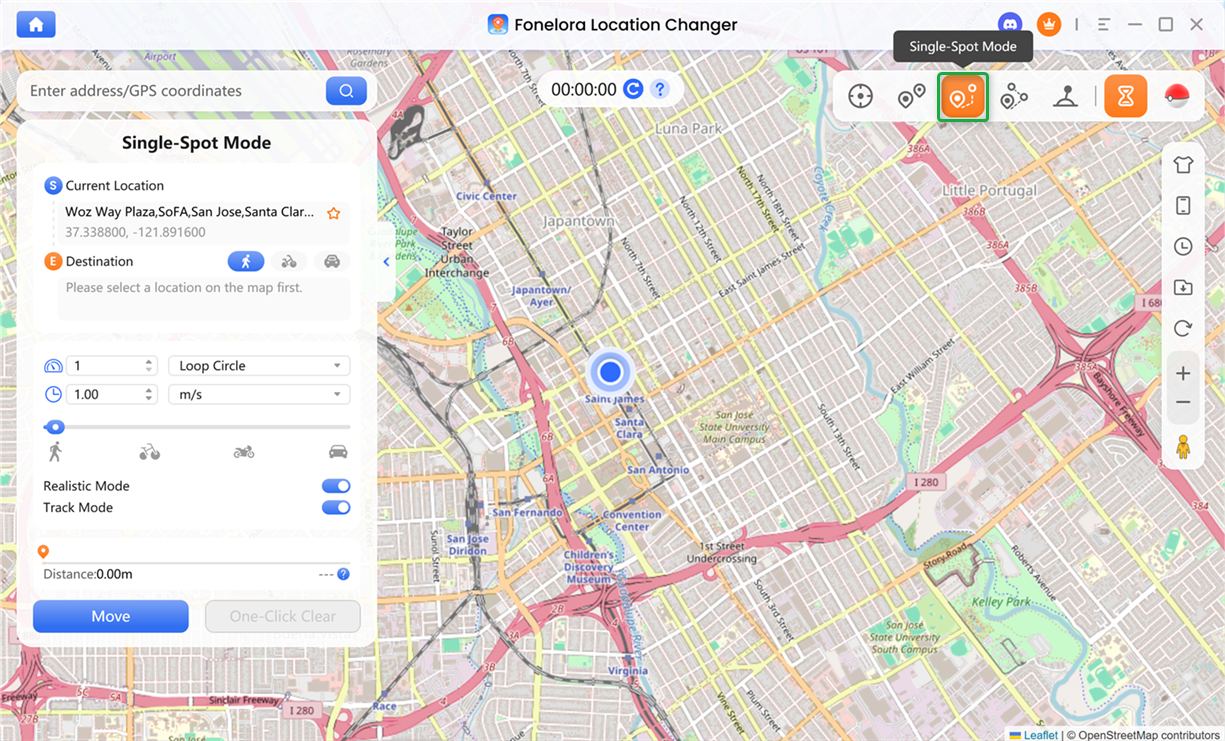
Choose Single-Spot Mode
Step 4. Set Destination and Plan Route.
Select a destination on the map by clicking directly, or by entering an address or coordinates in the search box. The selected destination will be displayed in the sidebar, where you can view both the current location and destination details.
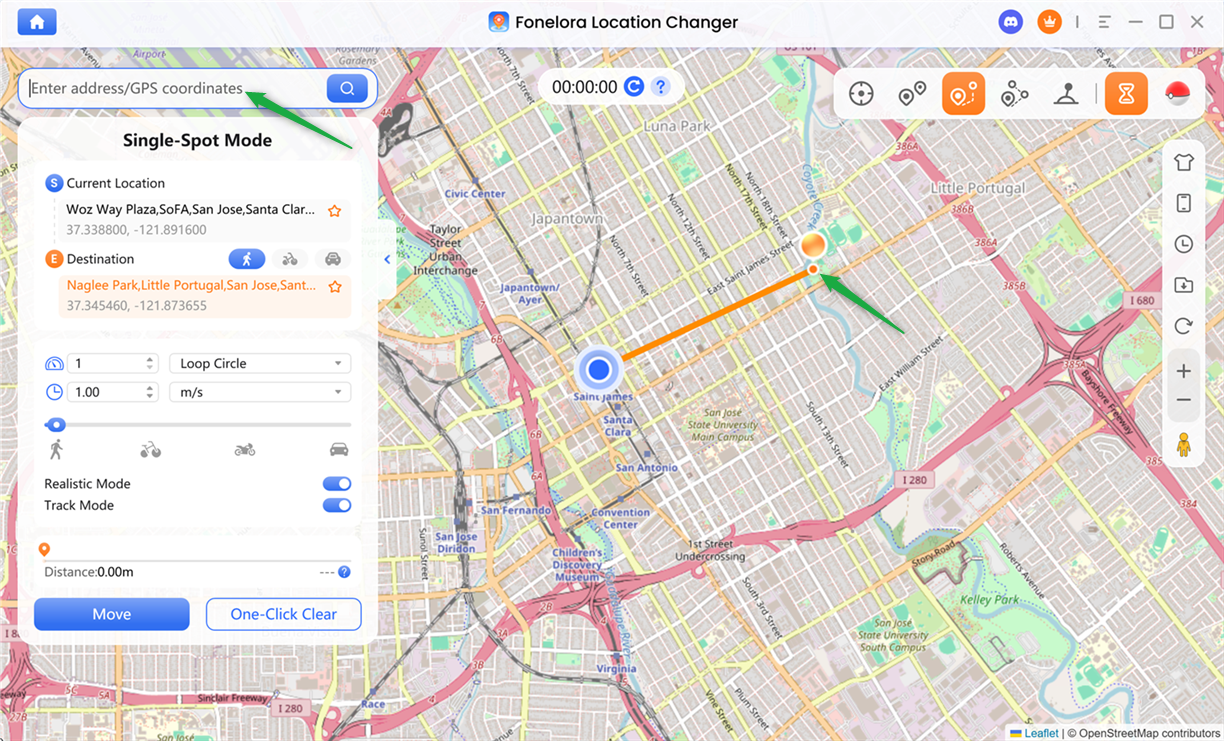
Select Destination on Map
After selecting the destination, you can choose your preferred movement mode.
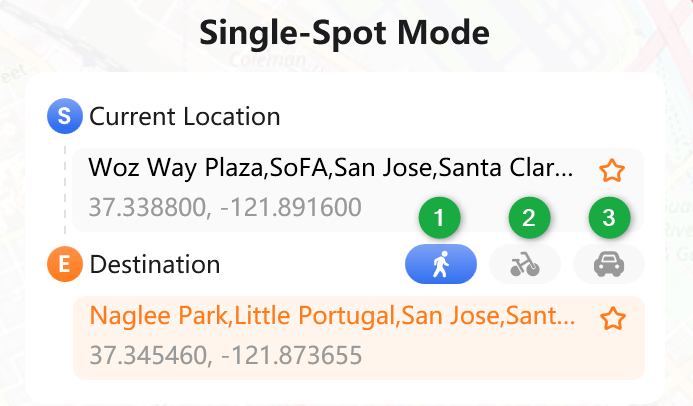
Choose Movement Mode
Step 5. Customize Movement Settings.
You can choose Loop Circle or Repeat Route, and both allow you to set the number of repetitions. You can also fine-tune movement speed using the input field or speed slider.
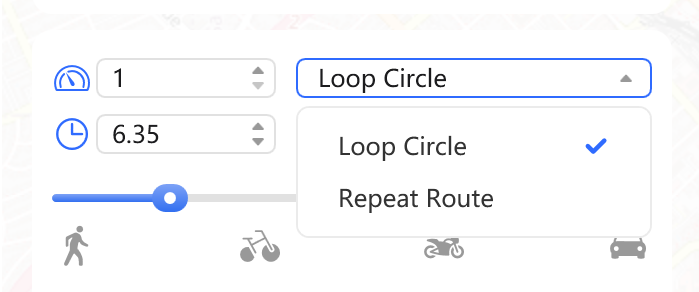
Adjust Speed and Loops
You can also adjust the following movement settings and actions.
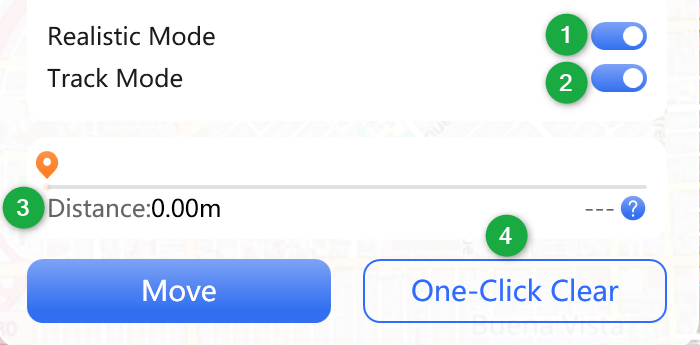
Customize Movement Settings
Step 6. Start and Complete Route Simulation.
Once everything is set, click Move option. The system will calculate the route and simulate movement according to your selected settings.
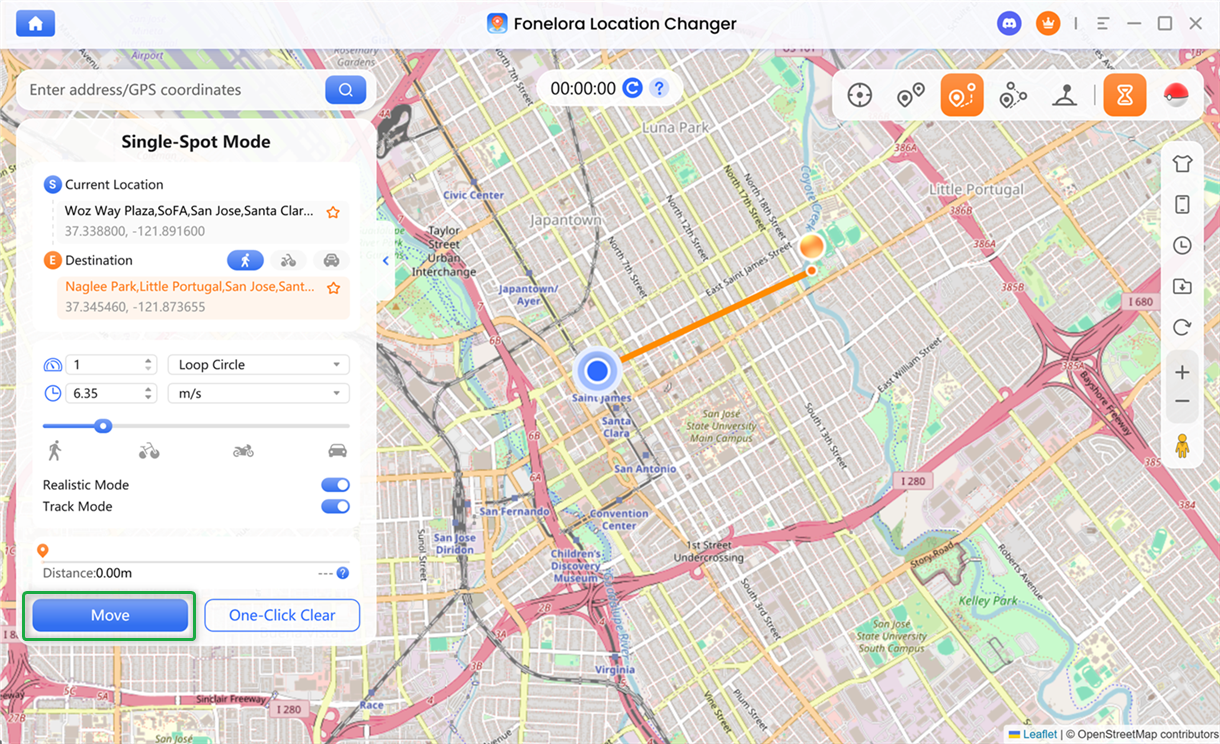
Click Move Option
Follow the planned route at the set speed, and smoothly start movement. Once the movement is fully completed, it will be saved to your history automatically.
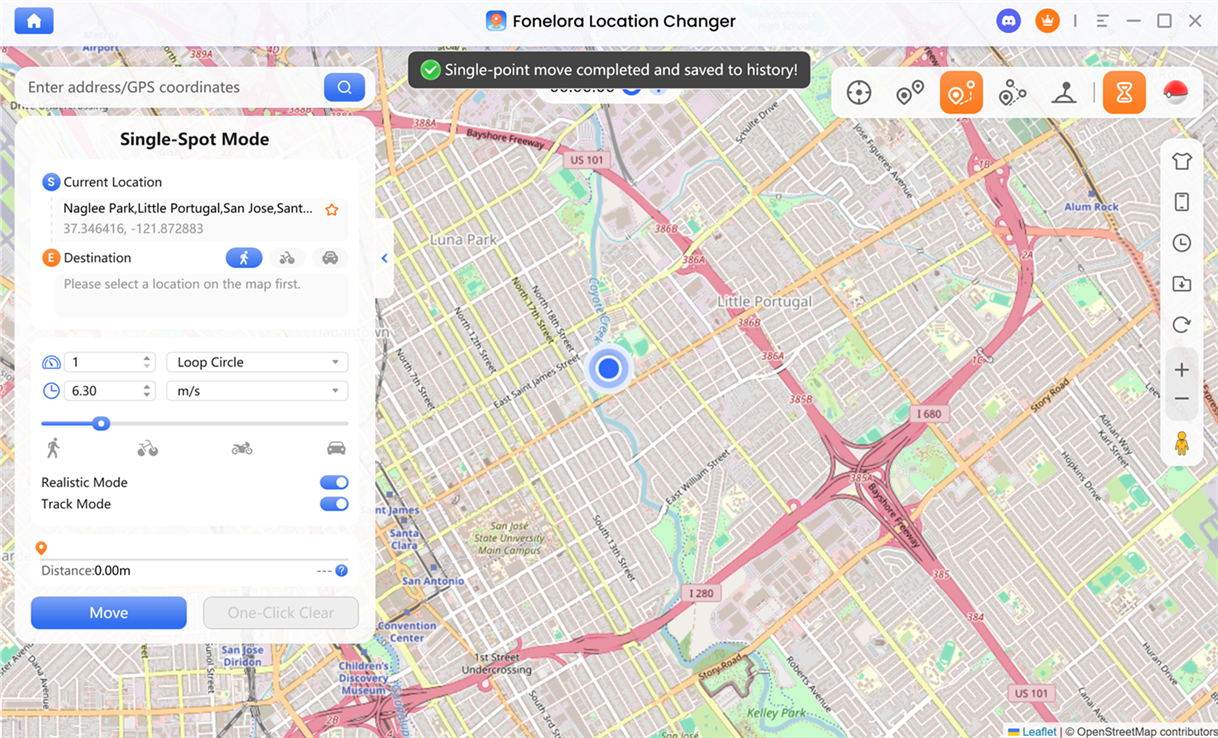
Complete Route Simulation
If you have further questions after reading this guide, please refer to the FAQs page or contact our Support Team for assistance.
Fonelora Location Changer Single-Spot Mode FAQs
1. How does Single-Spot Mode simulate movement between two locations?
Single-Spot Mode creates a virtual GPS route between a selected start point and destination. Once you click Start Moving, the system calculates a route based on your chosen movement mode (walking, cycling, or driving) and simulates continuous GPS movement along that path with adjustable speed and behavior settings.
2. How can I control or change the movement speed in Single-Spot Mode?
You can control movement speed in two ways: by manually entering a precise numeric value or by using the speed slider for visual adjustment. The selected speed directly affects how fast the virtual location moves along the generated route.
3. What is the difference between Walking, Cycling, and Driving modes?
Each movement mode simulates a different real-world travel behavior. Walking Mode prioritizes pedestrian paths with lower speed, Cycling Mode follows bike-friendly routes with moderate speed, and Driving Mode uses main roads with higher speed. These modes also affect route planning and navigation logic.
4. What does Realistic Mode do in Single-Spot Mode?
Realistic Mode enhances authenticity by introducing natural speed fluctuations, such as slight acceleration and deceleration during turns or route changes, making simulated GPS movement more human-like and less mechanical.
5. Why is the estimated arrival time not shown when Realistic Mode is enabled?
When Realistic Mode is activated, the movement speed becomes dynamic instead of fixed. Because of this variability, the system cannot calculate an accurate estimated time of arrival, so the ETA display is automatically disabled.
6. Can I follow the movement in real time on the map?
Yes. By enabling Track Mode, the map will automatically follow the moving GPS point in real time, ensuring that your current simulated location always stays centered and visible during movement.
7. Can I reset or clear my route in Single-Spot Mode?
Yes. You can use the One-Click Clear function to instantly remove all selected routes, destinations, and movement settings, allowing you to start a new simulation from scratch.
8. What is Single-Spot Mode best used for?
Single-Spot Mode is designed for GPS movement simulation between two locations. It is commonly used for AR games, location-based app testing, virtual route simulation, and privacy protection by masking real GPS movement patterns.