Install or Uninstall
This guide is to help you know how to download, install, uninstall, or update Fonelora Location Changer on your Windows or Mac computer.
Computer System Requirements
To ensure smooth operation when using Fonelora Location Changer, please ensure that your computer meets the following system requirements.
Windows
• Operating System: Windows 10 or Windows 11
Mac
• Operating System: macOS 10.15 or later
Download Fonelora Location Changer now by clicking the button below and begin your efficient location management journey.
Part 1. Download and Install Fonelora Location Changer on Windows Computer
Click the download link of Fonelora Location Changer on your Windows computer. After downloading it successfully, please double-click fonelora-lc-en-setup.exe.

Download Fonelora Location Changer on Computer
Please read the End User License Agreement and accept it. Then click the Open button.
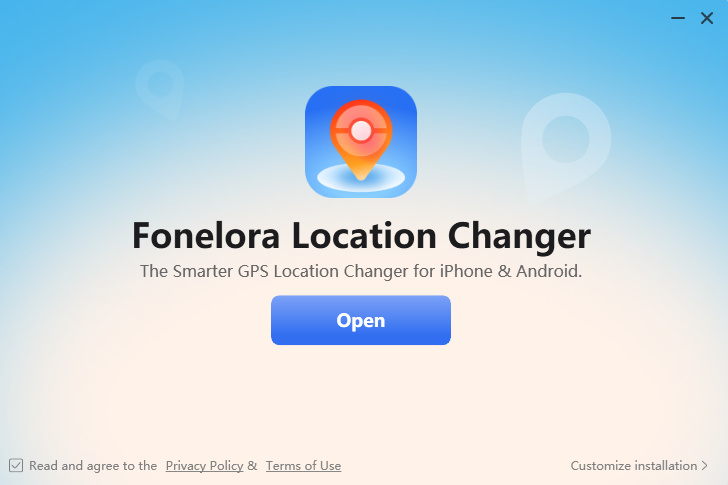
Click the Install Now Button
Then, the installation process will start automatically.
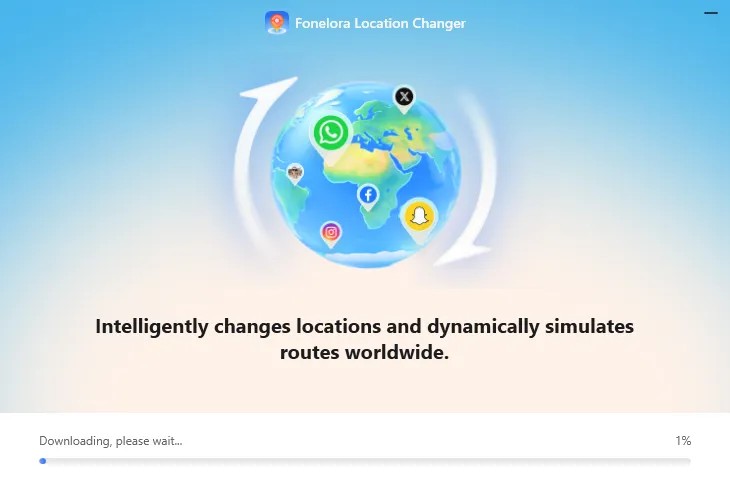
Install Fonelora Location Changer on Windows
Once the installation process finishes, the interface will be shown as below.
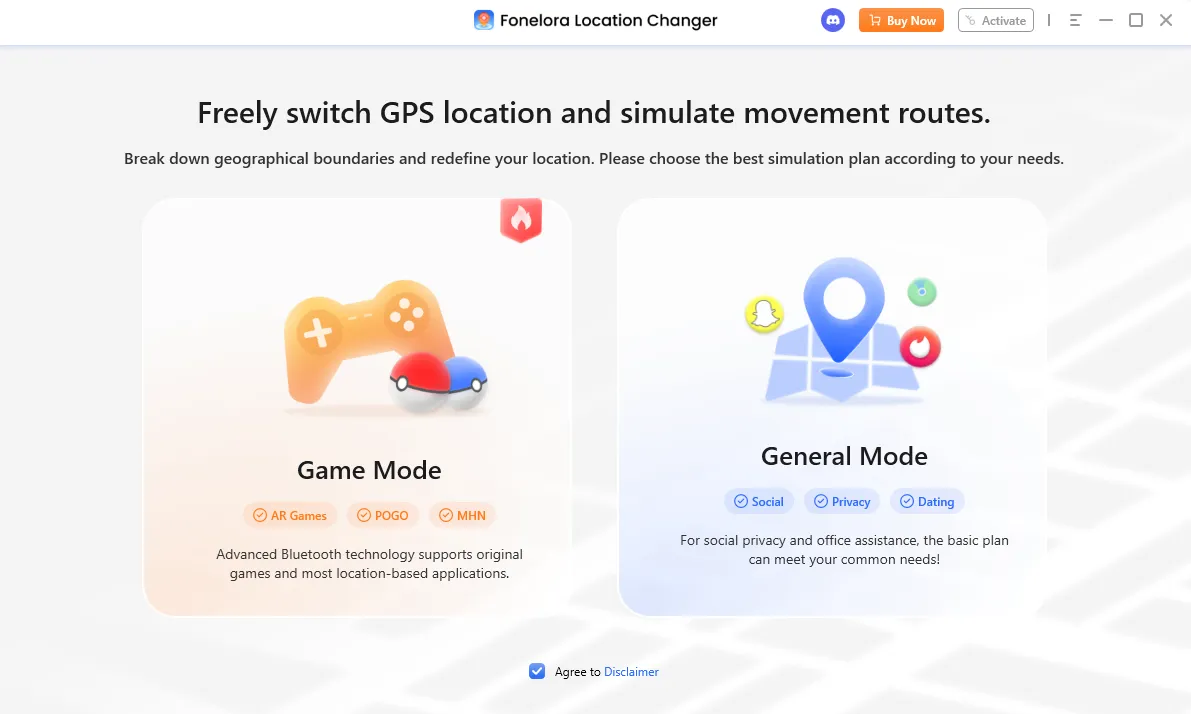
Installation Process Completes
Part 2. Download and Install Fonelora Location Changer on Mac Computer
After clicking the download link of Fonelora Location Changer and downloading it successfully, find “fonelora-lc-en-mac.dmg” in the browser and open it.

Click the Download link of Fonelora Location Changer
Please double-click the Fonelora Location Changer icon. Read the End User License Agreement and accept it. Then, please click the Install Now button to start Fonelora Location Changer installation process.
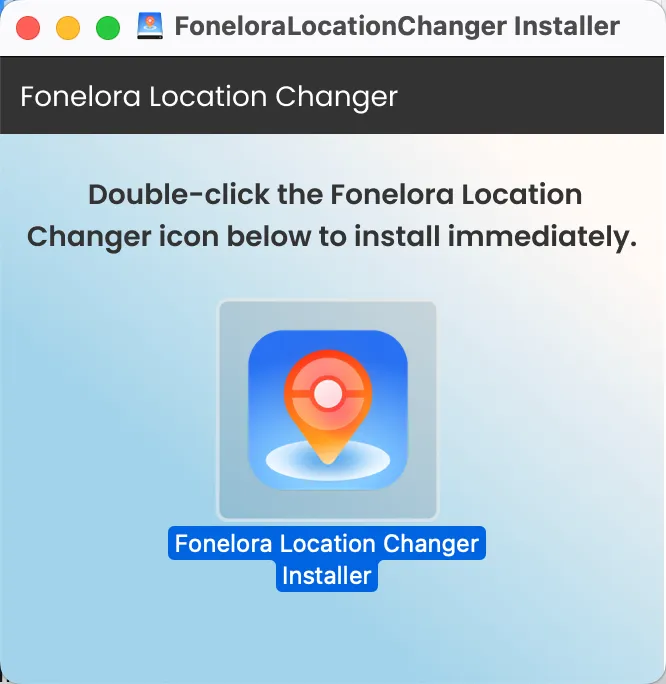
Read the End User License Agreement
After that, the installation process will be initiated automatically.
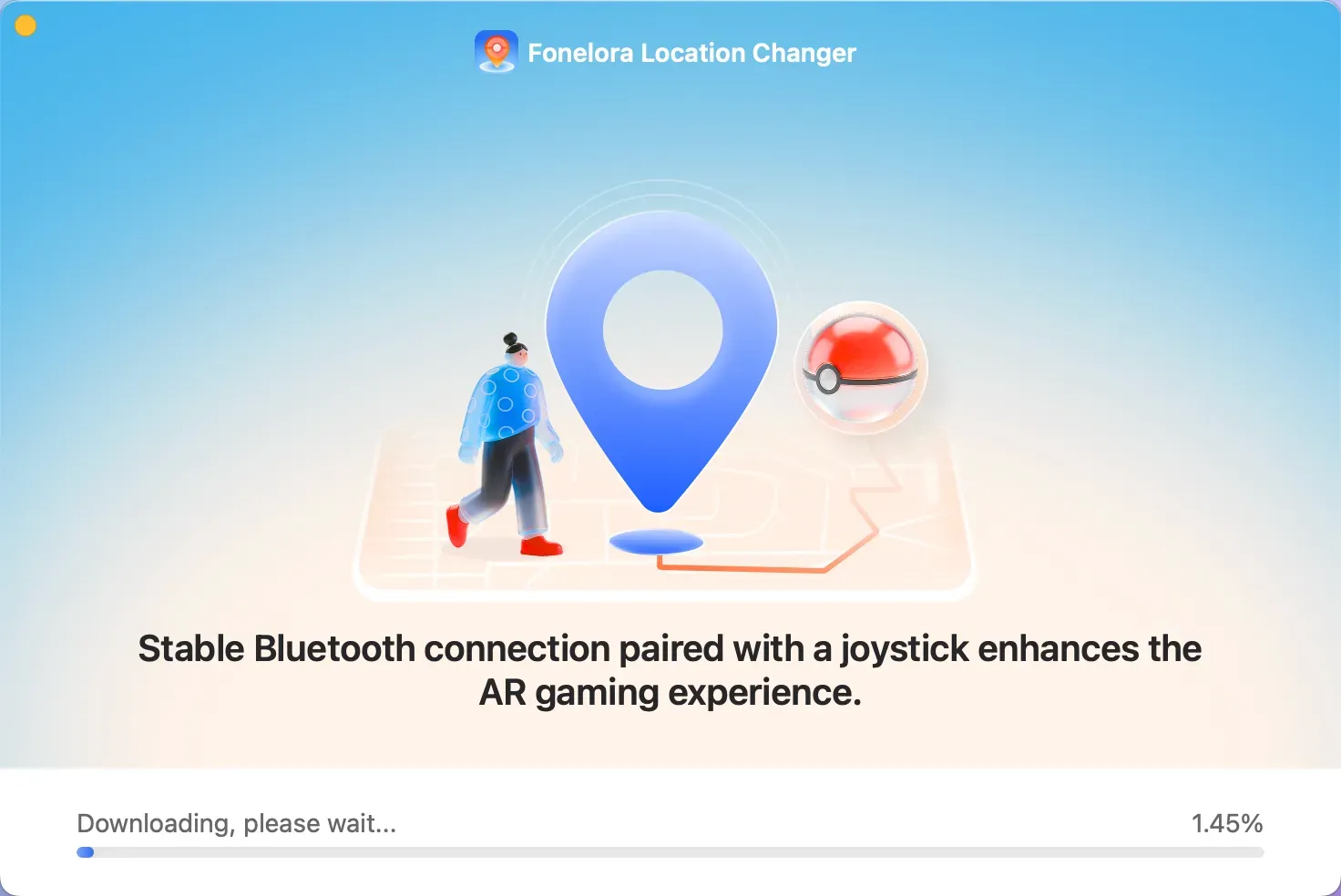
Installation Process Will Be Initiated
Once the installation process is completed, the interface will be shown as below.
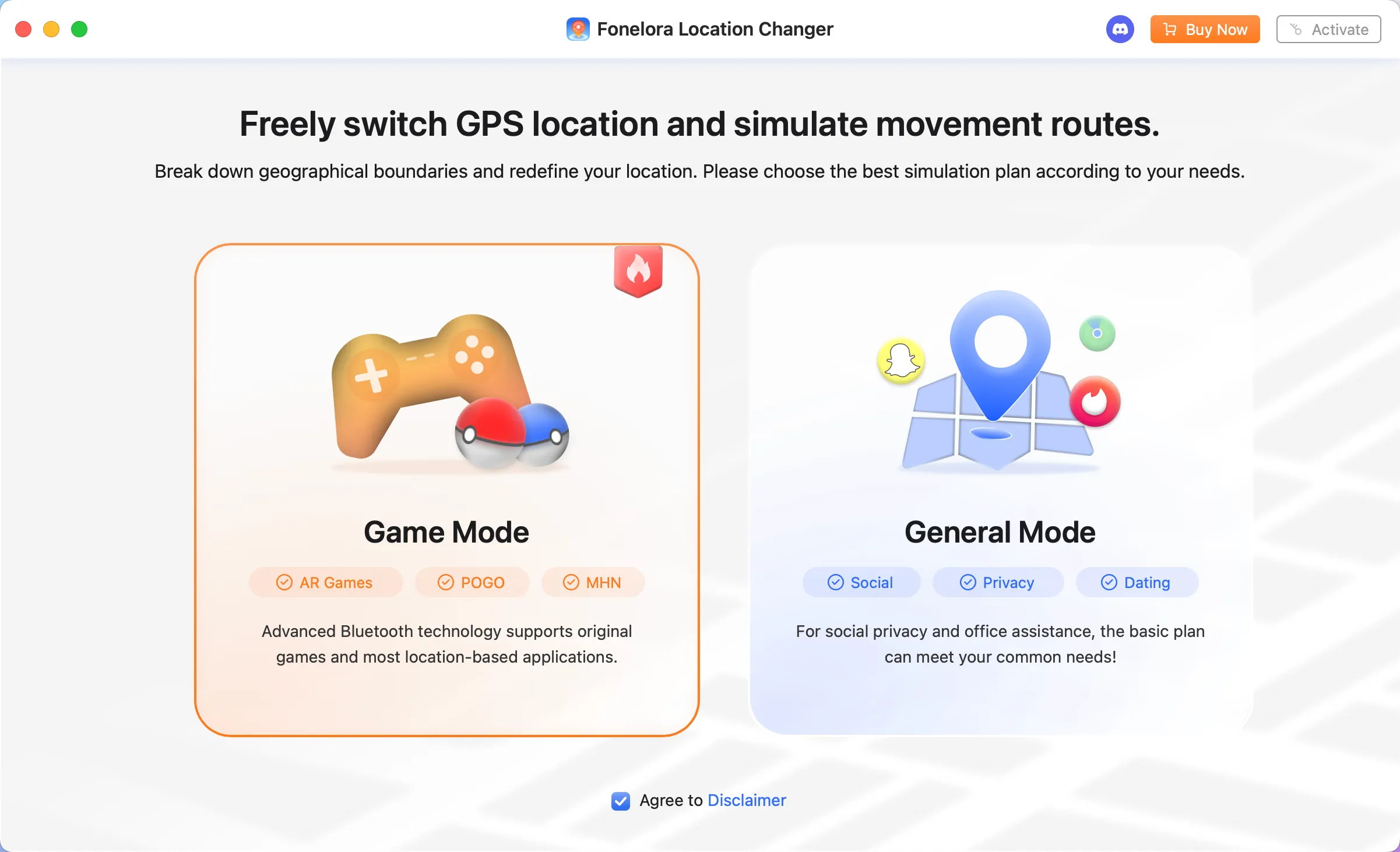
Installation Process Completes
Part 3. How to Update Fonelora Location Changer to the Newest Version
Keeping software up-to-date ensures you benefit from the latest advancements, optimizing performance, speed, and usability. This also enhances the overall experience by providing improved interfaces, new features, and better performance.
Step 1. Launch the Keeprix Downloader on Your Computer.
Please launch Fonelora Location Changer and unfold the menu bar. Then, please choose the Check for Updates option.
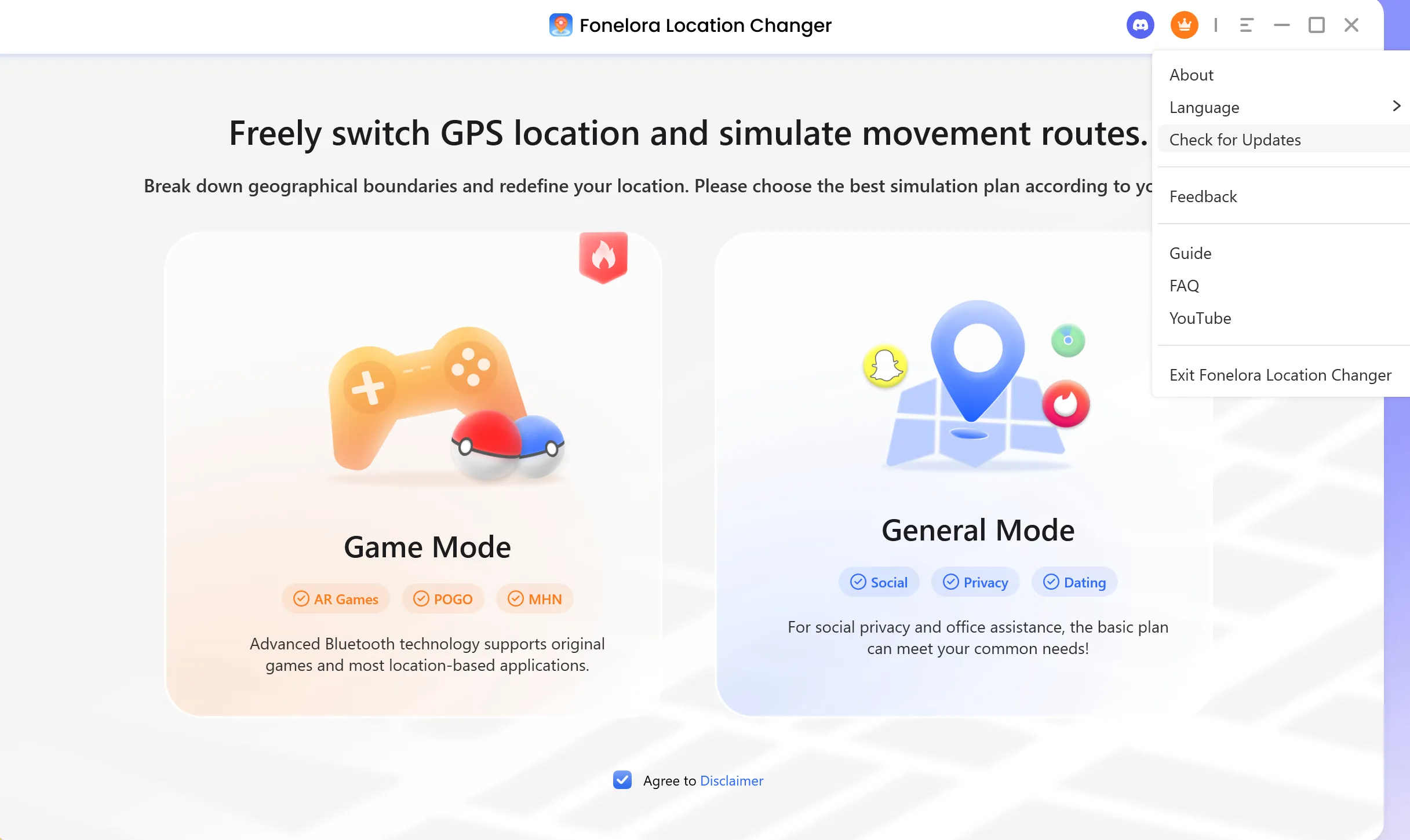
Choose Check for Updates
Step 2. Choose the Check for Updates Option.
After that, you can check whether you have the latest version of Fonelora Location Changer or not. If Fonelora Location Changer is not the newest version, please click the Update Now button to update it.
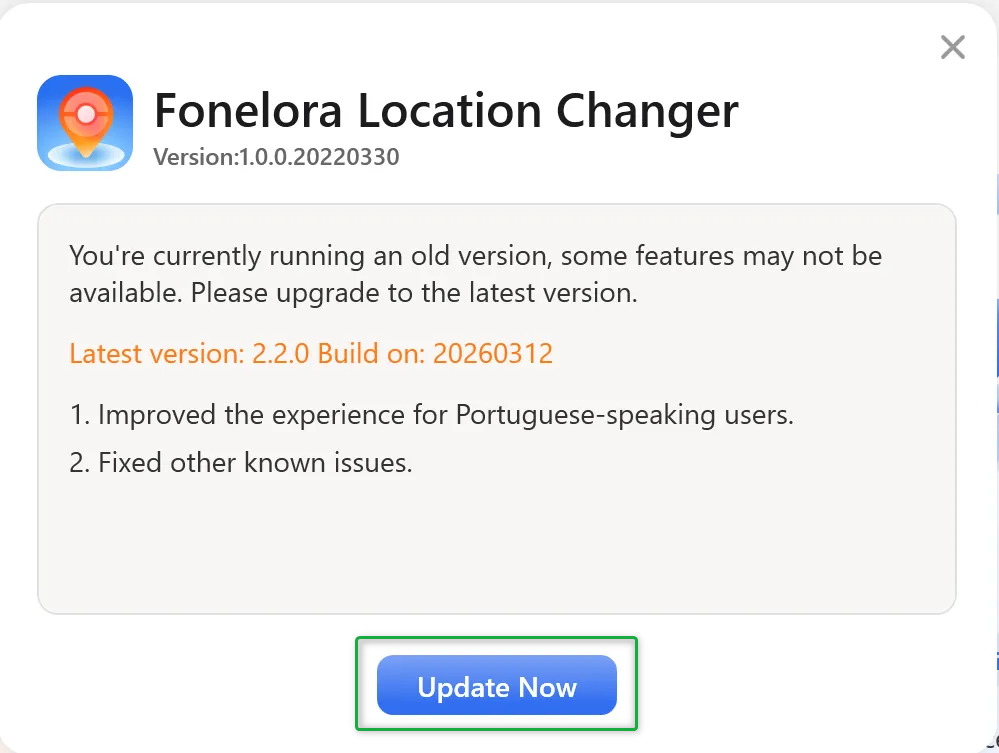
Click the Update Now Button
Part 4. Uninstall Fonelora Location Changer from Windows Computer
Step 1. Open the Control Panel.
Open the Control Panel on your Windows computer and choose Uninstall a program.
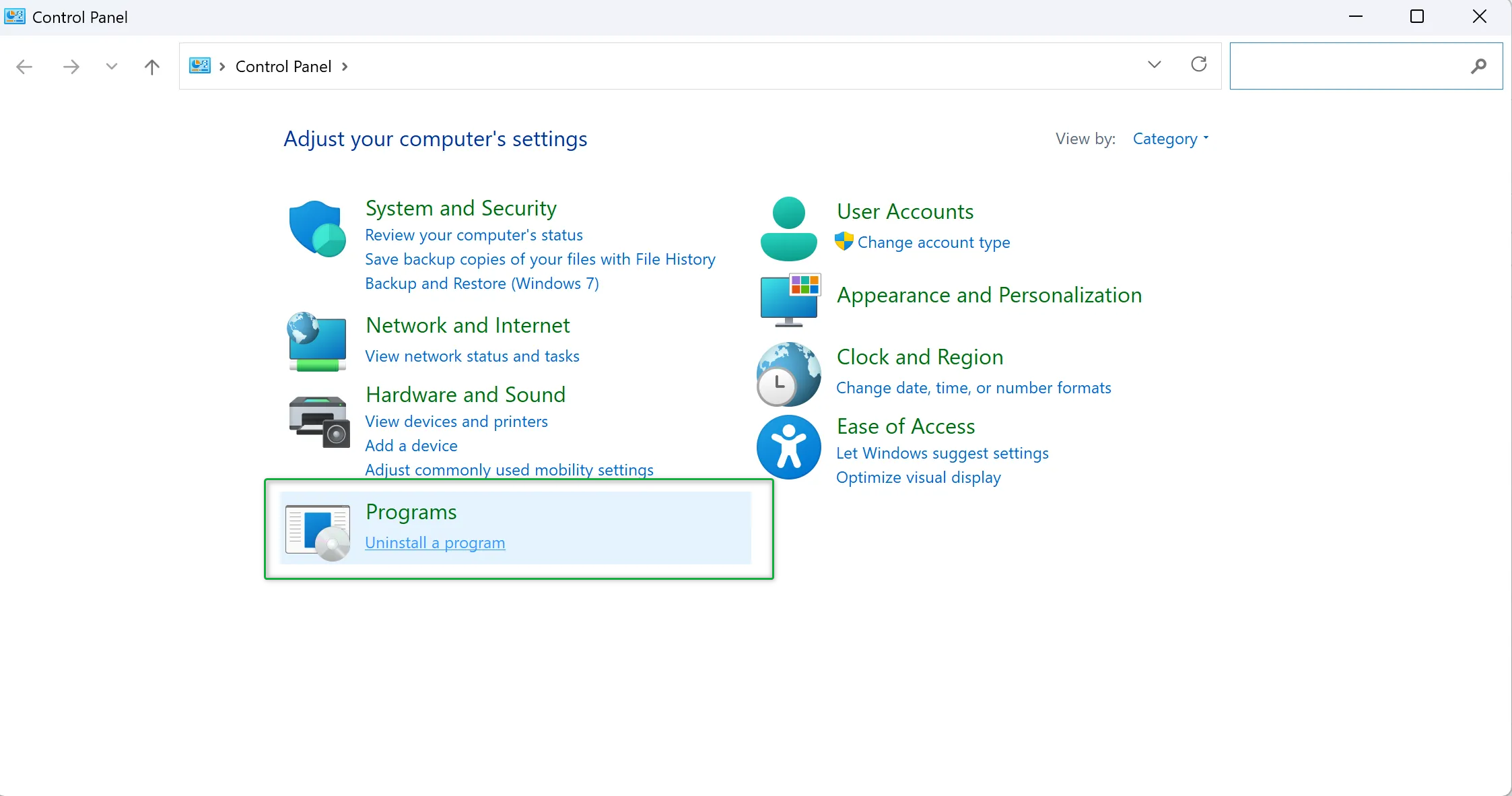
Open Control Panel
Step 2. Start to Uninstall Fonelora Location Changer.
After that, please locate Fonelora Location Changer and right-click it to uninstall Fonelora Location Change.
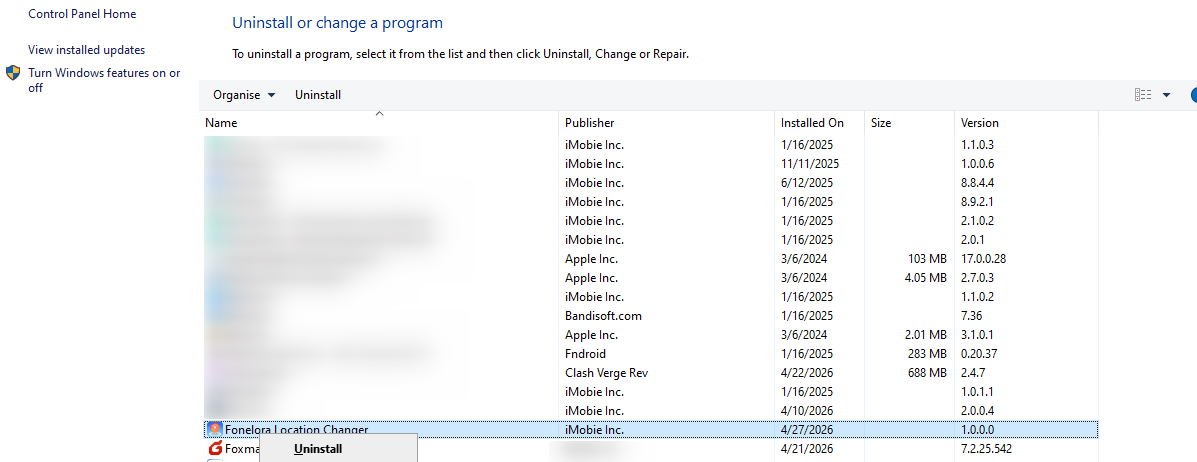
Uninstall Fonelora Location Changer
Part 5. Uninstall Fonelora Location Changer from Mac Computer
Step 1. Open Finder on Your Mac Computer.
Open Finder on your Mac computer. Then, please click Applications and locate Fonelora Location Changer.
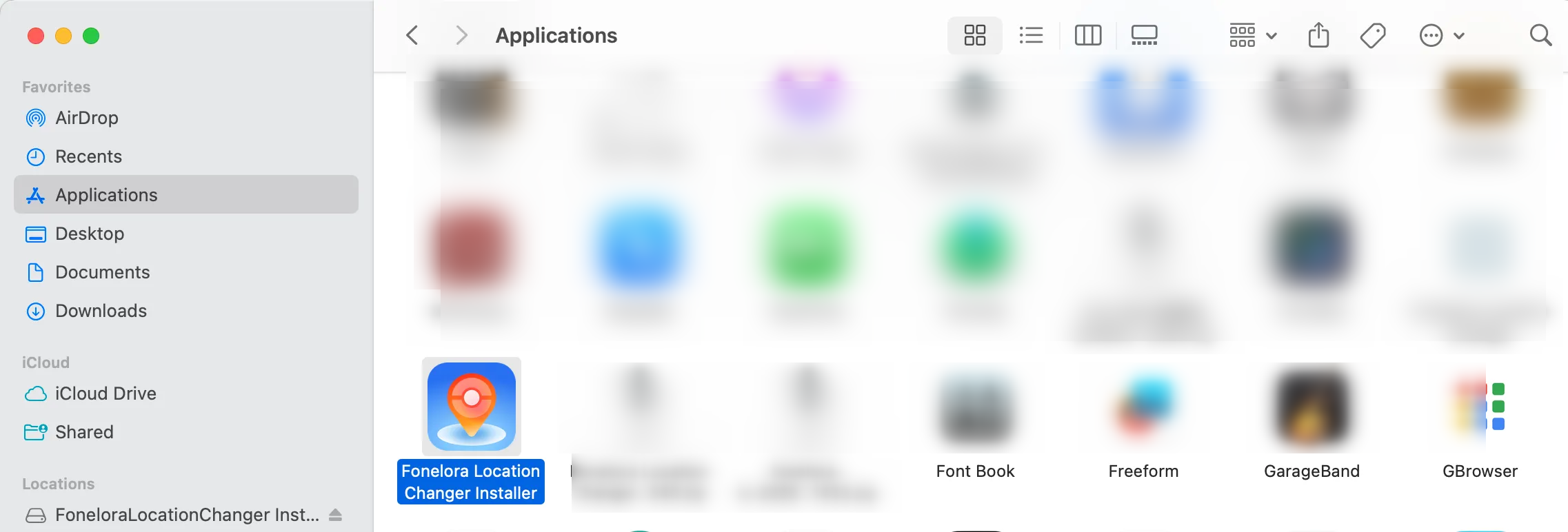
Click Applications
Step 2. Start to Uninstall Fonelora Location Changer.
Right-click Fonelora Location Changerto choose Move to Trash.
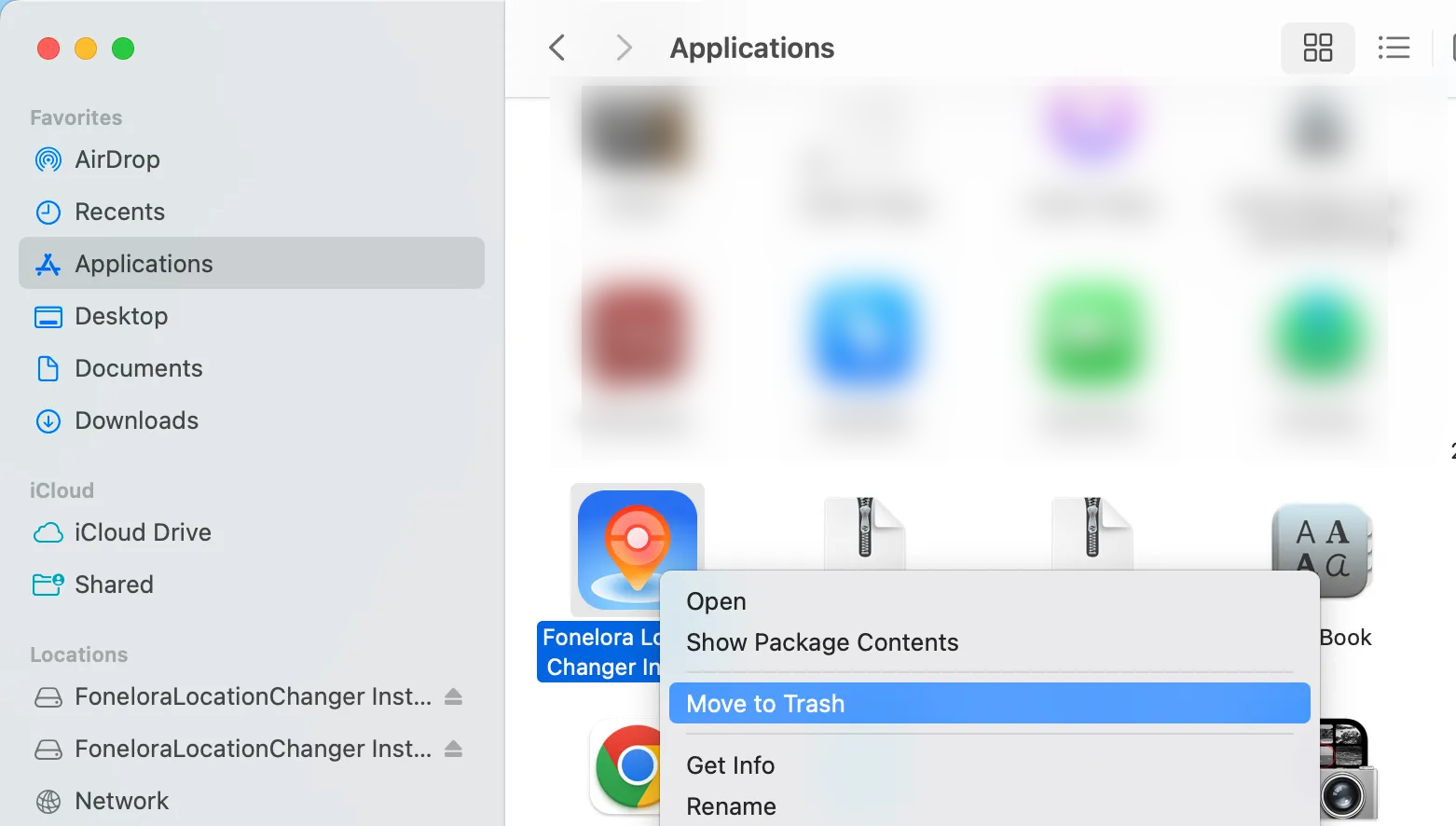
Choose Move to Trash
Step 3. Complete the Uninstallation Process.
Please right-click Trash and select Empty Trash.
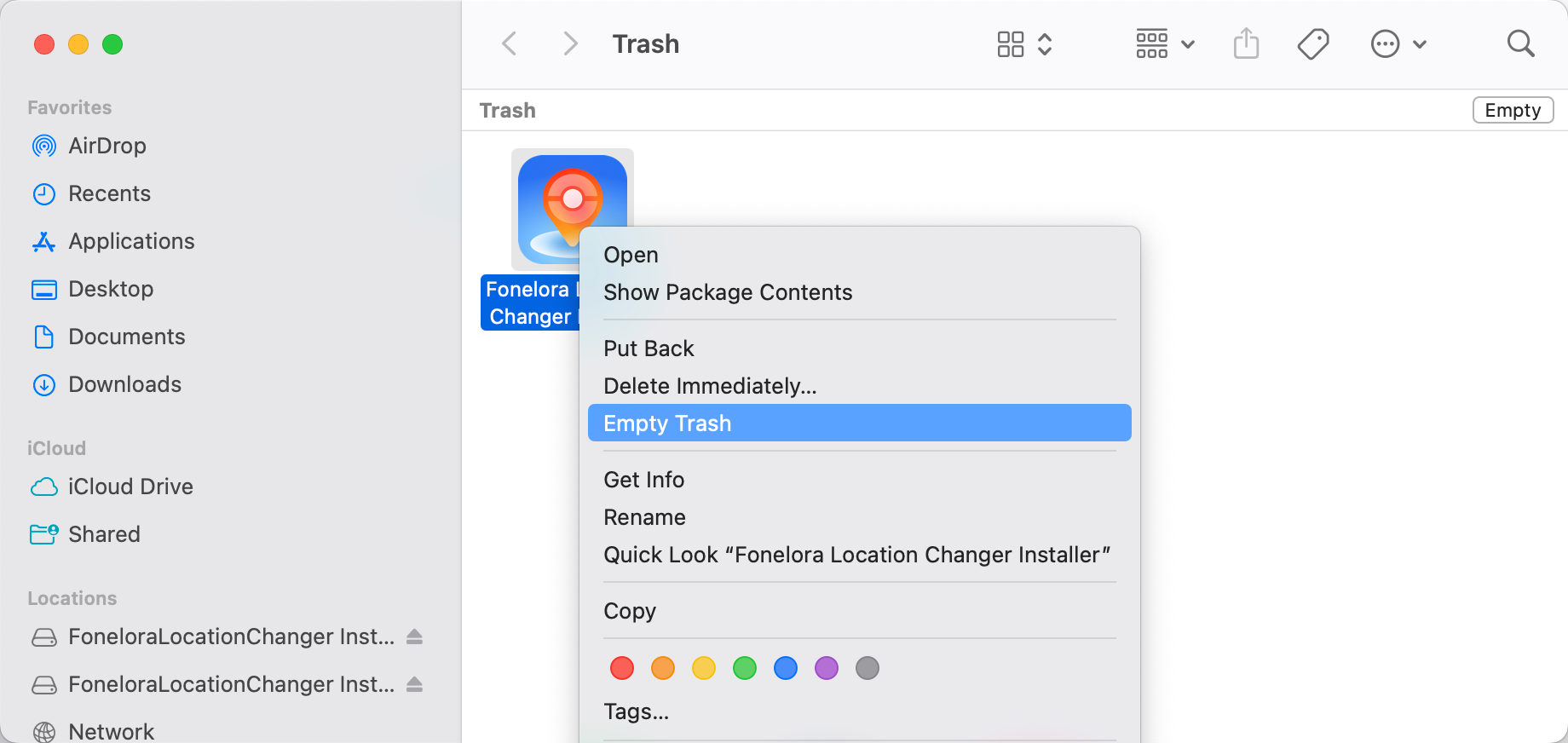
Select Empty Trash
Then, you will uninstall Fonelora Location Changer from your Mac computer completely.
If you have additional questions, visit our FAQs page for detailed solutions or reach out to our Support Team for further help or personalized assistance.
Fonelora Location Changer Install or Uninstall FAQs
1. What operating systems does Fonelora Location Changer support?
This software supports Windows 10, Windows 11, and macOS 10.15 or later. Please ensure your computer system meets the requirements before installation.
2. What should I do if the downloaded installer cannot be opened or run properly?
First, check whether the downloaded file is complete. If the file is corrupted, please re-download it from the official link. Also, ensure you run the installer as an administrator (on Windows), or allow apps downloaded from "anywhere" on Mac (adjust Security & Privacy settings in System Preferences).
3. What should I do if the installation process fails or shows an error?
We recommend temporarily disabling antivirus software or firewall, as they may mistakenly block the installation process. Then restart the installer. If the problem persists, please contact official support for assistance.
4. How can I check whether my current software version is the latest?
Launch Fonelora Location Changer, unfold the menu bar and select the Check for Updates option. If a new version is available, the software will prompt you to click the Update Now button to upgrade. You can also directly visit the official website to download the latest version.
5. Will there be residual files after uninstalling the software? How to completely remove them?
On Windows, after uninstalling via Control Panel, we recommend manually checking and deleting any remaining folders in the installation directory. On Mac, in addition to moving the app to Trash and emptying it, you can also go to the "~/Library/" directory and delete preference or cache files related to the app (e.g., com.fonelora.plist, etc.) to ensure complete uninstallation.
6. What should I do if I encounter functional issues or crashes after updating the software?
Try restarting the software and your computer. If the problem persists, we recommend completely uninstalling the current version, then downloading the latest version from the official website and reinstalling it. If the issue remains unresolved, please contact our support and provide error logs.