Joystick Mode
What is Joystick Mode, and how does it improve your route simulation?
The Joystick Mode in Fonelora Location Changer is a feature that uses a virtual joystick to control the direction of GPS movement. It allows you to control the direction and speed of GPS location changes in real time, flexibly, and naturally via a virtual joystick. This mode is especially suitable for scenarios that require walking around in a virtual world, such as AR games and social application location simulation. With this mode, you can achieve 360° real-time GPS navigation, customize movement speed, simulate real-world movement paths, and perform natural movements, providing a more realistic GPS simulation experience.
With flexible mode settings such as walking, cycling, and driving, as well as adjustable speed and realistic movement simulation effects, Joystick Mode helps you better control the dynamic changes of virtual locations. This feature is widely used in the following scenarios:
• Exploring maps – Freely explore virtual locations on the map
• PokeStop route scanning – Suitable for game scenarios that require manual movement
• Finding targets – Locate specific targets in games or applications
• Various game scenarios that require manual movement – Such as location-based AR games like Pokémon GO
Computer System Requirements
To ensure smooth performance when using Fonelora Location Changer, please make sure your system meets the following requirements.
Computer
• Windows: Windows 10 / Windows 11
• Mac: macOS 10.15 or later
Mobile Device
• iOS: iOS 7 or later
• Android: Android 5.0 or later
Differences Between Free and Activated Versions
• Free Version: Joystick Mode can be used up to 20 minutes
• Activated Version: Unlimited access to Joystick Mode
Step 1. Download and Install Fonelora Location Changer.
Visit the official website to download Fonelora Location Changer onto your computer. Please ensure your internet connection is stable during the download and installation process. Then follow the on-screen instructions to complete the installation.
Step 2. Launch the Program and Connect Your Device.
After launching the program, please choose Game Mode or General Mode, and then follow the on-screen instructions to complete the device connection.
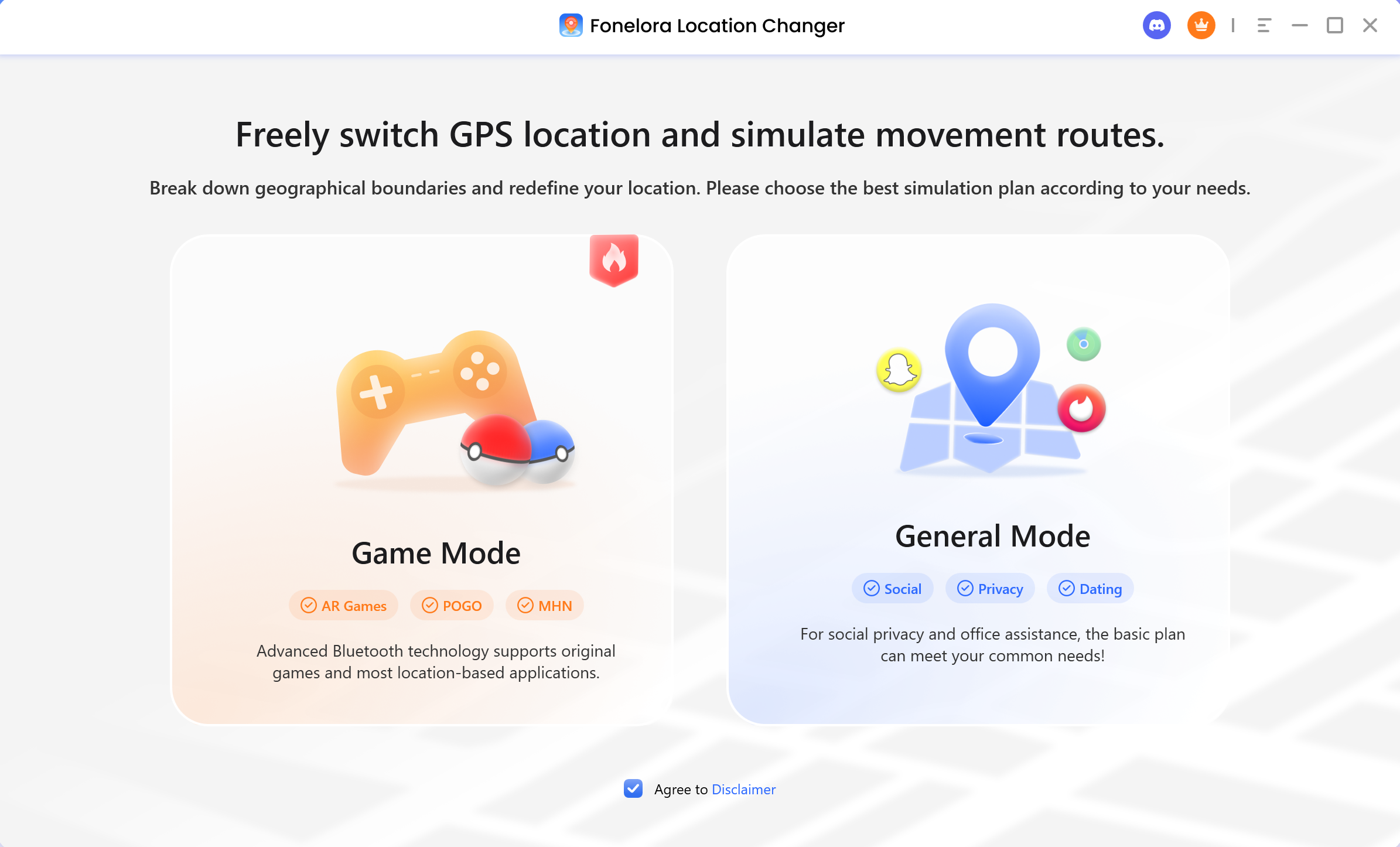
Choose Mode
1. To connect your Android device to Fonelora Location Changer, please refer to this guide.
2. To connect your iOS device (iPhone/iPad) to Fonelora Location Changer, please refer to this guide.
Step 3. Choose Joystick Mode.
After connection, if you want to control your GPS position and move flexibly in 360 degrees, please select Joystick Mode in the upper-right corner. Then click the Move button to move forward automatically and enter joystick control mode.
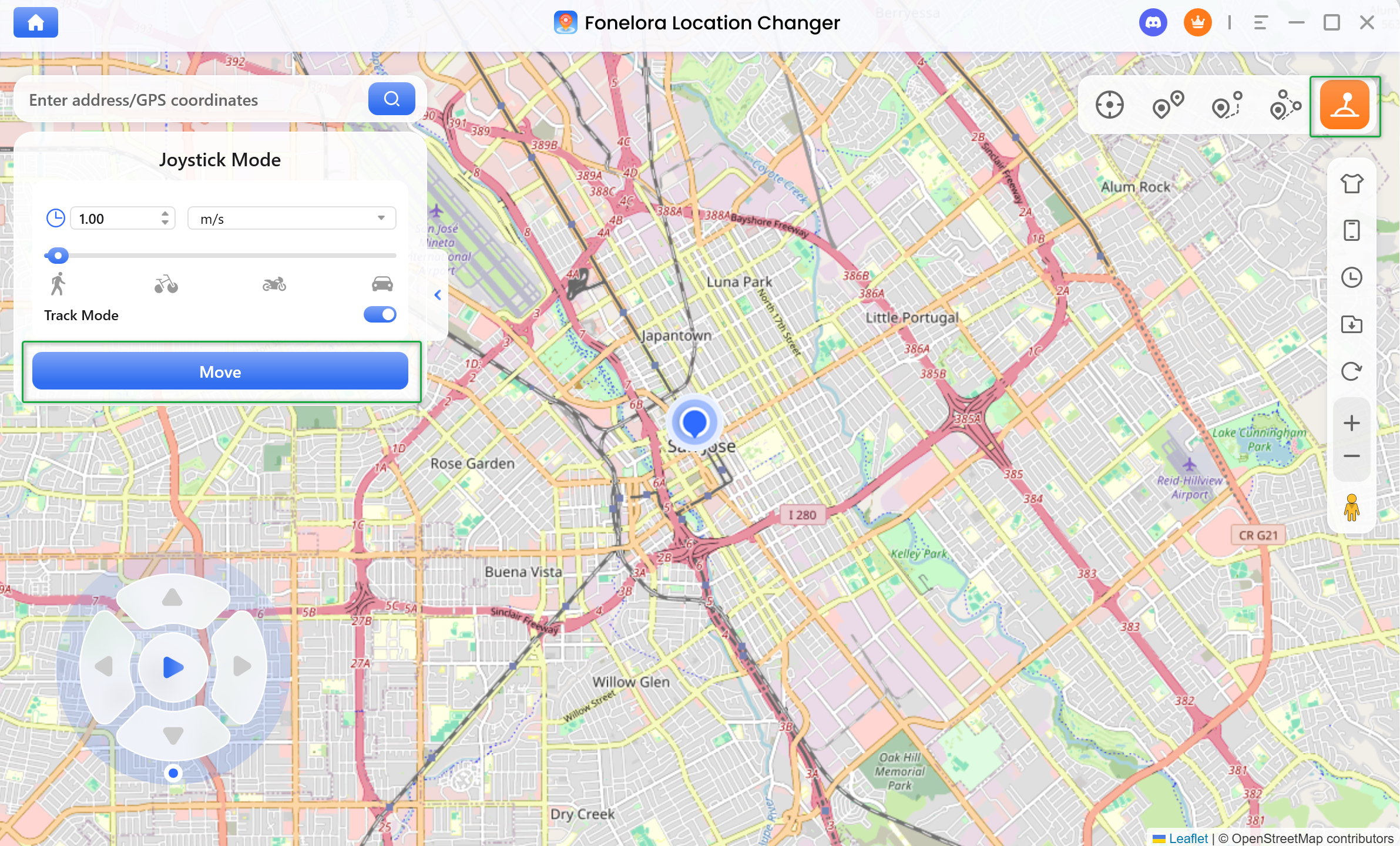
Choose Joystick Mode
Step 4. Choose Movement Mode.
You can choose the appropriate exercise method according to your own needs to achieve 360° directional movement.
Real-Time Movement: Click the Move button, the joystick center start button, or press the spacebar to begin real-time movement. Control the GPS point direction using the A, D keys or the ←, → arrow keys. Adjust movement speed by dragging the speed slider or using the + and - keys on the keyboard.
Real-Time Movement: Click the Move button, the joystick center start button, or press the spacebar to begin real-time movement. Control the GPS point direction using the A, D keys or the ←, → arrow keys. Adjust movement speed by dragging the speed slider or using the + and - keys on the keyboard.
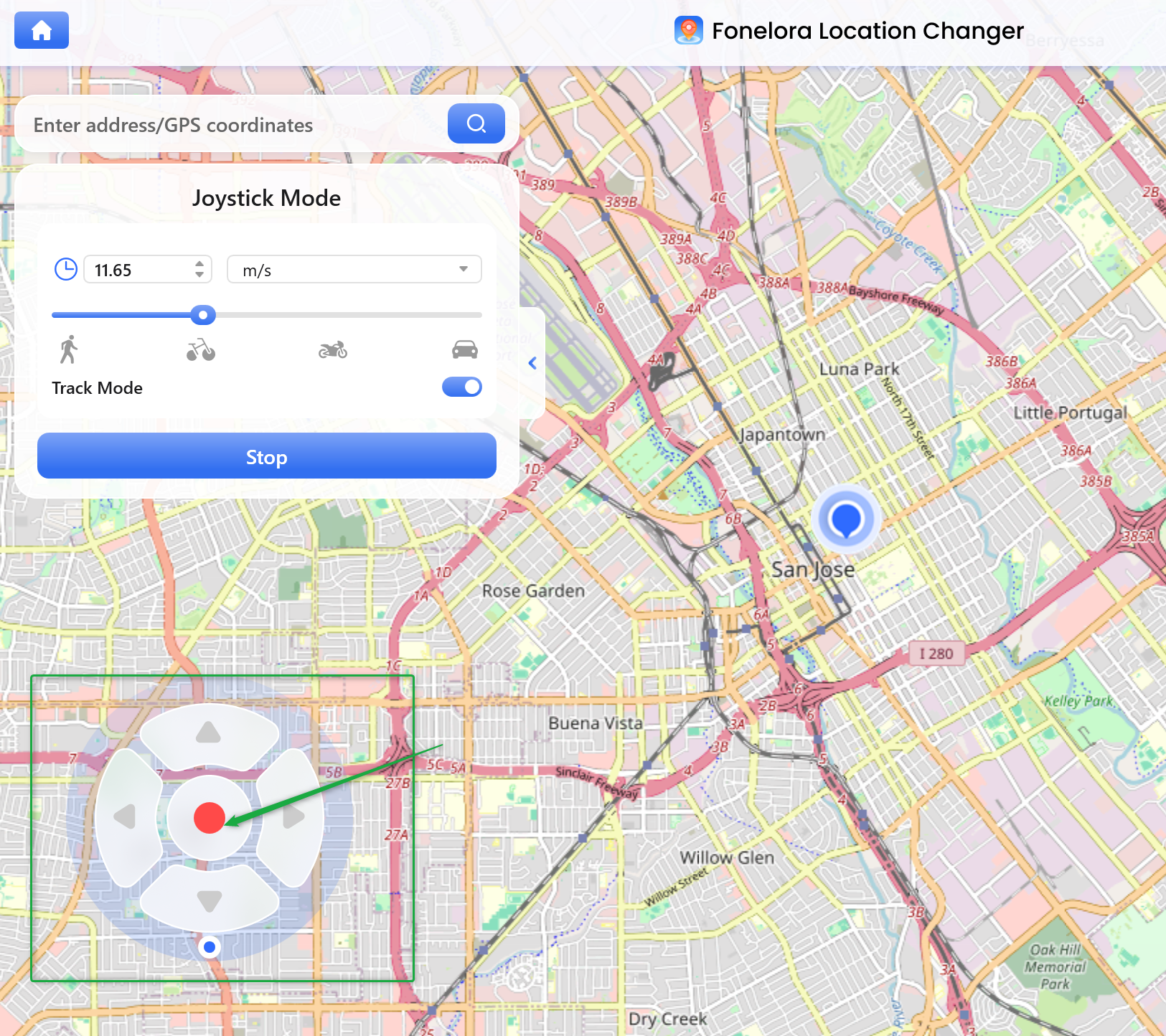
Choose Movement Mode.
Step 5. Manage Route List.
You can efficiently manage your route and waypoints by saving a waypoint or location from the current route to Favorites for reuse. Disabled when the route list is empty.
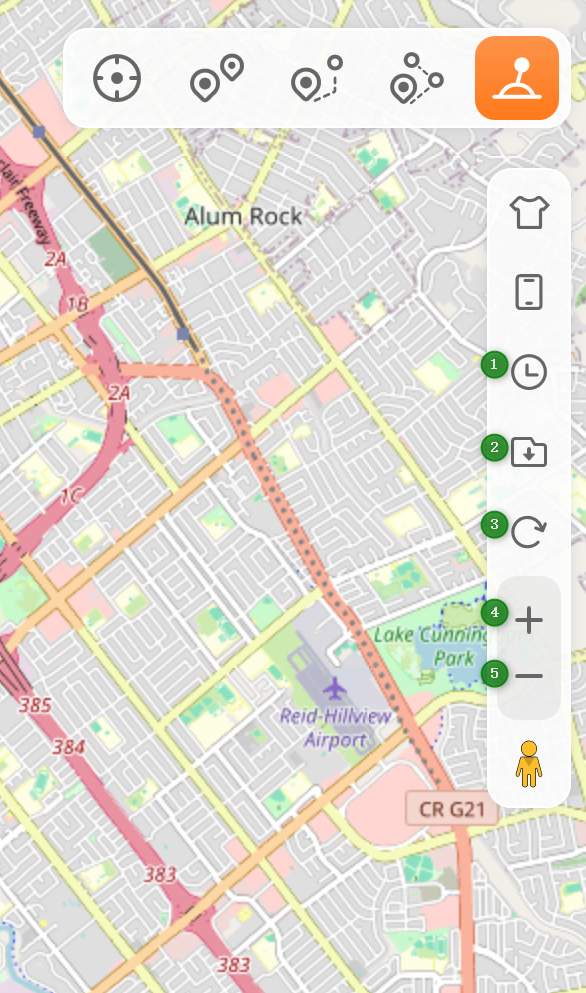
Manage Route List.
Step 6. Customize Movement Settings.
You can adjust the movement speed and customize how the movement behaves. For precise control, enter a specific value in the input field, or simply use the Speed slider to adjust it visually.
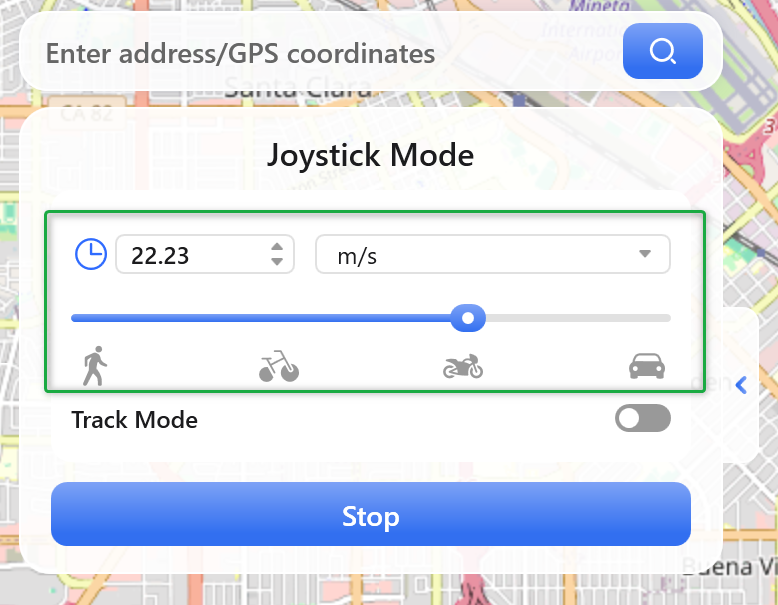
Adjust Speed and Loops
You can enable Track Mode to keep the moving point centered on the map, allowing you to monitor the movement process in real time.
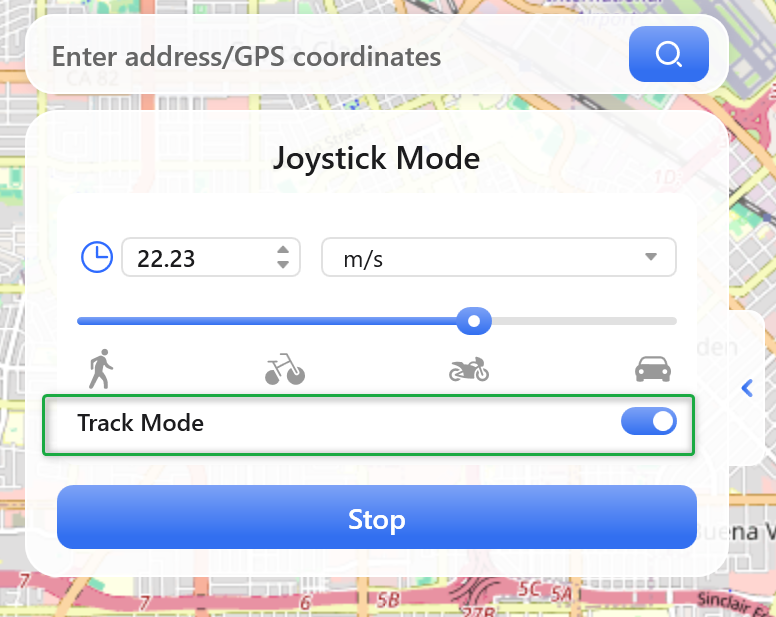
Customize Movement Settings
If you have further questions after reading this guide, please refer to the FAQs page or contact our Support Team for assistance.
Fonelora Location Changer Joystick Mode FAQs
1. How do I start Joystick Mode?
Click the fifth icon in the upper-right corner of the software interface (the Joystick Mode icon), then click the Move button to automatically move forward and enter joystick control mode.
2. How do I control the movement direction in Joystick Mode?
You can control the direction of mouse and keyboard operations.
3. What is the difference between Position Movement and Real-Time Movement?
• Position Movement: Use the joystick ball to select a direction, then click the direction button to move one unit. This is suitable for precise step-by-step movement.
• Real-Time Movement: Click the move button, the joystick center start button, or press the Spacebar to start continuous movement. Use the A, D keys or the ←, → arrow keys to control the direction. This is suitable for simulating natural walking or driving processes.
4. How do I adjust the movement speed?
You can adjust the movement speed by dragging the speed slider and using the keyboard shortcuts.
5. What scenarios is Joystick Mode suitable for?
Joystick Mode is particularly suitable for AR games, Map exploration, PokéStop route checking, and Simulating real movement.
6. What should I pay attention to when using Joystick Mode?
Please note the following points when using Joystick Mode:
• Ensure your device is properly connected to Fonelora Location Changer.
• The free trial version may have functional or time limitations. Please upgrade to the paid version for a full experience.
• It is recommended to pay attention to the cooldown timer when using game-related features to avoid abnormal detection.
7. Which devices does Joystick Mode support?
The Joystick Mode of Fonelora Location Changer supports GPS location simulation on both iOS and Android devices, allowing you to control the movement direction in real-time via a virtual joystick.