Teleport Mode
What Is Teleport Mode?
Teleport Mode allows you to instantly change your device’s GPS location from one point to another without any movement in between. With just a few clicks, your location is immediately updated to the selected destination, providing a fast and seamless spoofing experience.
Applicable Scenarios
Teleport Mode is ideal for long-distance location changes, such as jumping between cities or even countries. It is especially useful when you need to quickly switch your location for gaming, social apps, or accessing region-specific content without physically traveling.
Computer System Requirements
To ensure smooth performance when using Fonelora Location Changer, please make sure your computer meets the following system requirements.
Windows
• Operating System: Windows 10 or Windows 11
Mac
• Operating System: macOS 10.15 or later
Supported Device Types
To ensure compatibility when using Fonelora Location Changer, please make sure your device meets the following requirements.
iOS
• Operating System: iOS 7.0 or later
Android
• Operating System: Android 5.0 or later
Differences Between Free & Activated Version
| Features | Free Version | Activated Version |
| Teleport Mode | 2 times | Unlimited |
Step 1. Download and Install Fonelora Location Changer on Computer.
Click the download button below to download Fonelora Location Changer to your PC/Mac. Ensure you have a stable network connection during the download and installation process.
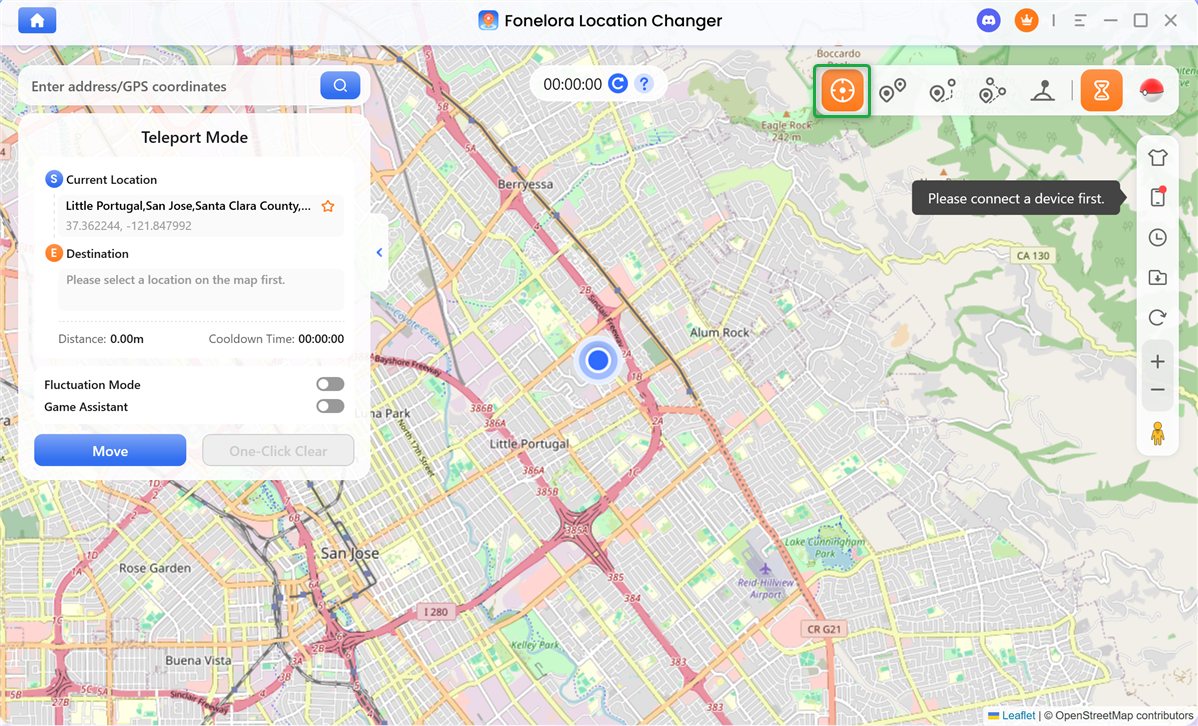
Step 2. Choose a Mode.
Lanuch Fonelora Location Changer and choose Game Mode or General Mode based on your needs. After the map has finished loading, please choose Teleport Mode.
Choose a Mode
Step 3. Connect Your iOS/Android Device to Computer.
You can connect your iOS or Android device to the computer using a USB cable or Wi-Fi.
In Game Mode, iOS devices can only be connected to the computer via Bluetooth to change GPS location.
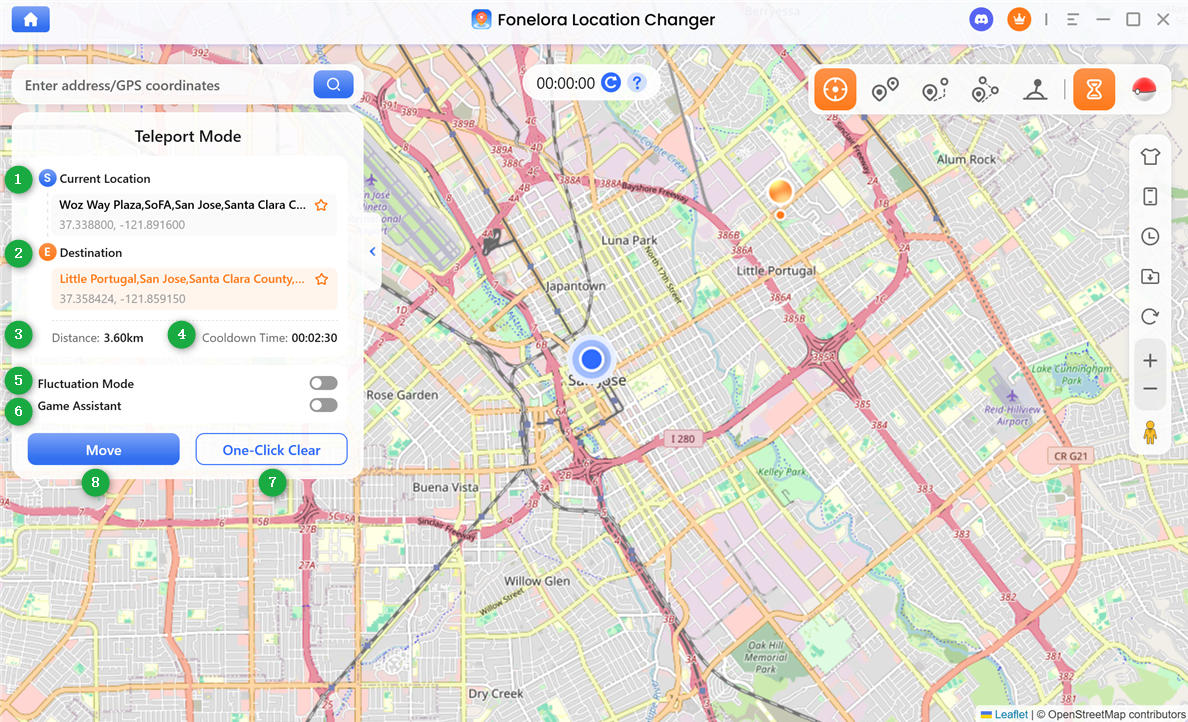
Step 4. Getting Started with the Control Panel.
Once your device is connected, use the control panel to access all core features. Here’s a quick overview of the core interface.
Left Sidebar
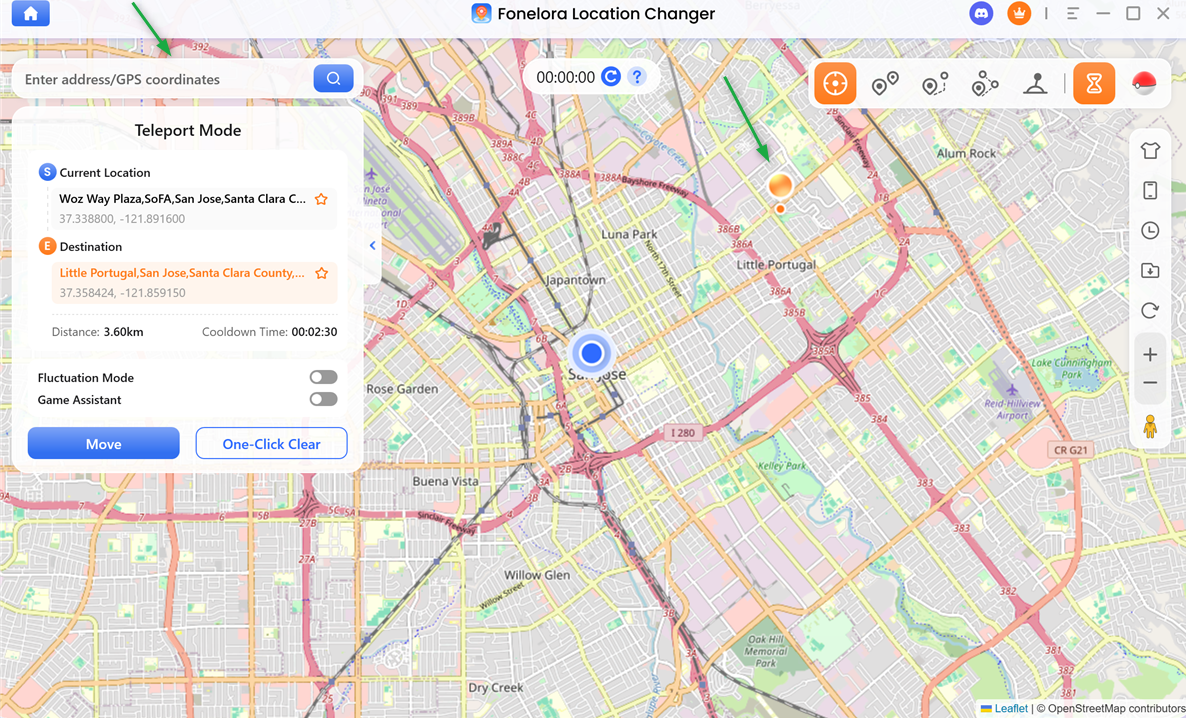
Step 5. Select a Destination on the Map.
After your device is connected, adjust the map view using your mouse wheel to find your target location, then click to select it. You can also type an address or GPS coordinates into the search bar in the upper-left corner to quickly locate your destination.
Select a Destination
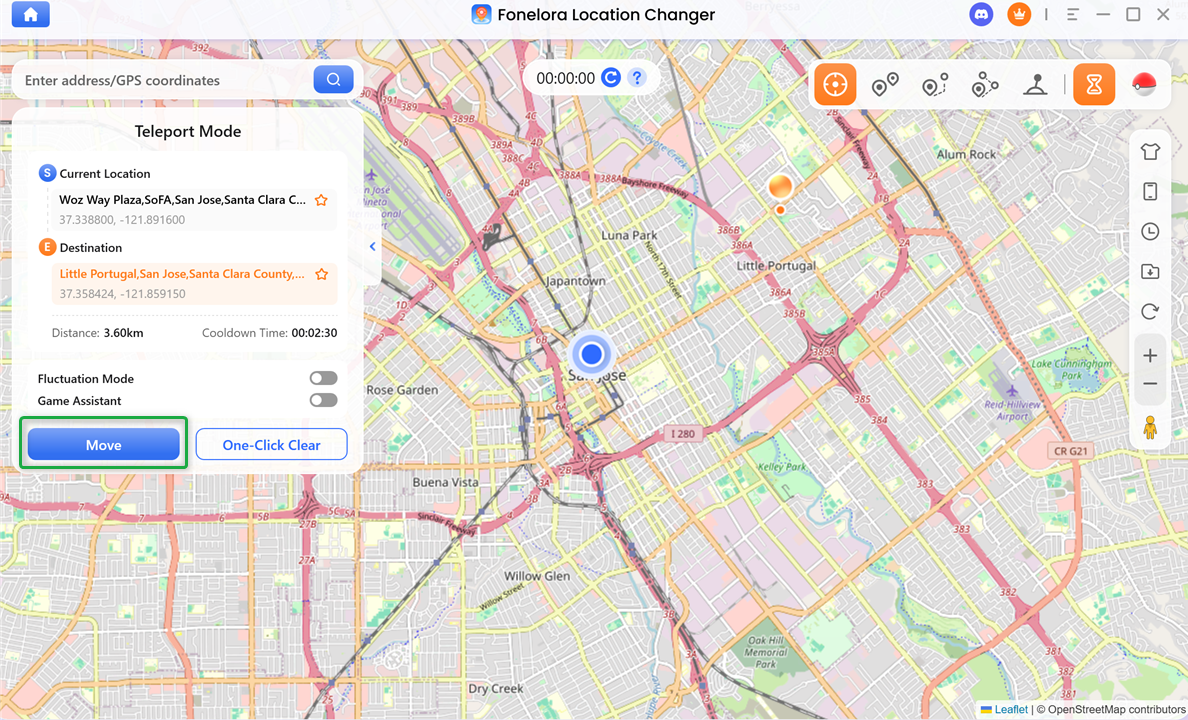
Step 6. Change Your GPS Location in One Click.
After choosing a destination, a sidebar will appear displaying details such as the location name, coordinates, and distance. Simply click Move to update your GPS location instantly.
Click Move Button
When the process completed, you will see "Teleport completed and saved to history!" interface.
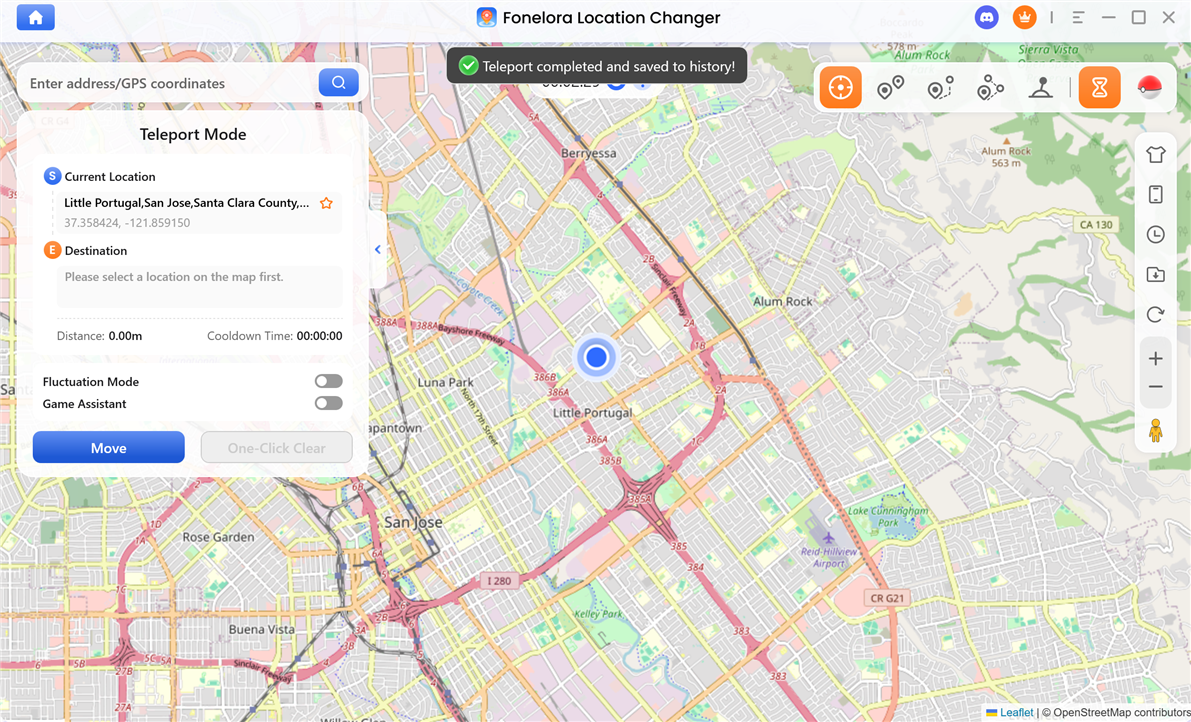
Changing GPS Location Completed
If you have additional questions, visit our FAQs page for detailed solutions or reach out to our Support Team for further help or personalized assistance.
Fonelora Location Changer Teleport Mode FAQs
1. What is Teleport Mode in Fonelora Location Changer?
Teleport Mode allows you to instantly change your device’s GPS location from one place to another without any movement in between. It provides a quick and seamless way to spoof your location.
2. When should I use Teleport Mode?
Teleport Mode is best for long-distance location changes, such as switching between cities or countries. It is ideal for gaming, social media, and accessing region-specific content.
3. What is Cooldown Countdown?
To comply with anti-cheat rules on games and platforms, the software will automatically calculate a cooldown time based on the distance you teleport. During the cooldown period, it is recommended not to switch locations frequently, as this may trigger account risk controls.
4. When should I use Fluctuation Mode?
For regular use cases such as social apps or map testing, it is recommended to keep Fluctuation Mode disabled to avoid unnecessary location deviations. It is recommended for gaming scenarios (such as location-based mobile games). Enabling it can significantly reduce the risk of being detected as using a virtual location.
5. How do I select a destination in Teleport Mode?
You can either click directly on the map to choose a location or enter an address or GPS coordinates in the search bar to quickly find your desired destination.
6. What should I do if my device cannot connect to the computer?
Make sure your device is properly connected via USB cable or Wi-Fi. For iOS devices in Game Mode, you can also try connecting via Bluetooth. If the issue persists, reconnect the device or restart the software.
7. Why can’t I use Teleport Mode unlimited times?
The free version has usage limits, allowing only a limited number of Teleport actions. To enjoy unlimited access, you need to upgrade to the activated version.
8. How do I know if the location change is successful?
Once the process is completed, a confirmation message such as “Teleport completed and saved to history!” will appear, indicating that your GPS location has been successfully updated.